Recipient Verification allows your drivers to verify if the receivers are the rightful recipients upon delivery. There are 2 methods to verify recipients:
- PIN Verification
- Sending the recipient a unique numeric PIN via SMS or Email
- When the driver has arrived at the destination, he will ask for the PIN from the recipient and key it into VersaDrive.
- The driver will then proceed with the handover of goods when the PIN is successfully verified.
- Data Verification
- A unique detail or identifier is used to verify the recipient
- When the driver has arrived at the destination, he will ask for the identifier from the recipient and key it into VersaDrive.
- The driver will then proceed with the handover of goods when the identifier is successfully verified.
Recipient Verification is an Add-On module. Contact us at customers@versafleet.co to activate this.
Configuring PIN Verification
Set whether driver should verify recipients from VersaDrive upon arrival. Applies only to tasks created after feature is enabled.
- Go to Settings > VersaDrive > Recipient Verification
- Disabled: Driver do not have to verify recipient
- Enabled: Driver must verify recipient.
- In the Configuration section, you'll be able to configure the settings for PIN Verification
Number of attempts: Set the number of attempts that the PIN can be keyed into VersaDrive
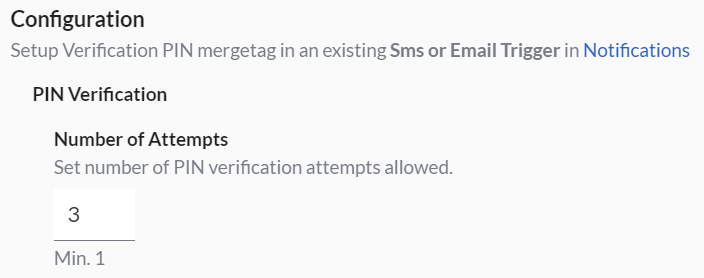 *Note: When the maximum number of attempts is reached, the driver will not be able to complete the Task on VersaDrive. Here are the next steps for the driver:
- incomplete the task
- add a reason for not being able to verify the PIN
- request a new PIN from the operator (See PIN request)
- request a new PIN from VersaDrive (See PIN request)
Strength of PIN
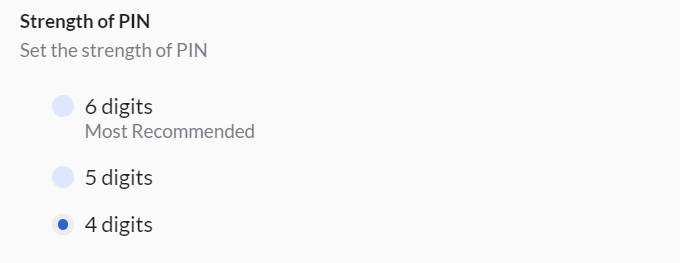 *Note: The longer the number of the PIN, the more secure it will be.
PIN Request
If there's a need for a new PIN request, it can be requested by the driver on VersaDrive or by the operator on VersaFleet. The new PIN will only be sent via SMS.
- To allow the new PIN request via VersaDrive, select Enabled. Set the maximum number of requests allowed.
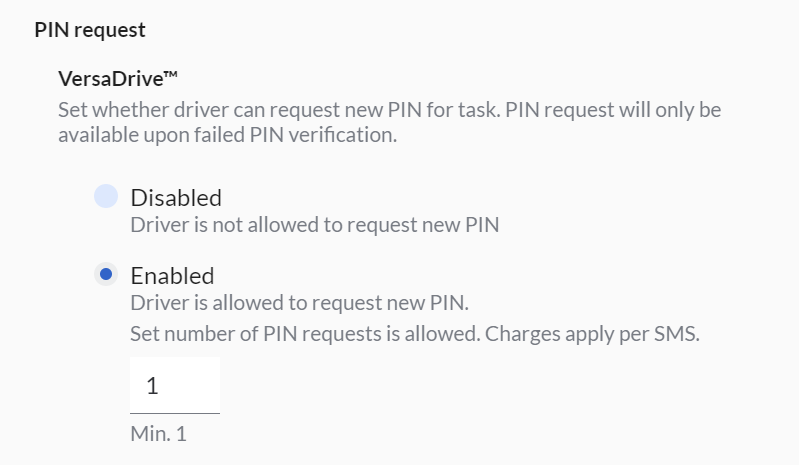
- To allow the new PIN request via VersaFleet, select Enabled. Set the maximum number of requests allowed
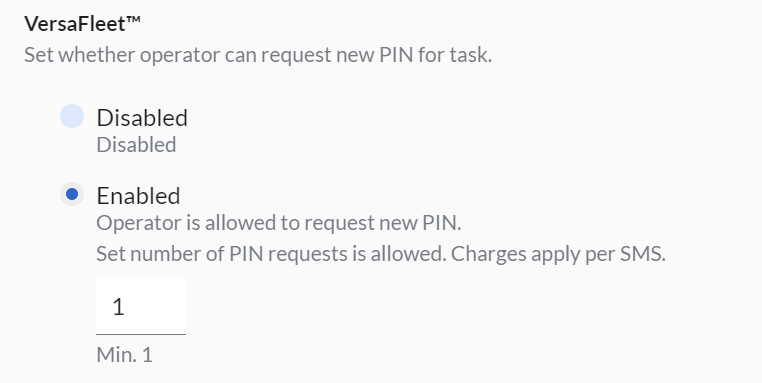
- To allow the new PIN request via VersaDrive, select Enabled. Set the maximum number of requests allowed.
Completing Task without PIN Verification
There may be cases where the driver is allowed to complete the task without PIN Verification. To allow drivers to skip PIN verification and complete the task, select Enabled under Completing Task without PIN Verification.
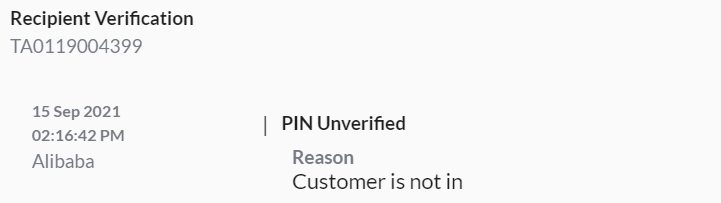
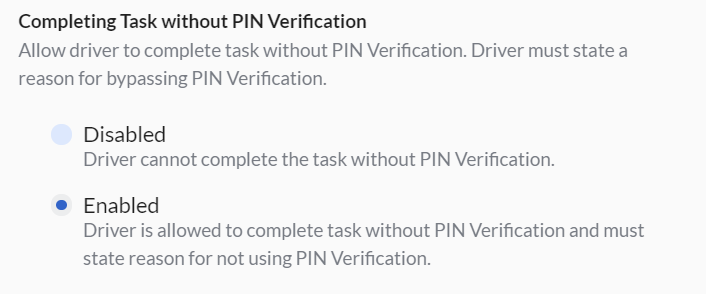 When skipping PIN verification, the driver will have to state the reason. For example, 'Customer is not in'.
Note: This is not recommended because it allows the drivers to make use of this feature deliberately.
In the Task Filters section, you'll be able to configure the constraints that will trigger the PIN generation for the task.
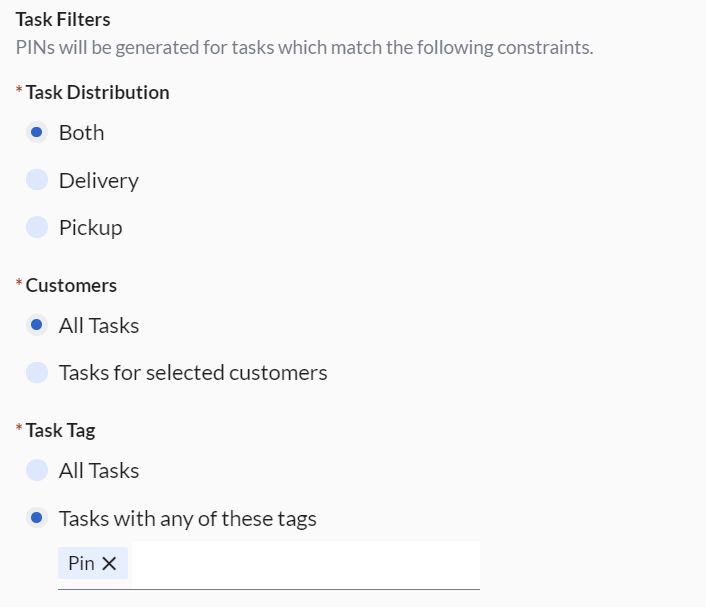
- 'Task Distribution' refers to the Job Type of the task
- 'Customers' refers to the Customer that the task is created for
- 'Task Tag' refers to the tag that is included in the task
- Hit Save Configuration
Setting up a PIN in SMS or Email Triggers
To include the PIN in SMS or Email Triggers:
- Go to Settings > Notifications > Task SMS Triggers or Task Email Triggers
- Click + New Template
- Under Email Template or SMS Template, add the PIN by using the [Verification PIN] mergetag. Here's an example for email.
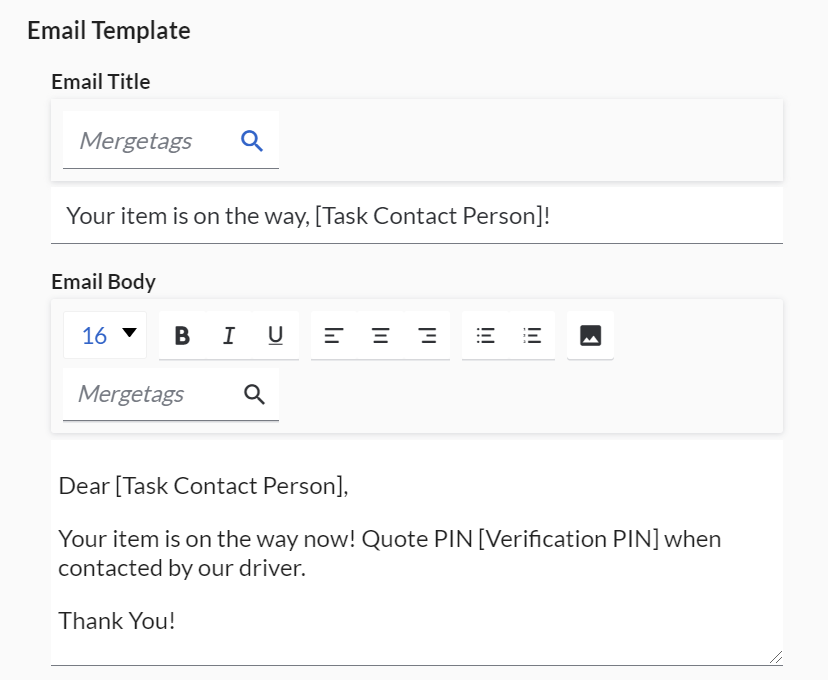 The PIN will be automatically generated by VersaFleet according to the strength of the PIN configured.
Verifying PIN on VersaDrive
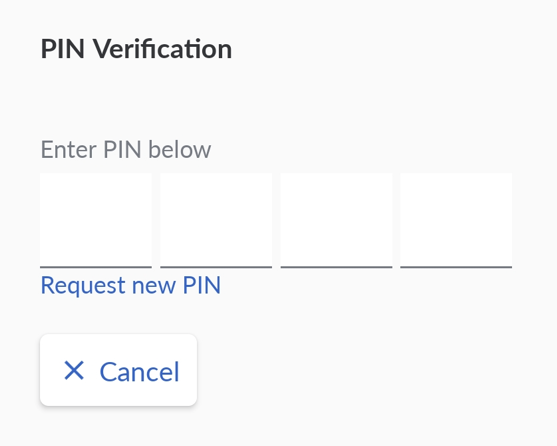
- At the Task Completion page (after swiping 'I've arrived' or verifying items), there will be a Verify PIN field.
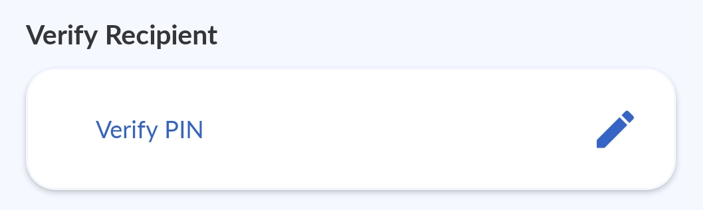
- Key in the PIN given by the recipient and click OK
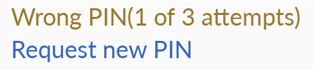
- If the first attempt is not right, the driver may key in again, up to the maximum number of attempts set. The maximum number of attempts will also be shown.
- If PIN request via VersaDrive is activated, click 'Request New PIN'. The recipient will receive an SMS with the new PIN. The number of new PIN requests via VersaDrive is configured in PIN Request.
- If PIN request via VersaFleet is activated, contact the operator to request a new PIN on VersaFleet. The recipient will receive an SMS with the new PIN.
- If PIN request via VersaDrive is activated, click 'Request New PIN'. The recipient will receive an SMS with the new PIN. The number of new PIN requests via VersaDrive is configured in PIN Request.
- When the maximum number of attempts has been made, the driver may do either of the following:
- click 'Cannot verify PIN' and key in the reason for failure to verify PIN, if Completing Task without PIN Verification is enabled.

- incomplete the task, if Completing Task without PIN Verification is disabled.
- click 'Cannot verify PIN' and key in the reason for failure to verify PIN, if Completing Task without PIN Verification is enabled.
Requesting a new PIN on VersaFleet
To request a new PIN on VersaFleet,
- Go to Planning > Tasks and click on the task that needs a new PIN request
- Click on the Recipient Verification link in the contact details
- Hit Request PIN on the right
- The new PIN will be sent to the recipient via SMS
- The number of new PIN requests via VersaFleet is configured in PIN Request.
Viewing PIN Verification Status
To view the PIN Verification status of the task,
- Go to Planning > Tasks
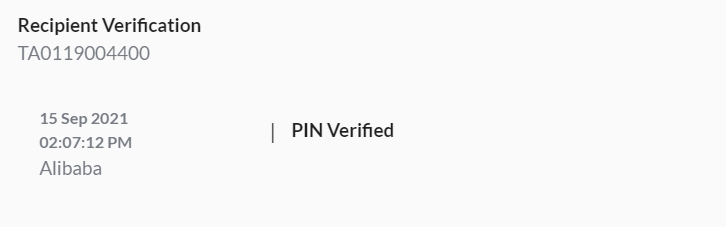
- Select a task in which Recipient Verification is applied ('Complete' for delivery task or 'Collected' for pickup task) and click on the Recipient Verification link in the task contact details.
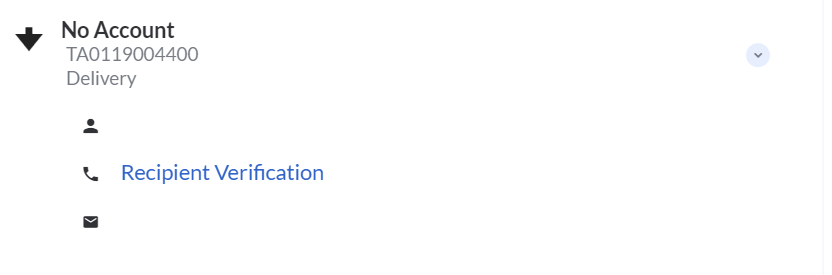
- If the PIN has been verified
- If the PIN was not verified
- If the PIN has been verified
Configuring Data Verification
Creating a Custom Field to verify
- Go to Settings > Add-Ons > Custom Fields
- Select + New Group and set up the Field Group Name
- Create the Custom Field by giving it a name
- Check Show on VersaDrive and choose Text
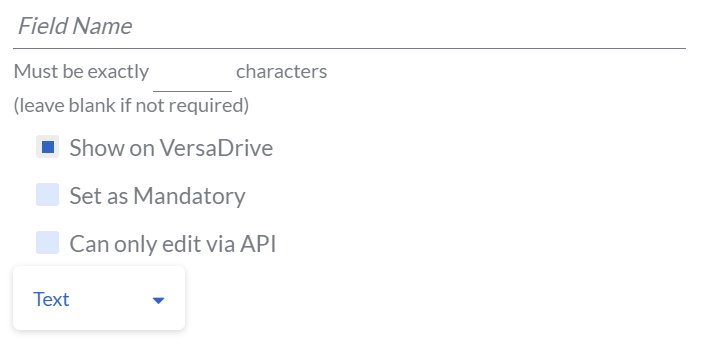
- Hit Save Field Group
Creating the Data Verification Custom Note
- Go to Settings > VersaDrive > Task Completion
- Under Notes, select Custom
- Click + Add Field and choose Data Verification
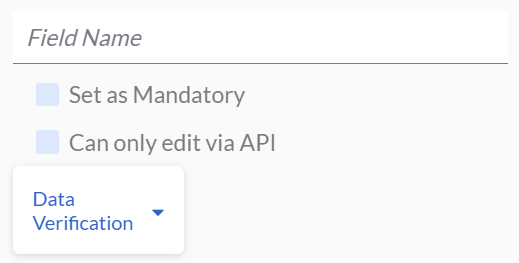
- Select the Custom Field Group and the Custom Field. This will be the data that will be verified against on VersaDrive when the driver meets the recipient. The data has to be verified on VersaDrive before the driver is able to complete the task.
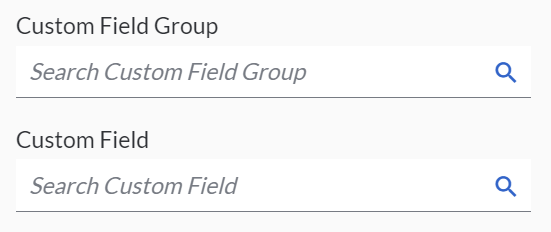
- Hit Save Configurations
Note: Both Custom FIelds and Custom Notes are required for Data Verification.
Using Data Verification Custom Note
In VersaFleet,
- Create a Task with the Custom Field for Data Verification filled
- Assign the task to a driver
In VersaDrive,
- At the Task Completion page (after swiping 'I've arrived' or verifying items), there will be the Data Verification Custom Note
- Key in the unique detail or identifier from the recipient
- If the data is verified correctly, the driver will be able to proceed to complete the task
- If the data is not verified correctly, the driver will not be able to proceed to complete the task and will have to contact the operator.