You’ll first need to have a clear understanding of the difference between a job and task, alternatively, you may go through the tutorial in VersaDrive.
The Job and Task will be shown differently, depending on the Job Type. A Point-to-Point Job Type is similar to a Delivery Job Type, but with only one delivery task.
Any configurations related to VersaDrive™ can be done in Settings > VersaDrive, on VersaFleet™.
Delivery Job and Delivery Tasks
- The Delivery Job will be shown first. A Delivery Job can be identified by a warehouse icon with goods going out.
The workflow is such that after the items listed in the Delivery Job have been collected, the Delivery Tasks will then be shown.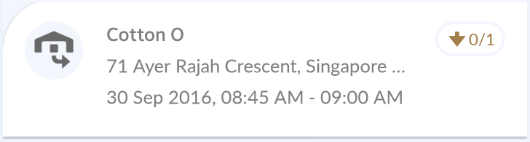
- Click on the Delivery Job and you will see the list of Delivery Tasks under the Job.
A Delivery Task can be identified by a down arrow icon.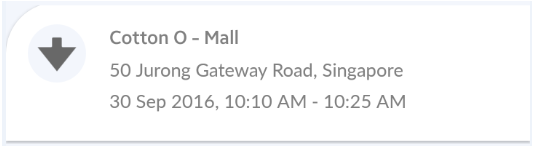
- Check the items that have been collected in the list. You may tap on Collect All or tap the Tick button of those that have been collected and the Collect button.
This is to ensure that all the items to be collected have been handed over to the driver. Confirm to save this update.
 - Back to Runsheet, the delivery tasks will then be shown. Select the delivery task and you'll see the task details
- Hit the Start button to begin the task. This will send a notification to VersaFleet.

- To find directions to the destination, tap on the Drop-pin icon. This will launch any map app that is installed on the phone.
To contact the Task Contact Person, press the Phone icon. When the number is copied to your phone, you'll have to append a '+' in from of the number to ensure that the call will be successful.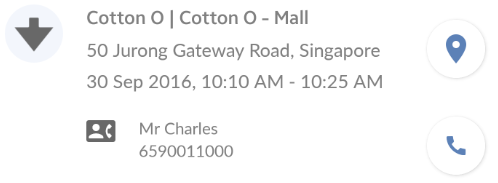
- You can attach photos anytime and have them uploaded to VersaFleet
- To attach a photo, hit Add Photos. You can either Take Photo or Choose Photo(s)
- Once you have taken or chosen a photo, press OK and the photo will be uploaded. You may upload more than 1 photo.
- To attach a photo, hit Add Photos. You can either Take Photo or Choose Photo(s)
- Next, the driver is able to mark the task as Complete or Incomplete.
- Completing a task
- Slide the I've arrived button to the right
- Key in the Actual Cash-on-Delivery and proceed to the next step
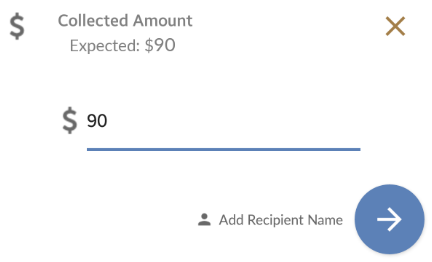
- Add the Recipient Name and proceed to the next step
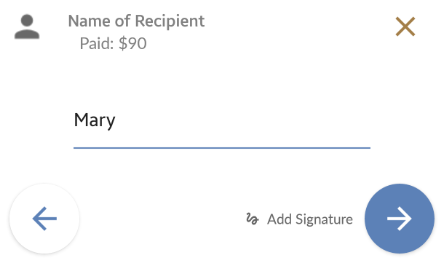
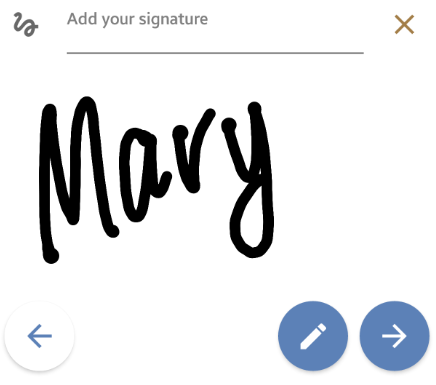
- Add Signature and proceed to the next step.
- Add as many photos as you wish and any notes required
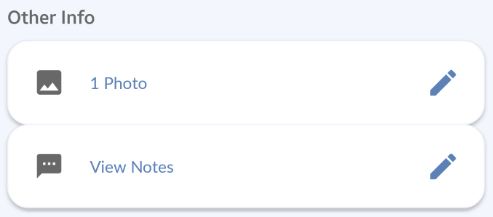
- Hit Success to submit details. You'll see a summary of the task completion details.

- Incompleting a task
- Slide the Incomplete button to the right
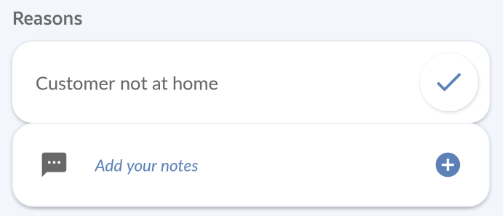
- Select the incomplete reasons and add any notes required
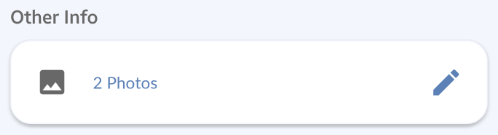
- Add as many photos as you wish
- Click Done to submit details. You'll see a summary of the task completion details.
- Completing a task
- The task will be moved to the Completed tab and the status will be indicated at the top right.
Pickup Job and Pickup Tasks
- Pickup Tasks and the Pickup Job are shown together.
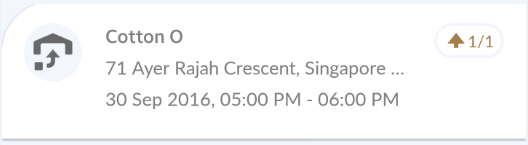
A Pickup Task can be identified by an up-arrow icon. A Pickup Job can be identified by a warehouse icon with goods coming in.
The workflow is such that after the items in the Pickup Tasks are collected, the Pickup Job can then be completed.
- Click on the Pickup Task and you will see task details
- Hit the Start button to begin the task. This will send a notification to VersaFleet.

- To find directions to the pickup point, tap on the Drop-pin icon. This will launch any map app that is installed on the phone.
To contact the Task Contact Person, press the Phone icon. When the number is copied to your phone, you'll have to append a '+' in front of the number to ensure that the call will be successful.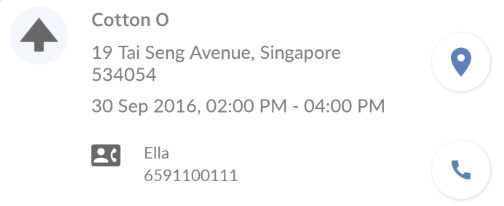
- You can attach photos anytime and have them uploaded to VersaFleet
- To attach a photo, hit Add Photos. You can either Take Photo or Choose Photo(s)
- Once you have taken or chosen a photo, press OK and the photo will be uploaded. You may upload more than 1 photo.
- To attach a photo, hit Add Photos. You can either Take Photo or Choose Photo(s)
- Next, the driver is able to mark the task as Collectedor Incomplete
- Collecting a task
- Slide the I've arrived button to the right
- Key in the Actual Cash-on-Delivery and proceed to the next step
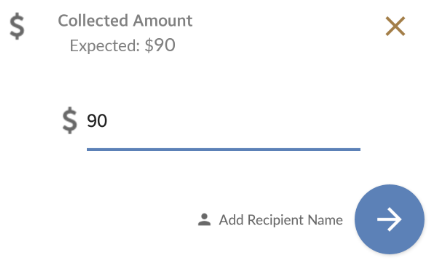
- Add the Recipient Name and proceed to the next step
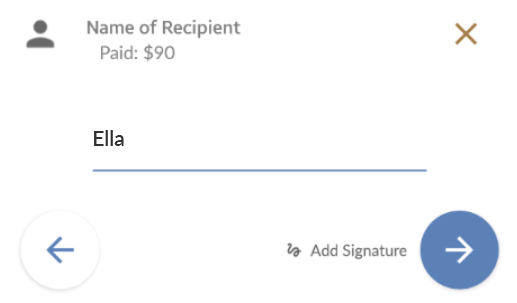
- Add Signature and proceed to the next step
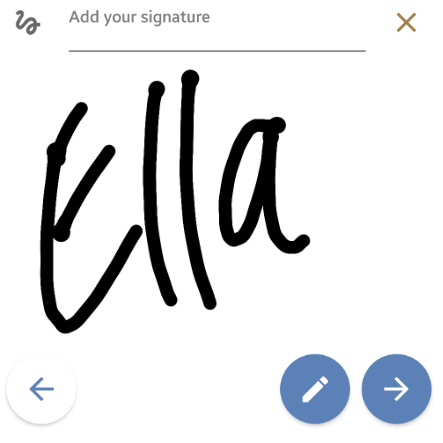
- Add as many photos as you wish and any notes required
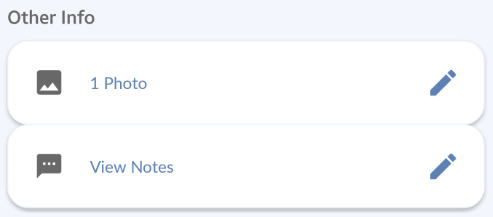
- Hit Collect to submit details. You'll see a summary of the task completion details.
- Incompleting a task
- Slide the Incomplete button to the right
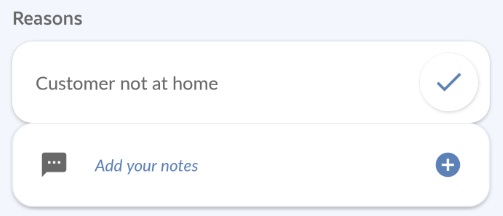
- Select the incomplete reason and add any notes required.
- Add as many photos as you wish
- Hit Fail to submit details. You'll see a summary of the task completion details
- Collecting a task
- The task will be moved to the Completed tab and the status will be indicated at the top right
- When all the pickup tasks have been completed, you can then update the Pickup Job. The job progress can be seen at the top right of the Job. Click on the Job and you will see the list of Tasks under the Job
- Check the items that have been delivered within the list. You may tap on Deliver All or tap the Tick button of those that have been delivered and the Deliver button
This is to ensure that all the items picked up have been delivered to the single delivery point.
Confirm to save this update.
Working Offline
In order to send real-time updates back to VersaFleet, you'll need to be connected to a Wi-Fi or mobile network. However, if you're not connected, the information (photos, signatures, recipient names, COD and notes) are captured locally and they will be updated when the phone is connected to a mobile network.