What is Line Item Validation
This is a feature for drivers to validate each individual item in VersaDrive to make sure that the items which they are delivering are correct. If the item has discrepancies, the driver can select the reason and report to their superiors.
Setting up Line Item Validation
Line Item Validation can be enabled on VersaFleet.
To enable Line Item Validation,
- Go to Settings > VersaDrive > Line Item Validation
- Choose Enabled or Disabled:
- Enabled: Drivers can validate item.
- Disabled: Drivers don't have to validate line item.
- Set the configurations for Line Item Validation
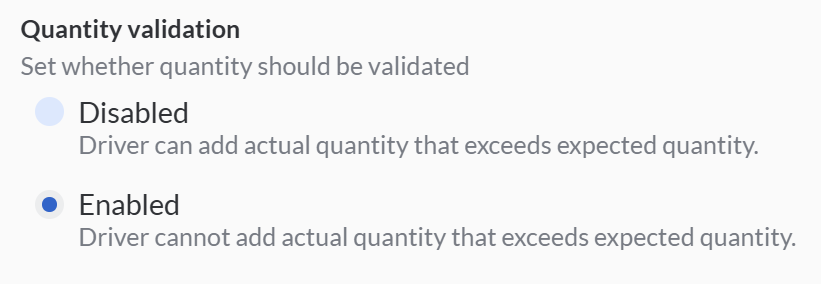
- Set whether quantity should be validated
- Enabled: Driver cannot add actual quantity that exceeds expected quantity.
- Disabled: Driver can add actual quantity that exceeds expected quantity.
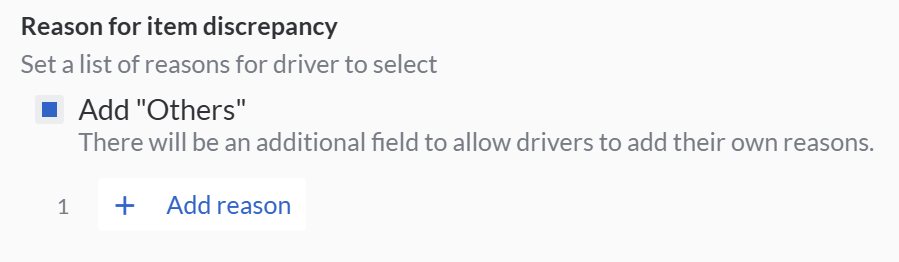
- Under 'Reason for item discrepancy', set a list of reasons for driver to select and/or tick Add "Others" for the additional field to allow drivers to add their own reasons
- Set whether quantity should be validated
Hit Save Configurations to save.
Expected Behaviour on VersaDrive
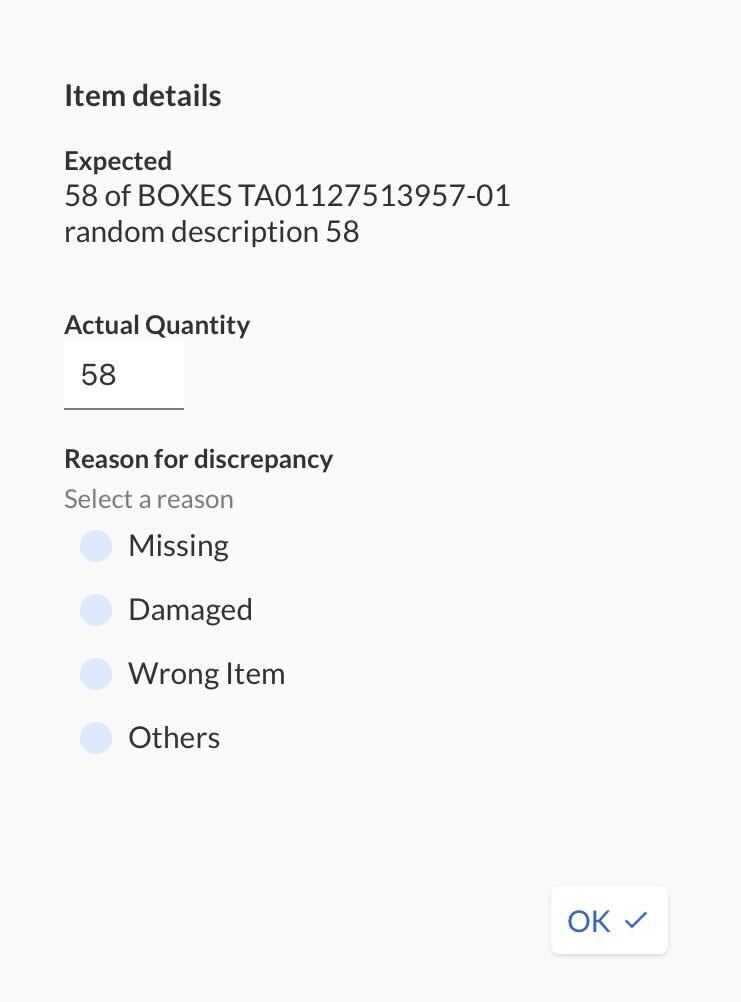
- After the driver has swiped I’ve arrived, the driver will see Verify Line Items on the page and the quantity that should be delivered.
- Click on the item details on the following page
- Input the actual quantity
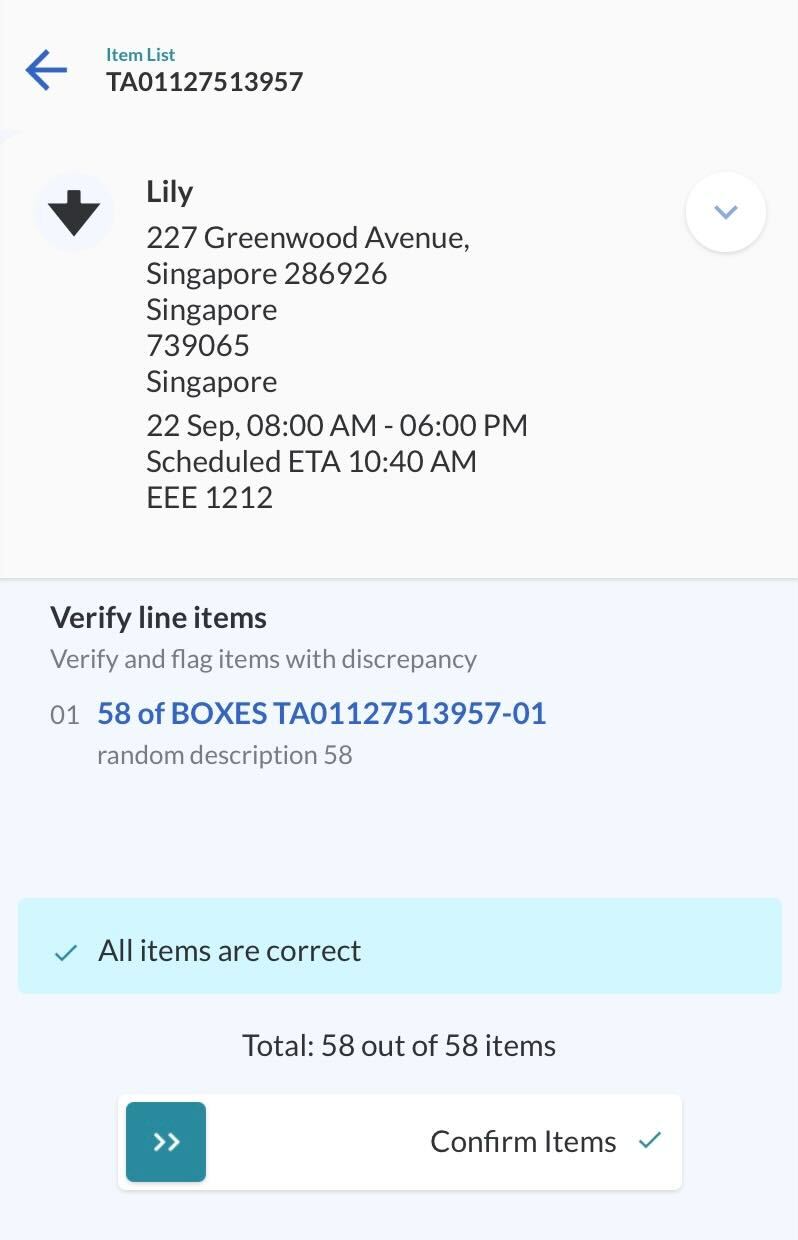
- If all items are correct, the line All items are correct will appear
- If some items are incorrect, the line X line items have some variations
- Swipe right Confirm Items
On VersaFleet™
- The operator will be able to see the discrepancies instantly once the driver has completed his delivery.

- The operator will receive a notification which contains a warning sign that says line item has discrepancies.
Usage of Line Items in VersaFleet™
Exporting Jobs
- The VersaFleet user will able to retrieve information regarding the actual and expected item quantity and the reason for discrepancy in the Excel sheet when exporting jobs
- This increase the convenience of the user as they can view the jobs' information for a period of time on a single Excel Sheet
Electronic Proof-of-Delivery (e-POD)
- The task items with line validation can be configured and displayed in a table view on the e-POD which can either be printed or emailed to the customer.
- Whoever is looking at the e-POD can see at one glance the items that are validated/require validation
Task Label
- The task items with line validation can also be configured and shown on the task label which will be pasted on the delivered items
- This allows the driver to double confirm on what is on his VersaDrive