Each task is usually created from a single order with a unique order reference number and a unique delivery/pickup address. Sometimes, there could be multiple orders created for the same delivery/pickup address. This could result in having the driver complete multiple tasks of the same delivery/pickup address and get the signature from the same recipient multiple times.
Grouped Tasks allows drivers to be able to complete multiple tasks of the same task address at one go, avoiding the need to complete multiple tasks of the same delivery/pickup address.
Contact us at support@versafleet.co if you'd like to activate Grouped Tasks for your account.
Conditions of Grouped Tasks
- Applicable for all Job Types
- Tasks to be grouped have to have the exact same values in all of the address fields:
- Name of Building
- Street Address
- Unit No./ Floor
- City / State
- Postal Code
- Country
- Latitude
- Longitude
- Tasks from different Jobs can be grouped together
Display of Grouped Tasks on VersaFleet
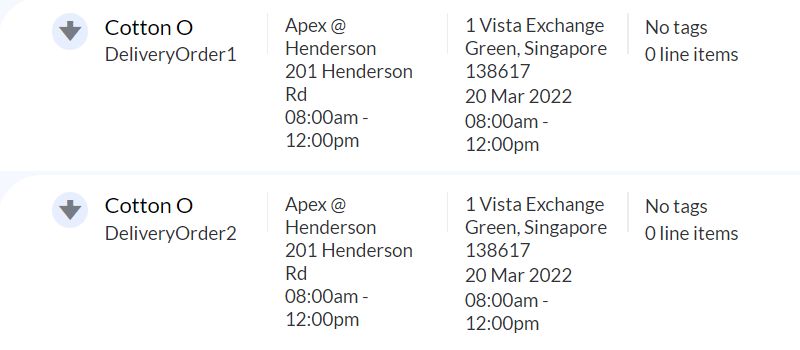
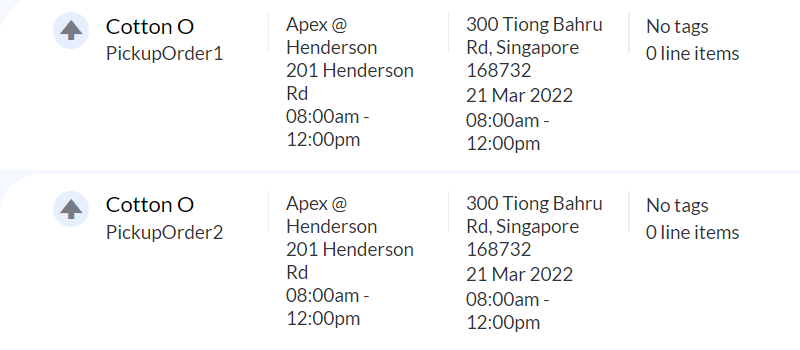
Each Task will be displayed as a separate line:
- Multiple Tasks of the same delivery address
- Multiple Tasks of the same pickup address
Display of Grouped Tasks on VersaDrive
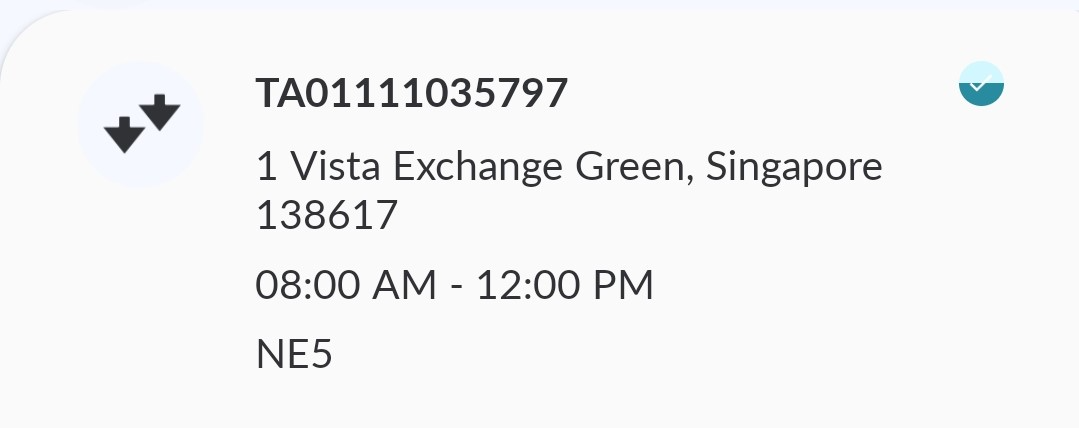
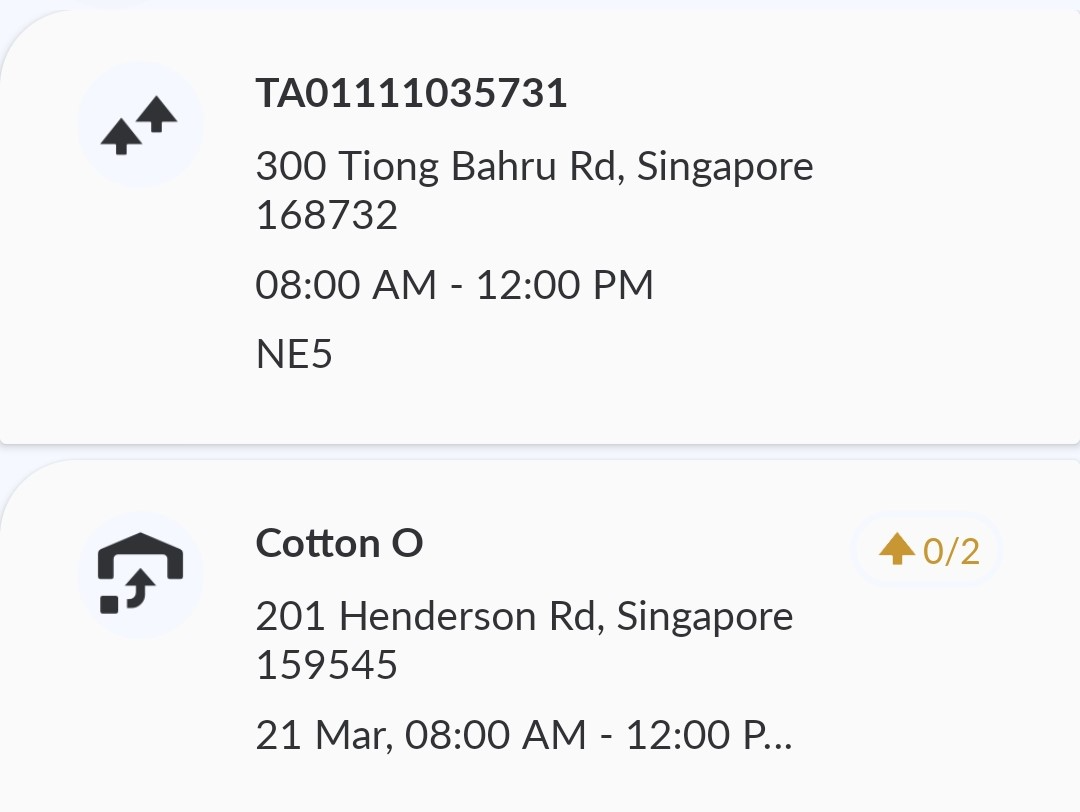
Tasks with the same task address will be grouped together and there will be either 'double down' or 'double up' arrows shown:
- Multiple Delivery Tasks of the same delivery task address (after 'Collected')
- Multiple Pickup Tasks of the same pickup task address (before 'Started')
Workflow of Grouped Tasks on VersaDrive
Delivery Job
- After collection, the driver will click 'Start' in which the status will be applied for all tasks in the group.

- Driver will swipe 'Complete' in which the status will be applied for all tasks in the group.

- There will be a countdown timer for which the tasks will automatically be 'Delivered' after the countdown. If the driver would want the action to be applied immediately, he can click 'Confirm' during the countdown. The driver is able to stop the action by clicking 'Undo' before the timer runs out.
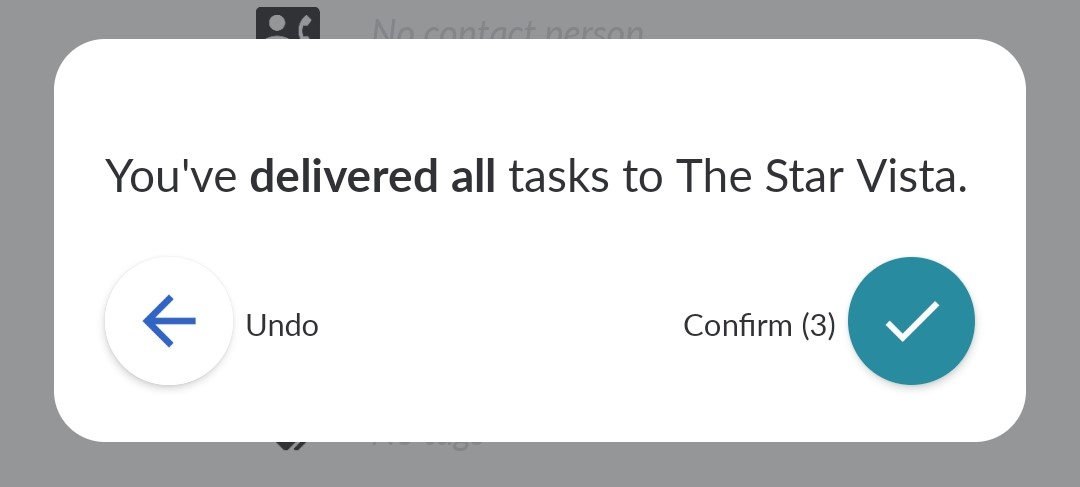
- Note: There are no Cash on Delivery (COD), photos, signature or notes to be captured.
- There will be a countdown timer for which the tasks will automatically be 'Delivered' after the countdown. If the driver would want the action to be applied immediately, he can click 'Confirm' during the countdown. The driver is able to stop the action by clicking 'Undo' before the timer runs out.
- For incomplete collection, the driver can swipe 'Incomplete' and the status will be applied for all tasks in the group.

- There will be a countdown timer for which the tasks will automatically be 'Incomplete' after the countdown. If the driver would want the action to be applied immediately, he can click 'Confirm' during the countdown. The driver is able to stop the action by clicking 'Undo' before the timer runs out.
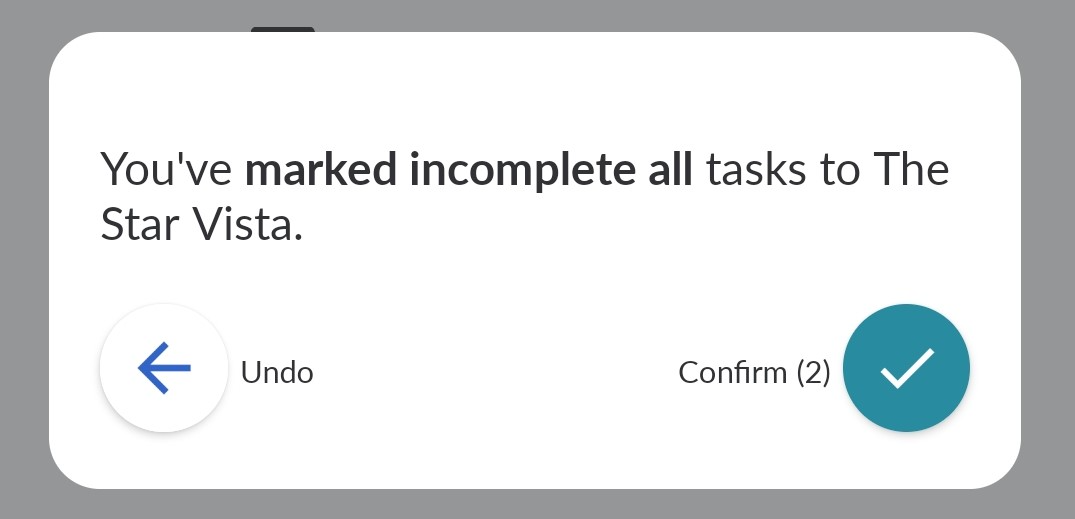
- Note: There are no reasons, notes or photos to be captured.
- There will be a countdown timer for which the tasks will automatically be 'Incomplete' after the countdown. If the driver would want the action to be applied immediately, he can click 'Confirm' during the countdown. The driver is able to stop the action by clicking 'Undo' before the timer runs out.
Pickup Job
- Driver will click 'Start' in which the status will be applied for all tasks in the group.

- Driver will swipe 'Collect' in which the status will be applied for all tasks in the group.

- There will be a countdown timer for which the tasks will automatically be 'Collected' after the countdown. If the driver would want the action to be applied immediately, he can click 'Confirm' during the countdown. The driver is able to stop the action by clicking 'Undo' before the timer runs out.
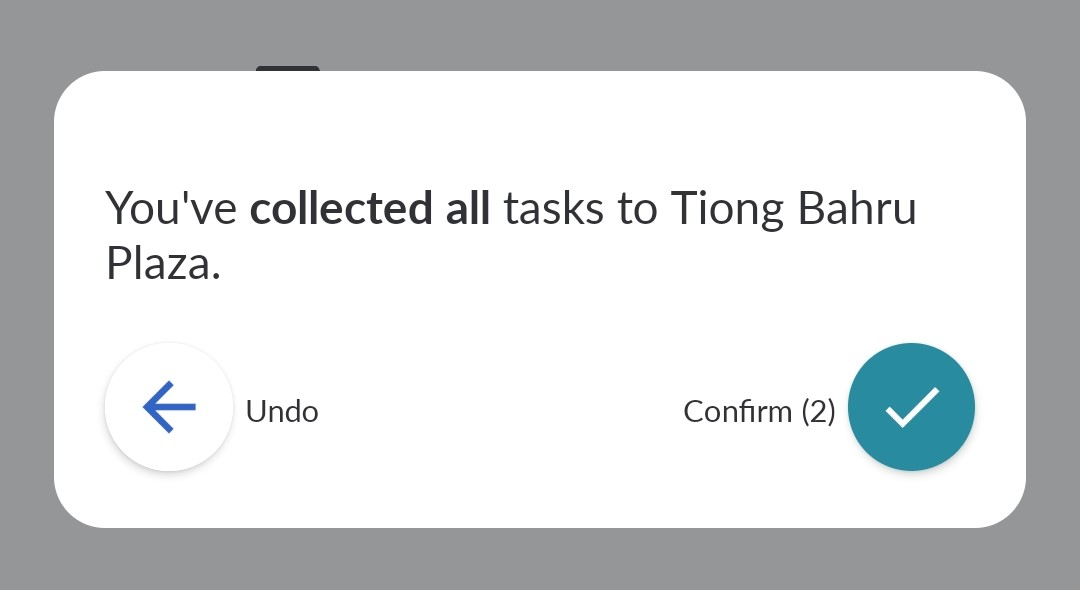
- Note: There are no Cash on Delivery (COD), photos, signature or notes to be captured.
- There will be a countdown timer for which the tasks will automatically be 'Collected' after the countdown. If the driver would want the action to be applied immediately, he can click 'Confirm' during the countdown. The driver is able to stop the action by clicking 'Undo' before the timer runs out.
- For incomplete collection, the driver can swipe 'Incomplete' and the status will be applied for all tasks in the group.

- There will be a countdown timer for which the tasks will automatically be 'Collected' after the countdown. If the driver would want the action to be applied immediately, he can click 'Confirm' during the countdown. The driver is able to stop the action by clicking 'Undo' before the timer runs out.
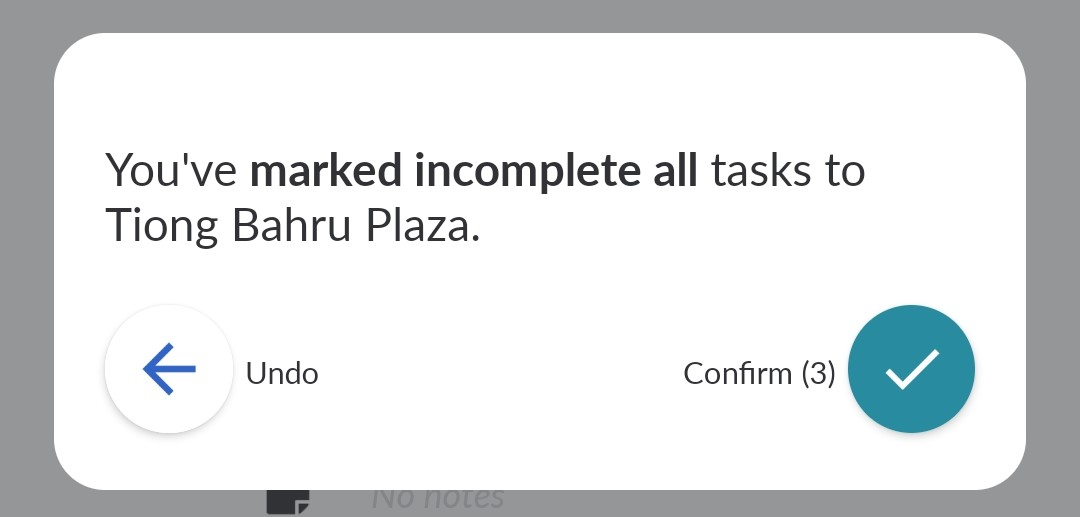
- Note: There are no reasons, notes or photos to be captured.
- There will be a countdown timer for which the tasks will automatically be 'Collected' after the countdown. If the driver would want the action to be applied immediately, he can click 'Confirm' during the countdown. The driver is able to stop the action by clicking 'Undo' before the timer runs out.