Email notifications can be triggered based on a specific Job Status or Task Status to keep all relevant parties informed of the current state of the delivery or pickup. There are 2 types of email triggers:
- Task Email Triggers
- Job Email Triggers
Sending email notifications are free of charge, unlike SMS Triggers.
These email notifications are sent from a generic email address, no-reply@delivery.order. If you would like to send the email notifications from an email from your domain, please contact us at support@versafleet.co.
In this article, you'll learn how to configure Email Triggers in your VersaFleet account.
Job and Task Email Triggers
To configure email notifications,
- Go to Settings > Notifications
- Click on Task Email Triggers or Job Email Triggers
- Hit + New Template
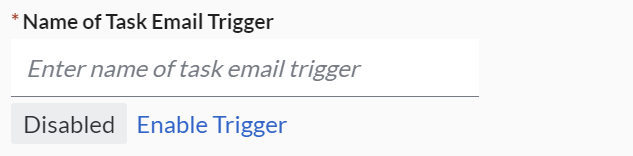
- Fill in the name of the Email Trigger and click Enable Trigger to activate it.
- In the Job Filters or Task Filters section, you’ll be able to configure the conditions that will trigger an email.
- Job Type: Delivery or Pickup
- Task Status or Job Status: Pick a status to define when the email notification will be sent out.
- If you are looking to trigger emails at different statuses, you will have to create a new template for each status.
- If you'd like to attach the EPOD, this is available for the 'Complete' status of a Delivery task and the 'Collected' status of a Pickup task.
- If you'd like to attach the Documents or Photos that have been attached to the task, this is available for the 'Complete' and 'Incomplete' statuses of a Delivery task, and the 'Collected' and 'Incomplete' statuses of a Pickup task.
- Customers: Define a specific customer whose Jobs or Tasks you would like the email notification to be triggered.
- Task Tags or Job Tags: Choose a tag in which you would like the email notification to be triggered.
- Specify the Recipient who will be receiving the email notification.
- Customer refers to the contact email of the customer contact person for which the job is created. This contact person and the contact email can be set up in Customers.
- Job Contact Person refers to the contact email defined in the job.
- Task Contact Person (For Task Email Triggers only) refers to the contact email defined in the task.
- Allocatee (For Task Email Triggers only) refers to the transporter.
- Other email addresses refer to additional recipients who are not defined in the earlier recipient categories. Useful for notifications to an internal team inbox.
- In the Email Template section, you'll be able to describe the email title and design the email content.
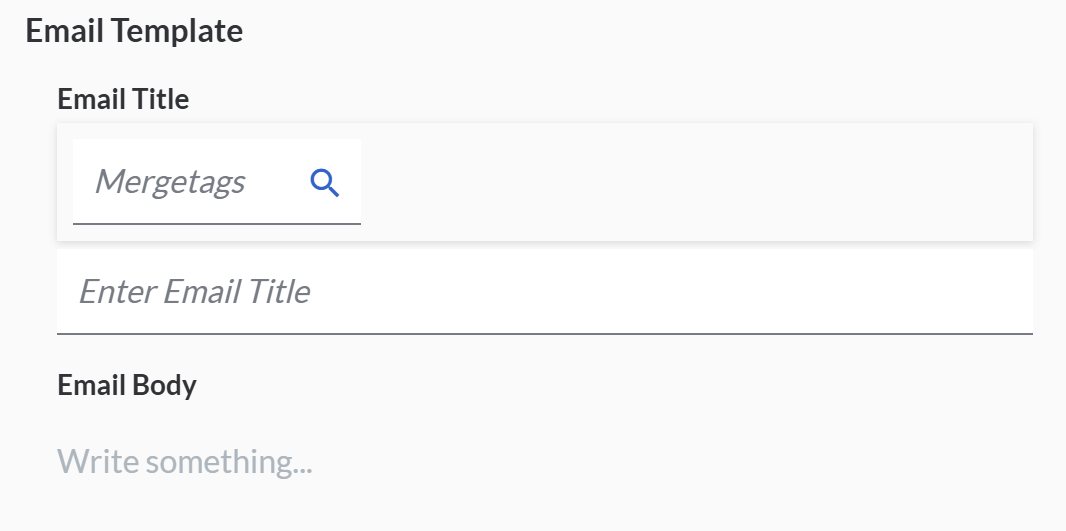
- Use meregtags to display dynamic information in your message. Each mergetag corresponds to a unique field, which looks like a snippet of text enclosed by square brackets: [Customer Name].
- The formatting toolbar allows you to customise the look and feel of the email body.
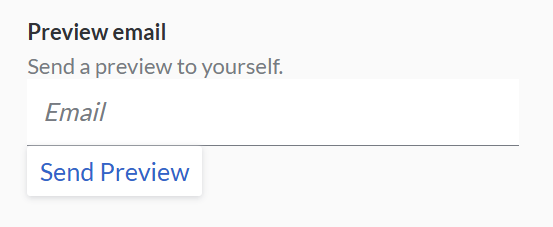
- To see a preview of the email, fill in your email address and hit Send Preview. If mergetags were used, the email will contain some sample information.
- Hit Save Template to save the template as configured.
Exporting Email Notifications
To export out the email notifications that were sent out,
- From the menu on the top right, select Manage Billing > Triggers
- Under Email, hit Export Email to export Email messages.
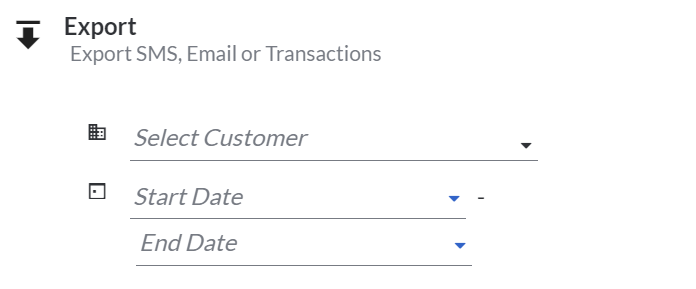
- It is recommended to define the date range of the email notifications that you want to export. To export for all customers, leave 'Select Customer' as unselected.
- Hit Export Email and you will be able to download the export in .xlsx format.
- The columns in the export file of email notifications are:
- To (List of recipients)
- Subject
- Content
- Date and Time (Timestamp of when the email was sent)
- Customer
View Email Stats
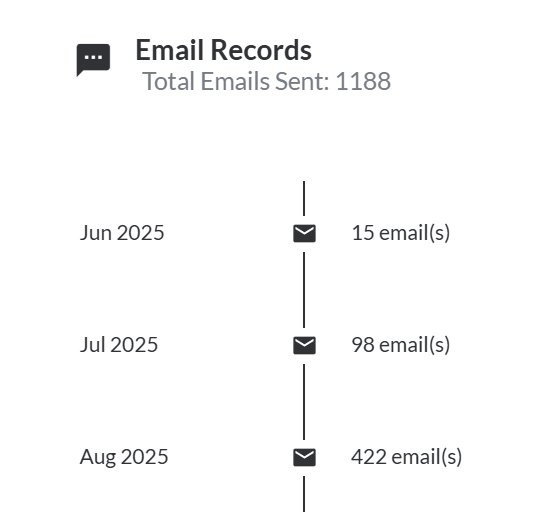
To view a summary of the number of email notifications sent out every month,
- From the menu on the top right, select Manage Billing > Triggers
- Under Email, hit Email Stats to view Email stats.
Merge Tags Cheat Sheet
| Merge Tag Type | Merge Tag | Description |
|---|---|---|
| Account | Company Name | Inserts your Company's name |
| Job | Customer Name | Inserts your Customer's name |
| Job | Customer Contact Email | Inserts your Customer's email address |
| Job | Customer Contact Person | Inserts the name of your Customer's contact person |
| Task | Account Name | Inserts the contact number of your Customer's contact person |
| Job | Job Type | Displays the Job Type - Pickup or Delivery |
| Job | Base Task Type | Displays the Base Task Type - Pickup or Delivery (Opposite of Job Type) |
| Job | Job Name of Building | Displays the name of building of the job |
| Job | Job Street Address | Displays the street address of the job |
| Job | Job Unit No. / Floor | Displays the unit no. or floor of the job |
| Job | Job City / State | Displays the city or state of the job |
| Job | Job Postal Code | Displays the postal code of the job |
| Job | Job Country | Displays the country of the job |
| Job | Job Full Address | Displays the full address of the job |
| Job | Job Date | Displays the date of the job, for example, 5th May 2025 |
| Job | Job Time Range | Displays the time range of the job, for example, 09:00AM to 1:00PM |
| Job | Job Time Range Start | Displays the start time range of the job |
| Job | Job Time Range End | Displays the end time range of the job |
| Job | Job Time Window | Displays the Time Window name of the job |
| Job | Job Scheduled Time | Displays the scheduled time of the job |
| Job | Job Contact Person | Inserts the name of the job’s contact person |
| Job | Job Contact Number | Inserts the contact number of the job’s contact person |
| Task | Task Name of Building | Displays the name of building of the task |
| Task | Task Street Address | Displays the name of building of the task |
| Task | Task Unit No. / Floor | Displays the unit no. or floor of the task |
| Task | Task City / State | Displays the city or state of the task |
| Task | Task Postal Code | Displays the postal code of the task |
| Task | Task Country | Displays the country of the task |
| Task | Task Full Address | Displays the full address of the task |
| Task | Task Date | Displays the date of the task, for example, 5th May 2025 |
| Task | Task Time Range | Displays the time range of the task, for example, 09:00AM to 1:00PM |
| Task | Task Time Range Start | Displays the start time range of the task |
| Task | Task Time Range End | Displays the end time range of the task |
| Task | Task Time Window | Displays the Time Window name of the task |
| Task | Task Scheduled Time | Displays the scheduled time of the task |
| Task | Invoice Number | Displays the invoice number of thetask |
| Task | Price ($) | Displays the price indicated in the task |
| Task | Task Notes | Displays the notes of the task |
| Task | Task Contact Person | Inserts the name of the task’s contact person |
| Task | Task Contact Number | Inserts the contact number of the task’s contact person |
| Task | Task ID | Pulls in the ‘Task ID’ from the task |
| Job | Job ID | Pulls in the ‘Job ID’ from the job |
| Task | Tracking ID | Pulls in the ‘Tracking ID’ from the task |
| Task | COD Expected | Displays the expected Cash-on-Delivery |
| Task | COD Actual | Displays the actual Cash-on-Delivery |
| Task | Date & Time of Last Status Update | Displays the date timestamp of the last status update to the task |
| Task | Task Creation Date & Time | Displays the date timestamp of when the task was created |
| Task | Task Last Started Date & Time | Displays the date timestamp of when the task was started |
| Task | Task Last Arrived Date & Time | Displays the date timestamp of when the task was arrived |
| Task | Task Last Collected Date & Time | Displays the date timestamp of when the task was collected |
| Task | Task Last Completed Date & Time | Displays the date timestamp of when the task was completed |
| Task | Task Last Incompleted Date & Time | Displays the date timestamp of when the task was incompleted |
| Task | Driver Name | Displays the name of the driver assigned to the task |
| Task | Driver Contact Number | Displays the contact number of the driver assigned to the task |
| Task | Vehicle Plate Number | Displays the driver's vehicle plate number assigned to the task |
| Task | Tracking URL | Displays the link of the tracking page |
| Task | Recipient Name | Displays the name of recipient indicated upon task completion on VersaDrive |
| Job | Rejection Reason | Displays the reason indicated in the job when rejecting the job submitted via MyJobs |
| Job | Job Completion Notes | Displays the notes indicated in the job upon job completion on VersaDrive |
| Task | Task Completion Notes | Displays the notes indicated in the task upon task completion on VersaFleet or VersaDrive |
| Task | Task First Incompletion Notes | Displays the notes indicated in the task upon the first task incompletion on VersaDrive |
| Task | Task Second Incompletion Notes | Displays the notes indicated in the task upon the second task incompletion on VersaDrive |
| Task | Task Third Incompletion Notes | Displays the notes indicated in the task upon the third task incompletion on VersaDrive |
| Task | Task Cancellation Notes | Displays the notes indicated in the task upon task cancellation on VersaFleet |
| Task | Custom Fields | Displays the value of the custom field indicated in the task |
Note: If there are more than 1 task in a job, the values of the first 2 tasks will be displayed.