SMS notifications can be triggered based on a specific Job Status or Task Status to keep all relevant parties informed of the current state of the delivery or pickup. There are 2 types of SMS triggers:
- Task SMS Triggers
- Job SMS Triggers
Sending SMS notifications are chargeable at USD 0.05 per SMS credit. Each SMS notification may consume more than 1 SMS credit depending on the length of the SMS message. As a general guide, 1 SMS credit will be consumed for every 160 characters in the SMS message.
Job and Task SMS Triggers
To configure SMS notifications,
- Go to Settings > Notifications
- Click on Task SMS Triggers or Job SMS Triggers.
- Hit + New Template
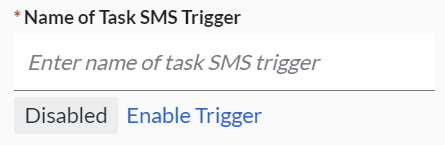
- Fill in the name of the SMS Trigger and click Enable Trigger to activate it.
- In the Job Filters or Task Filters section, you'll be able to configure the conditions that will trigger an SMS.
- Job Type: Delivery or Pickup
- Task Status or Job Status: Pick a status to define when the SMS notification will be sent out.
- If you are looking to trigger SMSes at different statuses, you will have to create a new template for each status.
- Customers: Define a specific customer whose Jobs or Tasks you would like the SMS notification to be triggered.
- Task Tags or Job Tags: Choose a tag in which you would like the SMS notification to be triggered.
- Specify the Recipient who will be receiving the SMS notification.
- Customer refers to the contact number of the Customer contact person for which the job is created. This contact person and the contact number can be set up in Customers.
- Job Contact Person refers to the contact number defined in the job.
- Task Contact Person (For Task SMS Triggers only) refers to the contact number defined in the task.
- Allocatee (For Task SMS Triggers only) refers to the transporter.
- Other mobile numbers refer to additional recipients who are not defined in the earlier recipeient categories. Useful for notifications to an internal team member.
- In the SMS Template section, you'll be able to describe the SMS content.
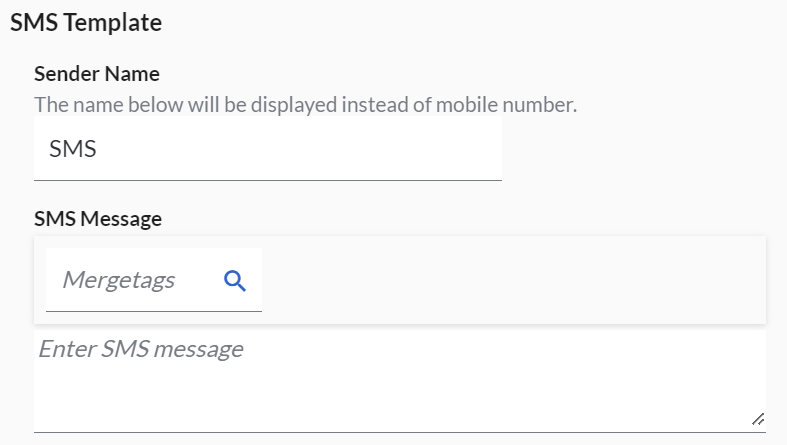
- Define the Sender Name to let your recipient know that it is from a company they know.
- In Singapore, companies must register their own Sender ID, otherwise, the Sender Name will be defaulted to 'Likely-SCAM'.
- In Indonesia, companies must register their own Sender ID to ensure that the SMS can be sent out.
- Use mergetags to display dynamic information in your message. Each mergetag corresponds to a unique field, which looks like a snippet of text enclosed by square brackers: [Customer Name].
- Note: The recipients are unable to reply to the SMS message. You may want to include your Customer Support number in the message.
- Define the Sender Name to let your recipient know that it is from a company they know.
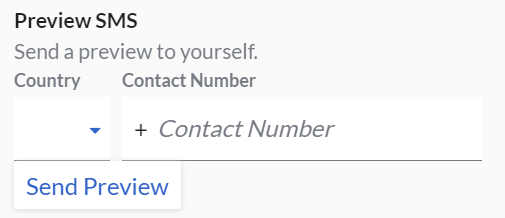
- To see a preview of the SMS, fill in your number and hit Send Preview. If mergetags were used, the email will contain some sample information.
- Hit Save Template to save the template as configured.
SMS Credits
In order to send automated SMSes to recipients, you will need to have some SMS credits.
Checking SMS Credits Balance
To check SMS Credits Balance,
- From the menu on the top right, select Manage Billing > Triggers.
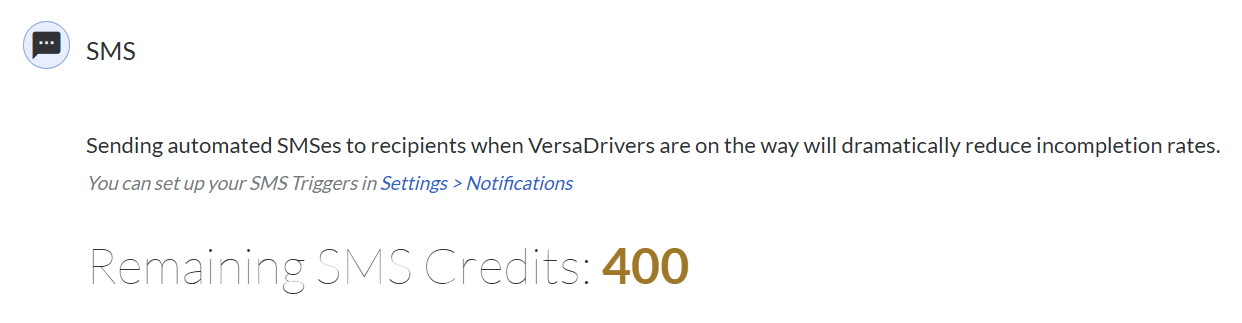
- Under SMS, the SMS Credits Balance will be displayed.
Topping up SMS Credits
To top up SMS credits,
- From the menu on the top right, select Manage Billing > Triggers.
- Under SMS, key in an amount to top-up and hit Top up.
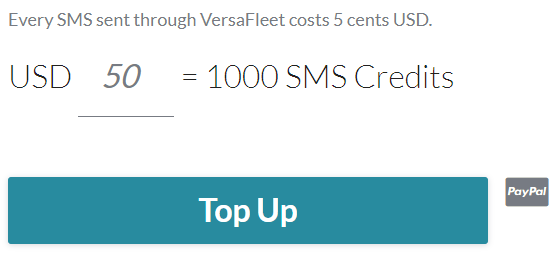
- You'll be redirected to Paypal to complete the payment process.
Exporting Transactions
Each SMS Credits top-up transaction is recorded in your account and can be exported.
To export transactions,
- From the menu on the top right, select Manage Billing > Triggers.
- Under SMS, hit Export Transactions. It is recommended to define the date range of the transactions that you want to export. To export for all customers, leave 'Select Customer' as unselected.
- Hit Export Transactions and you will be able to download the export in .xlsx format.
- The columns in the export file of the Transactions are:
- Category
- Name
- Amount
- Transaction Time
- Method
- Transaction ID
Exporting SMS Notifications
To export out the SMS notifications that were sent out,
- From the menu on the top right, select Manage Billing > Triggers.
- Under SMS, hit Export SMS to export SMS messages. It is recommended to define the date range of the SMS notifications that you want to export. To export for all customers, leave 'Select Customer' as unselected.
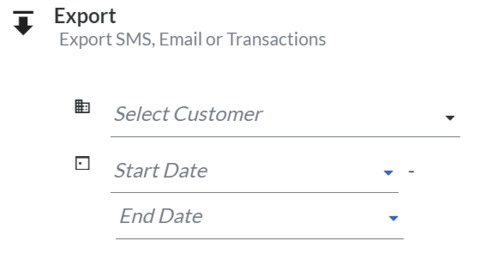
- Hit Export SMS and you will be able to download the export in .xlsx format.

- The columns in the export file of the SMS notifications are:
- To (Recipient's number)
- Content
- Date and Time (Timestamp of when the SMS was sent)
- Customer
- Status (See next section on SMS Delivery Status)
- Provider
SMS Delivery Status
| Status | Description |
|---|---|
| SENT | Message has been sent to the recipient's telco |
| DELIVERED TO CARRIER | Received by the recipient's telco |
| DELIVERED TO DEVICE | Received by the recipient's device |
| REJECTED BY CARRIER | Message was not accepted due to some errors such as incorrect mobile number |
| REJECTED BY DEVICE (UNDELIVERED) | Message was not delivered due to some reasons such as device is switched off, device is on roaming mode or filtered out by telco |
View SMS Stats
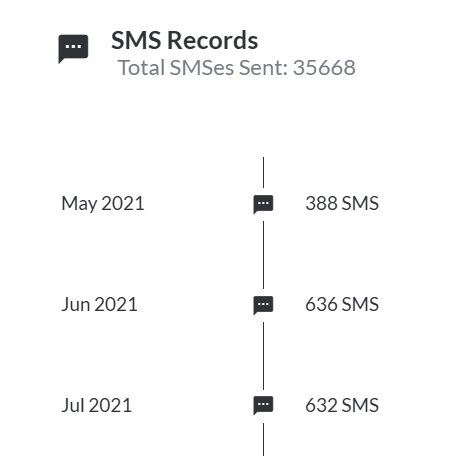
To view a summary of the number of SMS notifications sent out every month,
- From the menu on the top right, select Manage Billing > Triggers.
- Under SMS, hit SMS Stats to view SMS stats.
Merge Tags Cheat Sheet
| Merge Tag Type | Merge Tag | Description |
|---|---|---|
| Account | Company Name | Inserts your Company's name |
| Job | Customer Name | Inserts your Customer's name |
| Job | Customer Contact Email | Inserts your Customer's email address |
| Job | Customer Contact Person | Inserts the name of your Customer's contact person |
| Task | Account Name | Inserts the contact number of your Customer's contact person |
| Job | Job Type | Displays the Job Type - Pickup or Delivery |
| Job | Base Task Type | Displays the Base Task Type - Pickup or Delivery (Opposite of Job Type) |
| Job | Job Name of Building | Displays the name of building of the job |
| Job | Job Street Address | Displays the street address of the job |
| Job | Job Unit No. / Floor | Displays the unit no. or floor of the job |
| Job | Job City / State | Displays the city or state of the job |
| Job | Job Postal Code | Displays the postal code of the job |
| Job | Job Country | Displays the country of the job |
| Job | Job Full Address | Displays the full address of the job |
| Job | Job Date | Displays the date of the job, for example, 5th May 2025 |
| Job | Job Time Range | Displays the time range of the job, for example, 09:00AM to 1:00PM |
| Job | Job Time Range Start | Displays the start time range of the job |
| Job | Job Time Range End | Displays the end time range of the job |
| Job | Job Time Window | Displays the Time Window name of the job |
| Job | Job Scheduled Time | Displays the scheduled time of the job |
| Job | Job Contact Person | Inserts the name of the job’s contact person |
| Job | Job Contact Number | Inserts the contact number of the job’s contact person |
| Task | Task Name of Building | Displays the name of building of the task |
| Task | Task Street Address | Displays the name of building of the task |
| Task | Task Unit No. / Floor | Displays the unit no. or floor of the task |
| Task | Task City / State | Displays the city or state of the task |
| Task | Task Postal Code | Displays the postal code of the task |
| Task | Task Country | Displays the country of the task |
| Task | Task Full Address | Displays the full address of the task |
| Task | Task Date | Displays the date of the task, for example, 5th May 2025 |
| Task | Task Time Range | Displays the time range of the task, for example, 09:00AM to 1:00PM |
| Task | Task Time Range Start | Displays the start time range of the task |
| Task | Task Time Range End | Displays the end time range of the task |
| Task | Task Time Window | Displays the Time Window name of the task |
| Task | Task Scheduled Time | Displays the scheduled time of the task |
| Task | Invoice Number | Displays the invoice number of thetask |
| Task | Price ($) | Displays the price indicated in the task |
| Task | Task Notes | Displays the notes of the task |
| Task | Task Contact Person | Inserts the name of the task’s contact person |
| Task | Task Contact Number | Inserts the contact number of the task’s contact person |
| Task | Task ID | Pulls in the ‘Task ID’ from the task |
| Job | Job ID | Pulls in the ‘Job ID’ from the job |
| Task | Tracking ID | Pulls in the ‘Tracking ID’ from the task |
| Task | COD Expected | Displays the expected Cash-on-Delivery |
| Task | COD Actual | Displays the actual Cash-on-Delivery |
| Task | Date & Time of Last Status Update | Displays the date timestamp of the last status update to the task |
| Task | Task Creation Date & Time | Displays the date timestamp of when the task was created |
| Task | Task Last Started Date & Time | Displays the date timestamp of when the task was started |
| Task | Task Last Arrived Date & Time | Displays the date timestamp of when the task was arrived |
| Task | Task Last Collected Date & Time | Displays the date timestamp of when the task was collected |
| Task | Task Last Completed Date & Time | Displays the date timestamp of when the task was completed |
| Task | Task Last Incompleted Date & Time | Displays the date timestamp of when the task was incompleted |
| Task | Driver Name | Displays the name of the driver assigned to the task |
| Task | Driver Contact Number | Displays the contact number of the driver assigned to the task |
| Task | Vehicle Plate Number | Displays the driver's vehicle plate number assigned to the task |
| Task | Tracking URL | Displays the link of the tracking page |
| Task | Recipient Name | Displays the name of recipient indicated upon task completion on VersaDrive |
| Job | Rejection Reason | Displays the reason indicated in the job when rejecting the job submitted via MyJobs |
| Job | Job Completion Notes | Displays the notes indicated in the job upon job completion on VersaDrive |
| Task | Task Completion Notes | Displays the notes indicated in the task upon task completion on VersaFleet or VersaDrive |
| Task | Task First Incompletion Notes | Displays the notes indicated in the task upon the first task incompletion on VersaDrive |
| Task | Task Second Incompletion Notes | Displays the notes indicated in the task upon the second task incompletion on VersaDrive |
| Task | Task Third Incompletion Notes | Displays the notes indicated in the task upon the third task incompletion on VersaDrive |
| Task | Task Cancellation Notes | Displays the notes indicated in the task upon task cancellation on VersaFleet |
| Task | Custom Fields | Displays the value of the custom field indicated in the task |
Note: If there are more than 1 task in a job, the values of the first 2 tasks will be displayed.