VersaFleet Track allows your customers to track where their items are. The link to the Tracking Page can be included in the automated notifications via SMS or Email to keep customers informed of the whereabouts of their items.
In this article, you'll learn how to configure the Tracking page and learn more about Tracking IDs.
VersaFleet Track
VersaFleet Track is a Tracking page for all our VersaFleet users.
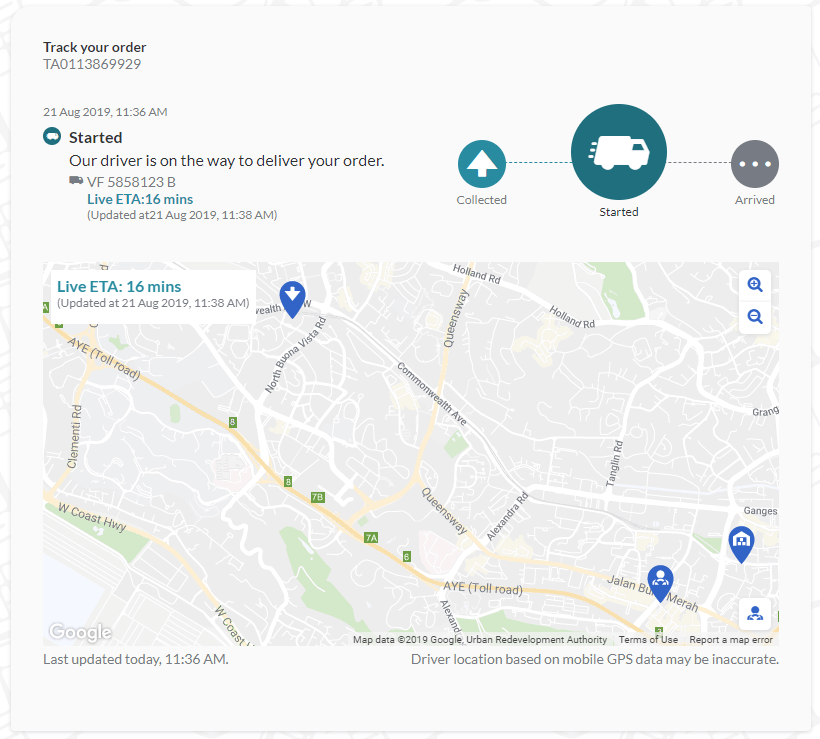
The details displayed on the Tracking page are:
- current status with its timestamp - applicable for all task status
- driver & vehicle details - only applicable for 'Started' and if they are enabled in the configurations
- map of driver's location - only applicable for 'Started' and if the driver's location via VersaDrive is known
- Live ETA - only applicable for 'Started' and if the driver's location via VersaDrive is known
Configuring the Tracking page
To configure your Tracking page,
- Go to Settings > Add-Ons > Tracking
- The link to your Tracking page can be found at the top and the domain is the name that follows after '/'. If you would like to amend the domain, please write to us at support@versafleet.co.
- Hit Configurations to configure the tracking page

- In Configurations, you'll be able to set the details that will be displayed on the Tracking page.
- Display your Company logo
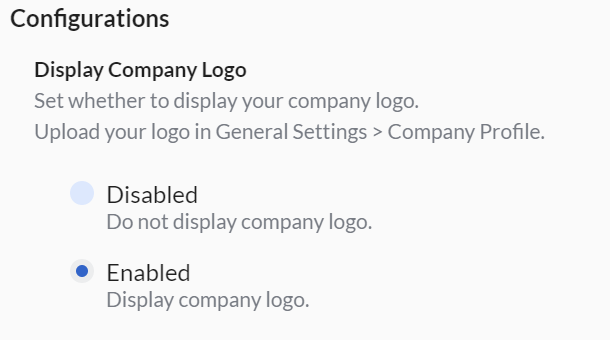
- To upload your Company logo, go to Settings > General > Company Profile
- Recommended logo requirements
- High-quality JPEG or PNG image file format in the RGB colour space
- 2:1 aspect ratio
The logo will be resized to a maximum width of 200 pixels and height of 100 pixels
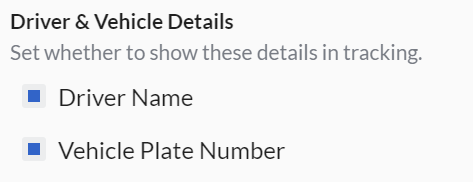
- Display Driver & Vehicle details. This will only be shown when the task is at the 'Started' status.
- Display your Company logo
- Once you're done with the setup, hit Save Configurations

EPOD Attachment in VersaFleet Track
EPOD Attachment in VersaFleet Track is an Add-on module. Contact us at customers@versafleet.co to activate this.
To display a link to allow recipients to view and download EPOD,
- Go to Settings > Add-Ons > Tracking
- Hit Configurations to configure the tracking page
- In EPOD Attachment under Configurations, select Enabled
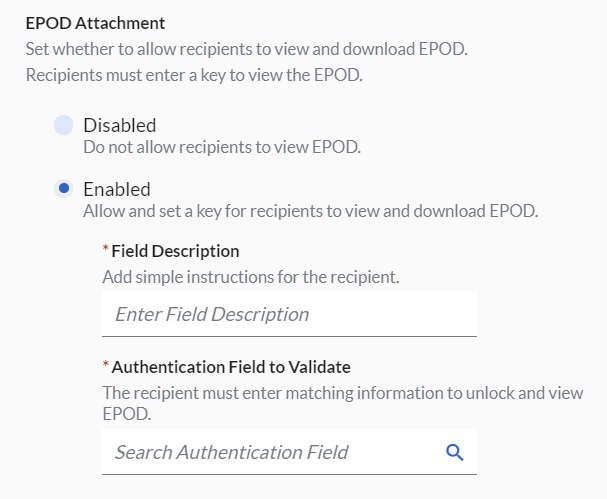
- Set a simple instruction for the recipient to know what to key in for Field Description and define the task field to validate in Authentication Field to Validate. The default task field is 'Task Contact Number'. If you would like the recipient to validate one of your custom task fields instead, write to us at support@versafleet.co.
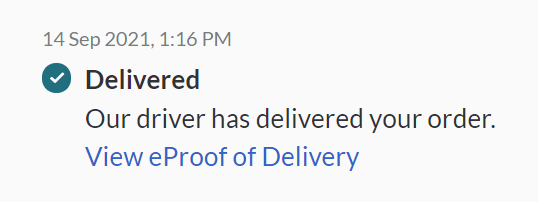
- The link to view and download EPOD will be available on the Tracking page once the task is 'Delivered'
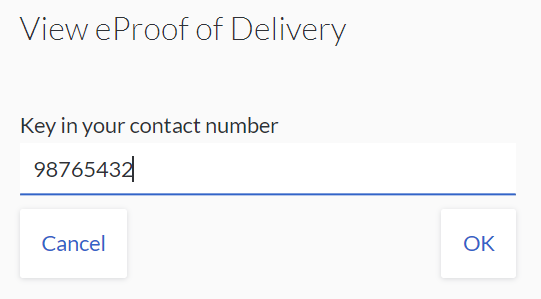
- When the recipient clicks on 'View eProof of Delivery', they will be prompted with the following. Once they have keyed in the correct data, the EPOD will open in a new tab.
- Once you're done with the setup, hit Save Configurations
Availability of tracking a task via VersaFleet Track
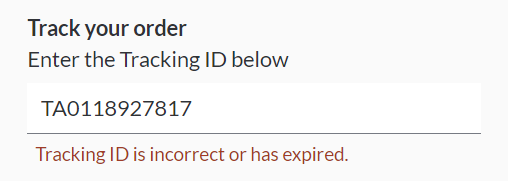
Tracking of a task will expire after 7 days of the task's last status update.
If the task's last status update was on 1 Sep 2021, the last day to access the tracking page is 8 Sep 2021. From 9 Sep 2021 onwards, the tracking will show the following error.
Notifying recipients of the Tracking page link
There are 2 approaches to inform recipients of the Tracking page:
- To inform the recipient of your Tracking page link and get them to use the Tracking ID or the Task ID to track their task
- To notify the recipient of both the Tracking page link and the Tracking ID/Task ID via SMS or Email notification. This will direct them directly to the current status of the task on the Tracking page.
- For more details, refer to Email Triggers and SMS Triggers
- Here's an example of how you can include both the Tracking page link and the Tracking ID/Task ID in the notification
Here is your tracking link to track your item: [Tracking URL]/[Tracking ID] Here is your tracking link to track your item: [Tracking URL]/[Task ID]
Tracking IDs
Tracking tasks or orders on VersaFleet Track only works with Tracking IDs.
- Each Tracking ID created should have at least 11 alphanumeric characters. Spaces and special characters (#, /, \) are not allowed. Dashes (-) are allowed
- You may use a Sales Order number, Invoice number or Parcel number.
- Tracking ID has to be universally unique. If the Tracking ID has already been used by a task that you or other users have created, it cannot be used again. To ensure the Tracking ID is unique, you may add a unique prefix to it.
Availability of Tracking IDs in VersaFleet and VersaFleet Demand
When creating tasks in VersaFleet or in VersaFleet Demand (MyJobs), the Tracking ID is a field under 'Additional Info'.
 or Tracking ID to be available in MyJobs, it has to be enabled when setting up the MyJobs account.
Comparing Tracking ID with other fields
| Task Fields | Tracking ID | Task ID | Invoice Number |
| What is it? |
|
|
|
| When should you use it? |
| If you do not have a reference number, you can use our Task ID to refer to tasks. | If you have more than 1 reference number, you may put 1 in Tracking ID and the other in Invoice Number. |
| How can this be used for drivers to scan tasks on VersaDrive? |
| You will need to generate the Task ID barcode either on E-POD or Task Label and attach them to the item. | Not applicable as it doesn't work with the scanning function on VersaDrive |
| Can this be used to search on the Tracking page? | Yes | Yes | No |