VersaDrive configurations can be done on VersaFleet, in Settings > VersaDrive. You'll learn how to enable / disable the acknowledgement or start buttons, set required fields during successful task completion and populate a list of unsuccessful delivery reasons.
Task Completion
When a task is completed successfully, your drivers are able to fill up the information that need to be collected when completing tasks in VersaDrive. To configure the task for your drivers to select when a task is completed successfully,
- Go to Settings > VersaDrive > Task Completion.
- Choose Enabled or Disabled:
- Enabled: Drivers need to collect the task information in VersaDrive.
- Disabled: Drivers don't have to collect any information.
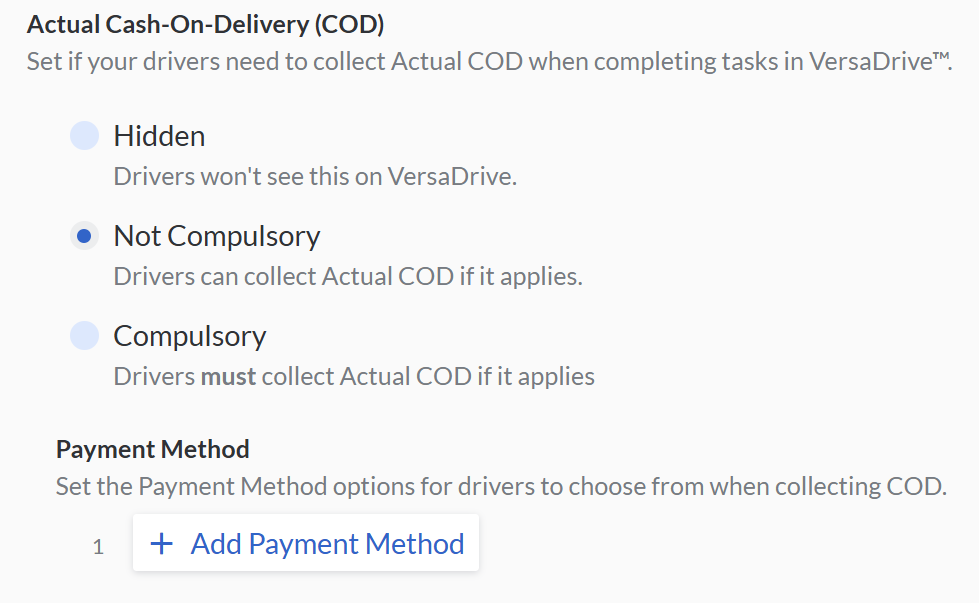
- Under 'Actual Cash-On-Delivery (COD)', specify whether the information should be Hidden, Not Compulsory, or Compulsory for drivers. You can also include the 'Payment Method' in the configuration by fill up the +Add Payment Method.
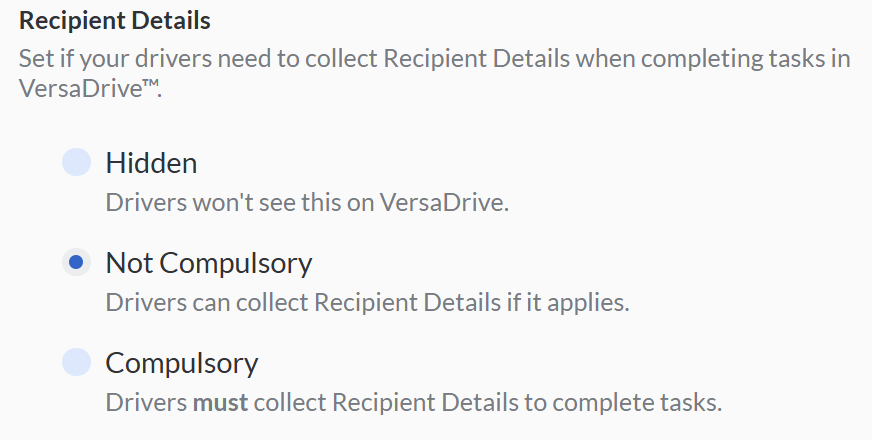
- Under 'Recipient Details', specify whether the information should be Hidden, Not Compulsory, or Compulsory for drivers.
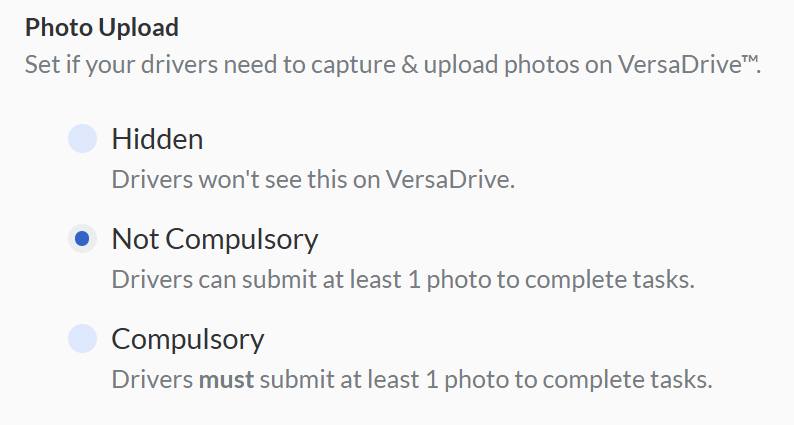
- Under 'Photo Upload', set whether the photo requirement should be Hidden, Not Compulsory, or Compulsory for drivers.
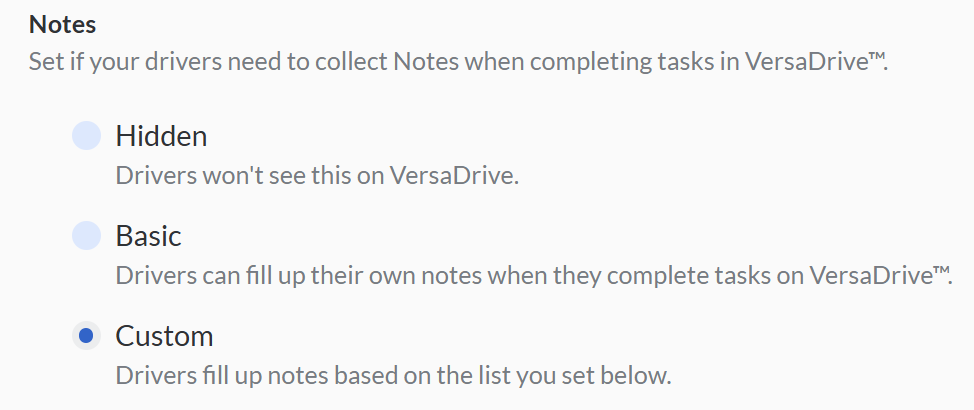
- Under 'Notes', set whether the notes requirement should be:
- Hidden: Driver won't see this field in VersaDrive
- Basic: Drivers can fill up their own notes when they complete tasks in VersaDrive
- Custom: Drivers fill up notes based on the list you set
- Hit Save Configurations to save.
Task Incompletion
When a task is not completed successfully, your drivers are able to choose a reason and/or write their own comments. To set reasons for your drivers to select when a task is not completed successfully.
- Go to Settings > VersaDrive > Task Incompletion.
- Choose Enabled or Disabled:
- Enabled: Drivers need to collect the information on unsuccessful attempt.
- Disabled: Drivers don't have to collect any information.
- Under 'Photo Uploads', set whether the photo requirement should be Not Compulsory, or Compulsory for drivers.
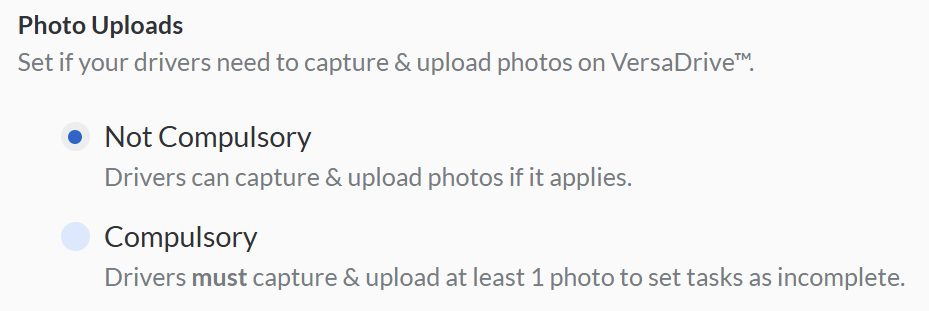
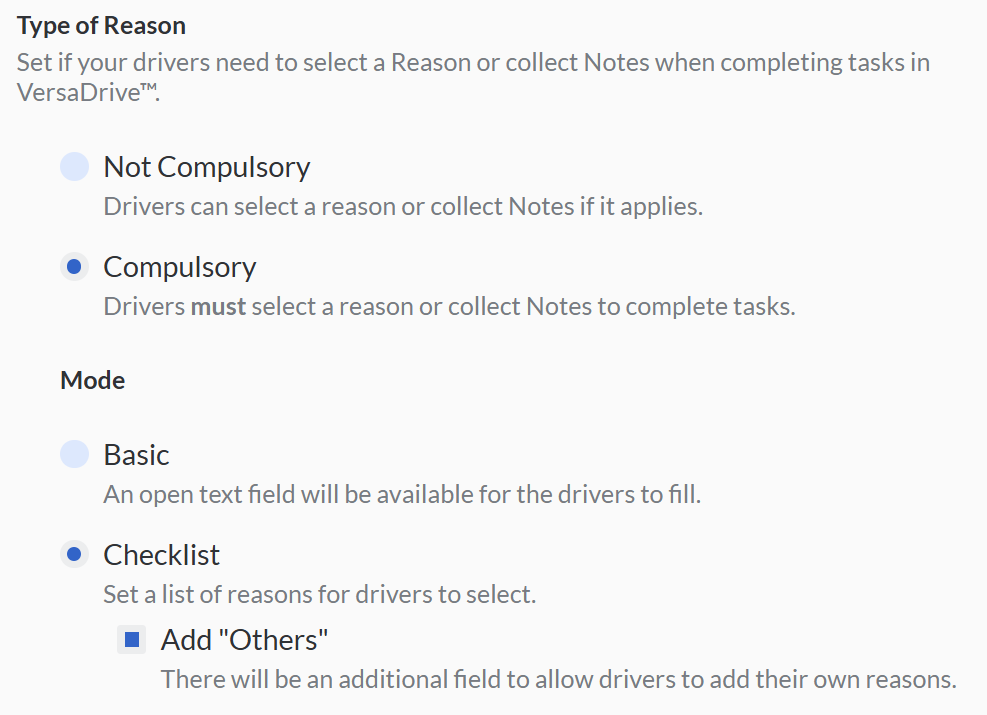
- Under 'Type of Reason', set whether the information should be Not Compulsory, or Compulsory for drivers and also to choose the reasons mode:
- Basic: An open text field will be available for the drivers to fill.
- Checklist: To set a list of reasons for drivers to select and/or tick Add "Others" for the additional field to allow drivers to add their own reasons.
- Hit Save Configurations to save.
Driver Assignment
To set whether driver availability should be considered during driver assignment.
- Go to Settings > VersaDrive > Driver Assignment.
- Choose Enabled or Disabled:
- Enabled: Able to assign tasks to available drivers only. Unavailable drivers would not appear in the list of drivers during driver assignment.
- Disabled: Able to assign tasks to both available & unavailable drivers.
- Hit Save Configurations to save.
Driver Acknowledgement
To set whether to wait for driver's acknowledgement to confirm task assignment.
- Go to Settings > VersaDrive > Driver Acknowledgement.
- Choose Enabled or Disabled:
- Enabled: Driver must acknowledge when new tasks are assigned to him. Driver is also able to reject tasks.
- Disabled: Driver need not acknowledge new tasks assigned to him. Driver is unable to reject tasks.
- Hit Save Configurations to save.
Driver Started
To enabled or disabled Start button on VersaDrive to track whether driver have started on the task or not.
- Go to Settings > VersaDrive > Driver Started.
- Choose Enabled or Disabled:
- Enabled: Driver must select “start” when he embarks on a task.
- Disabled: Driver can skip “start” when he embarks on a task.
- Hit Save Configurations to save.
Job Summary
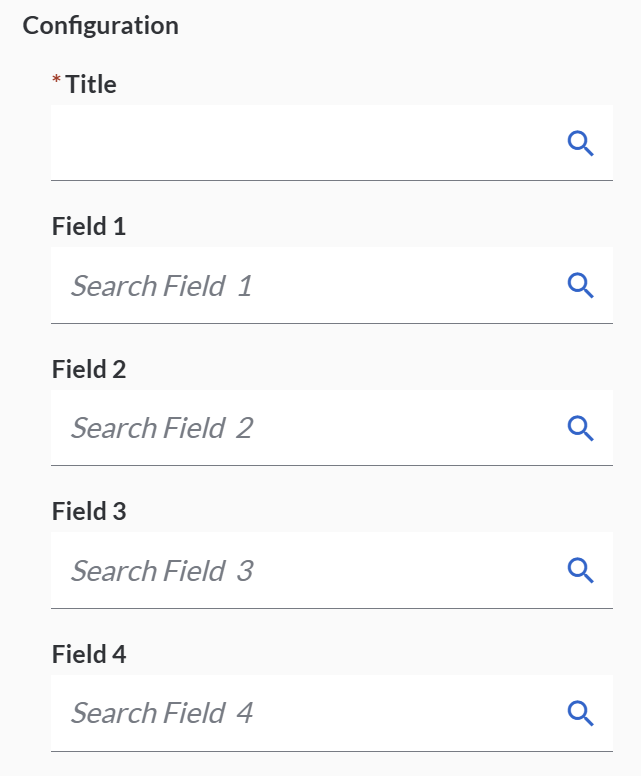
To configure the job summary for your drivers in My Runsheet view.
- Go to Settings > VersaDrive > Job Summary.
- Choose the title and the fields from the list.
- Hit Save Configurations to save.
Task Summary
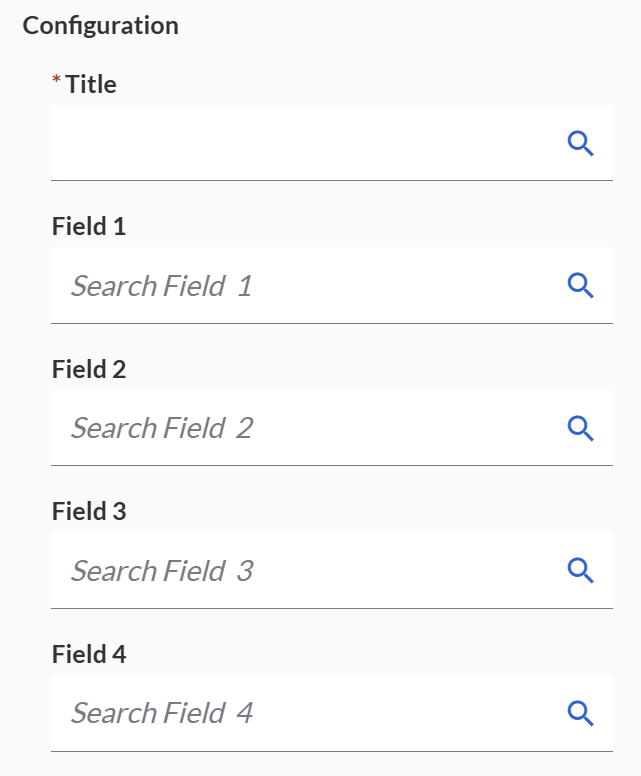
To configure the task summary for your drivers in My Runsheet view.
- Go to Settings > VersaDrive > Task Summary.
- Choose the title and the fields from the list.
- Hit Save Configuration to save.
Click-to-Chat
Drivers can message the Task Contact Person directly if they have any updates. To set up a pre-filled message for drivers to contact the Task Contact Person through messaging platforms,
- Go to Settings > VersaDrive > Click-to-Chat.
- Hit Enable Click-to-Chat to activate the click-to-chat and hit Edit.
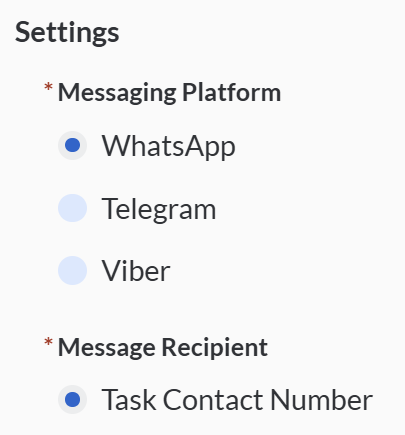
- Choose the 'Messaging Platform' as WhatsApp, Telegram or Viber and choose the 'Message Recipient' as Task Contact Number.
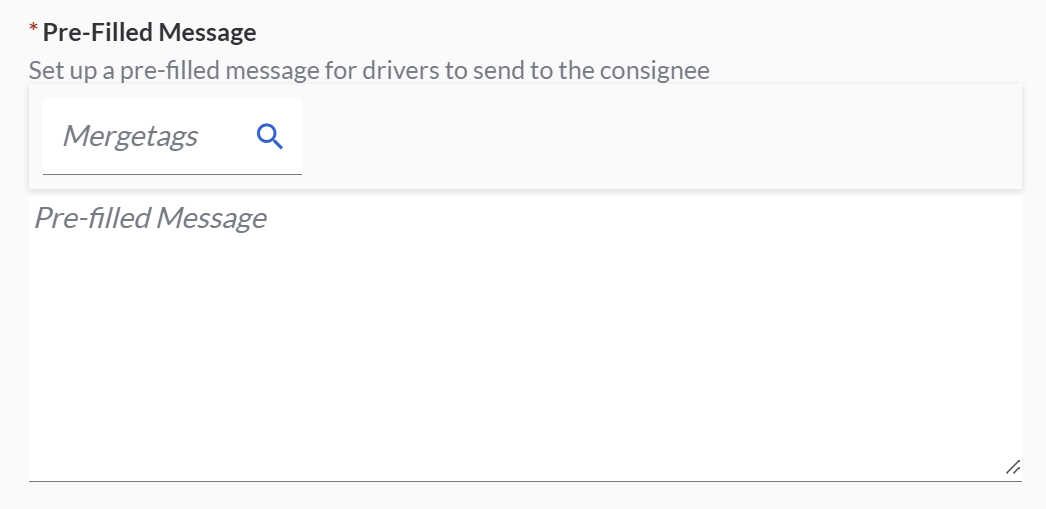
- Fill up the 'Pre-Filled Message' by set up a pre-filled message for drivers to send to the consignee.
- Hit Save Configurations to save.
Note that the drivers will be using their personal numbers & respective messaging platform accounts to send this message.
Photo Taking
You can configure the settings for photo taking or uploads by drivers in VersaDrive.
To set up the details visibility of the photos uploaded by drivers,
- Go to Settings > VersaDrive > Photo Taking > Photo Details.
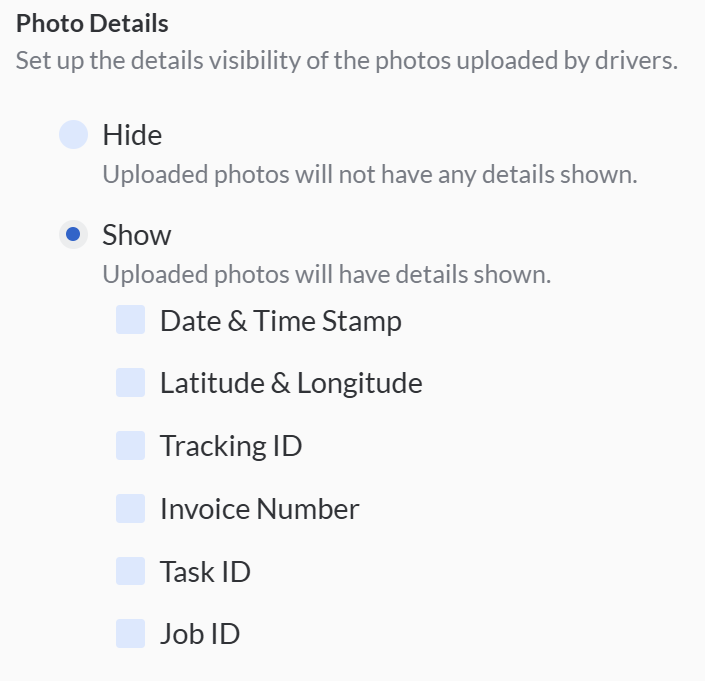
- Choose Hide or Show for the photo details:
- Hide: Uploaded photos will not have any details shown.
- Show: Uploaded photos will have details shown. Here are the list of the details that you can choose:
- Date & Time Stamp
- Latitude & Longitude
- Tracking ID
- Invoice Number
- Task ID
- Job ID
To set up whether drivers can upload photos from the gallery.
- Go to Settings > VersaDrive > Photo Taking > Photo Upload.
- Choose Enabled or Disabled for the photo details:
- Disable: Disable photo uploads from the gallery.
- Enable: Enable photo uploads from the gallery.
- Hit Save Configurations to save.
Note that this would apply to Task Completion, Task Incompletion, and Job Completion.