A key component of last-mile deliveries is knowing what is happening during your operations at all times and it's becoming necessary to keep all relevant parties informed of the whereabouts of the goods.
In this article, you'll learn how you can track tasks, vehicles and drivers in great detail on VersaFleet. If you're comfortable providing your customers with the visibility of your operations, you can give your customers access to MyJobs, a portal for your customers to track task status on their own without having to contact you.
Monitoring Tasks
Task View
The Planning > Tasks Page provides a detailed view of the progress of tasks. On this page, you can search for tasks and apply filters based on the task status.
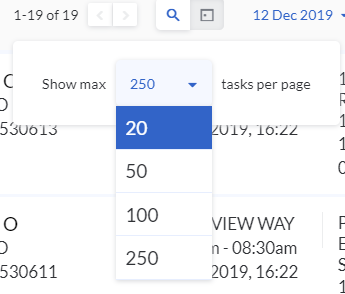
To list more than 20 tasks per page, click on the number of tasks and select the number of tasks you'd like to view on a page.
You'll also be able to configure the task view to display details that matter most to you and suit your planning style.
- Go to Settings > Add-Ons > Task View
- Click Edit
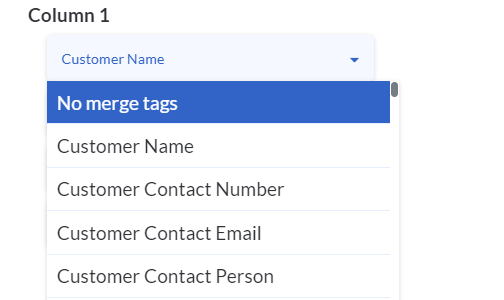
- For each of the columns, choose the task details you'd like to see from the drop-down list
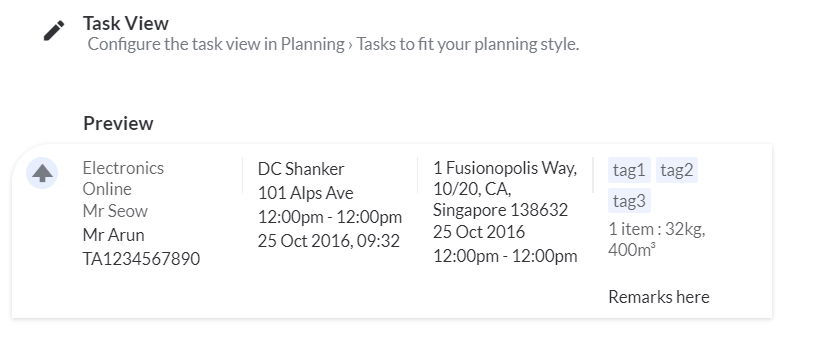
- Click on every tab to customise your drop-down list
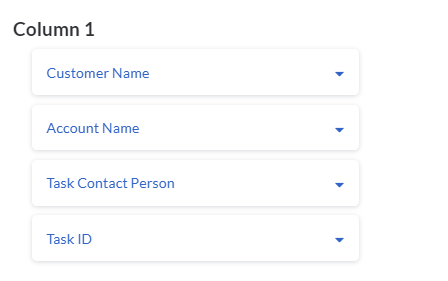
- Once you're done, click Save Task View
Task History
We record every action and task status change in Task History
To view the changes, go to Planning > Tasks, select any task and hit Task History
Map View
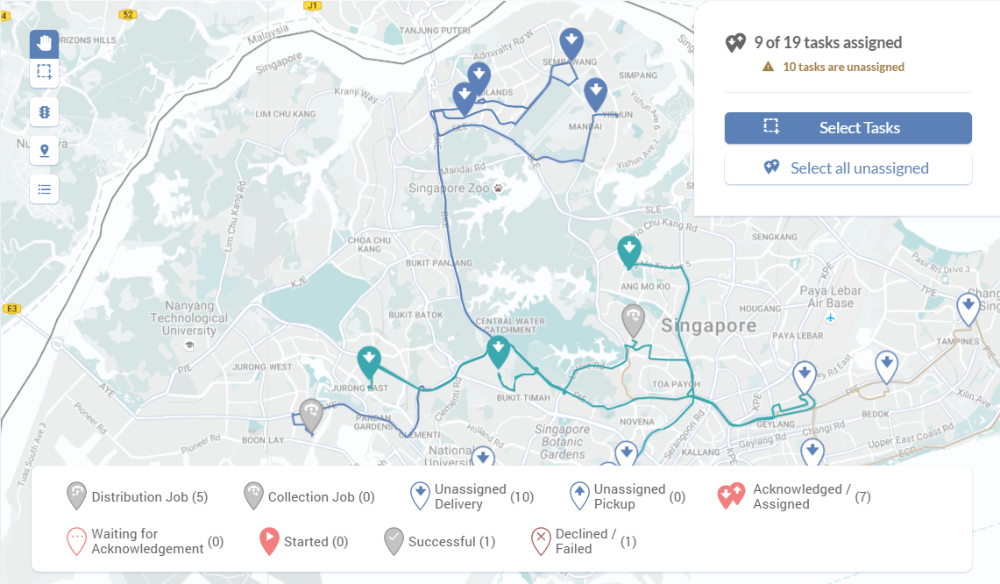
The Planning > Map page provides a big picture of the current state of all tasks. The legend at the bottom contains markers and counters for easy tracking.
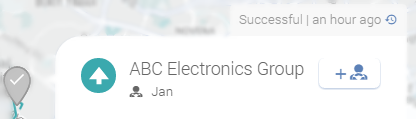
You may also click on the task to see when it was last updated.
Reminder Alerts
Set warnings if a task has not been assigned, submitted to a driver, acknowledged, started or succeeded.
To set reminders,
- Go to Settings > Notifications
- Select Alert Rules and hit Add new rules
- Choose the options from the drop-down lists and set a time period
[task_time] refers to the start of the task time range - Hit the 'tick' button to save. You may add as many reminders as you wish
In-App Notifications and Incompletion Alerts
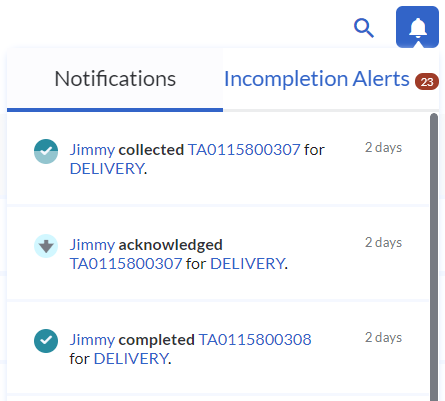
Whenever there's a change in status for any task, you'll receive a notification at the top-right corner under Notifications. Click on the Task ID to view the task. The statuses that will trigger these notifications are: acknowledged, started, succeed and failed.
For failed tasks, they'll also be listed under Incompletion Alerts and consolidated by dates. When you select any of the dates, you'll be directed to the Tasks page that shows these failed tasks.
Monitoring Vehicles and Drivers
We provide tracking of both Vehicles and Drivers on VersaFleet™. To view their locations, go to Fleet Management > Map
Tracking Movement of Vehicles
Tracking of Vehicles will be done through the GPS devices installed in vehicles.
Under our BYOG (Bring Your Own GPS) programme, we strongly prefer working with your current GPS solution provider. If you have an existing GPS solution provider, you can continue to engage them while we integrate with them - just introduce them to us at customers@versafleet.co. Our APIs are easy to integrate with.
If you don't have an existing GPS solution provider, write to us at customers@versafleet.co and we'll introduce one of our GPS partners to you.
Tracking Movement of Drivers
Tracking of Drivers will be done through VersaDrive.
To enable tracking, turn location services on and launch the VersaDrive™ app in the background.
Drivers trip history
- User can see drivers' trip history of any date and time they want. Go to Fleet Management > Map and you will see the following at the bottom

- Click on Search Vehicles, VersaDrive and choose any of your drivers you want to see their trip history, This features allowed only one driver per view.
