Driver Runsheet allows you to view the details of the tasks assigned to each of the drivers. There are 2 views - by list and by board.
Runsheet Board is an Add-on module. Contact us at customers@versafleet.co to activate this.
View by List
- Go to Planning > Runsheets
- Click List to display drivers’ runsheets based on the date selected
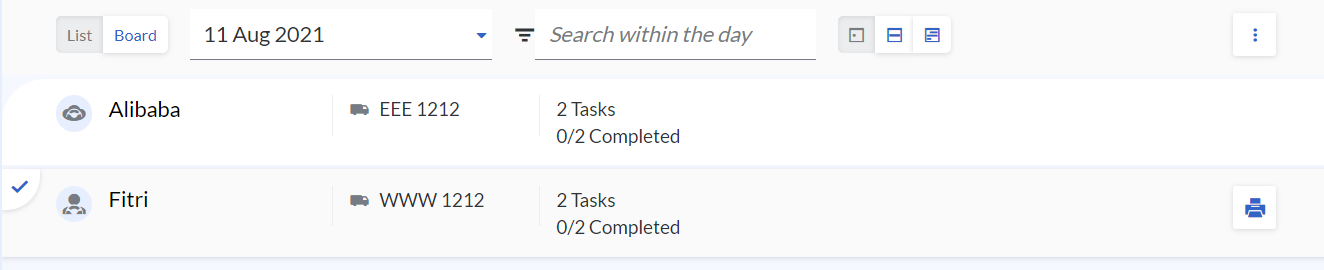
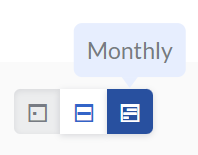
- To change the view according to the period, click Daily, Weekly or Monthly
- To view more details of the tasks, click on the driver's name.
Note that both Jobs and Tasks will be displayed.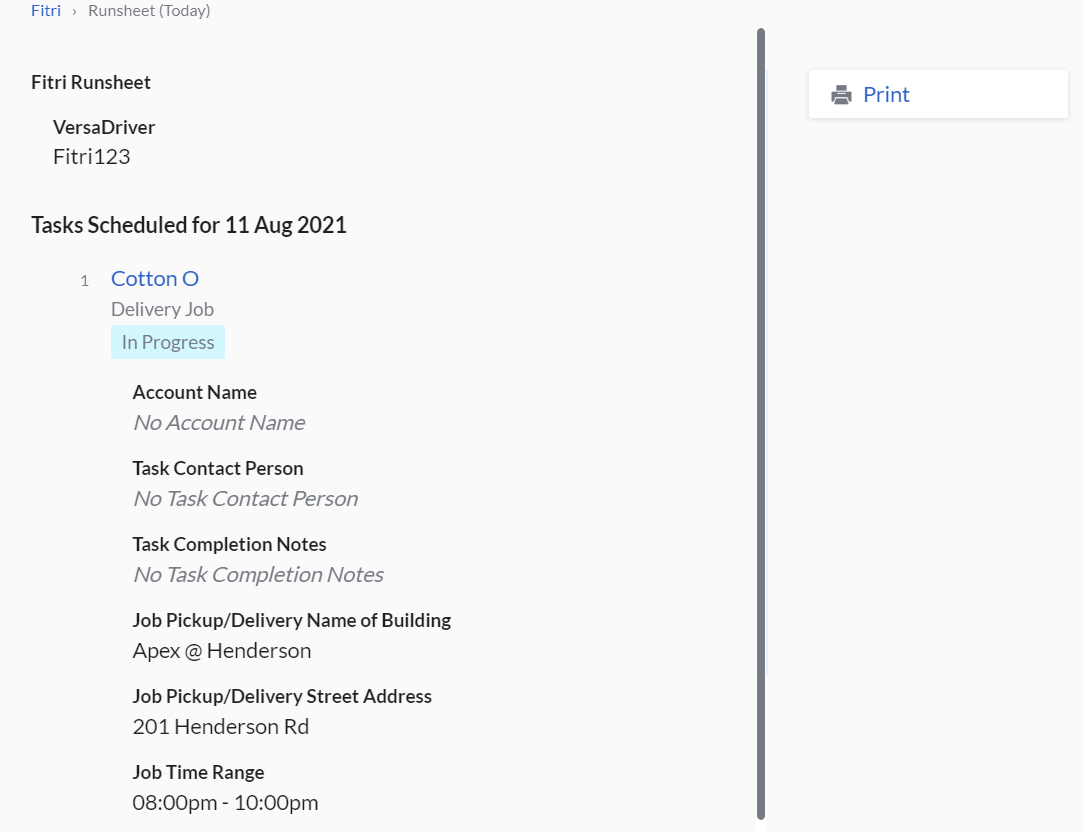
Printing Runsheet
To print the driver’s runsheet,
- Click Print Runsheet on the right
- Select the Date Range
- Select the Job Type that will be included in the print
- Deliveries: All Delivery Jobs, without the 'Pickup' base task
- Pickups: All Pickup Jobs, without the 'Delivery' base task
- Point to Points: All Point to Point Jobs
(Optional) Select Predefined Time Windows
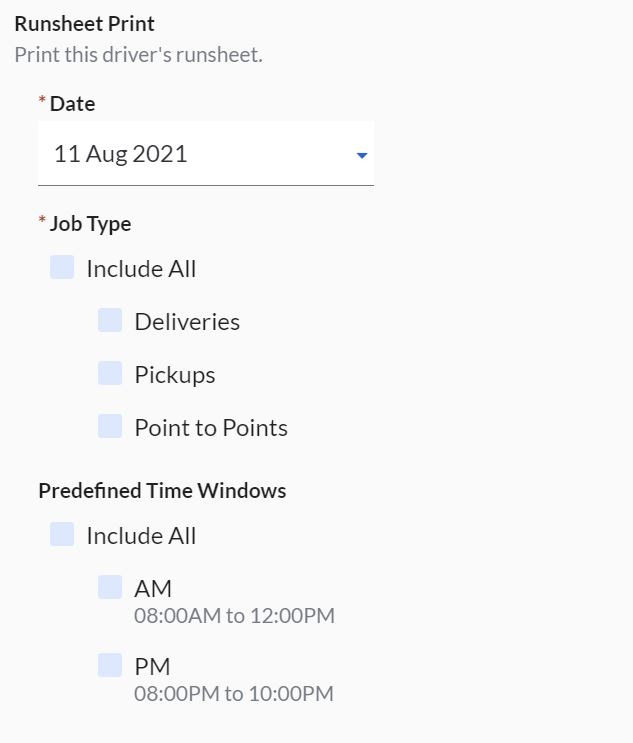
- Once you’re done, click Print on the right. The driver runsheet will be generated in a separate tab in which you may save as softcopy or print out.
To print multiple drivers' runsheets,
- Select the driver by clicking on the 'tick' button at the top-left
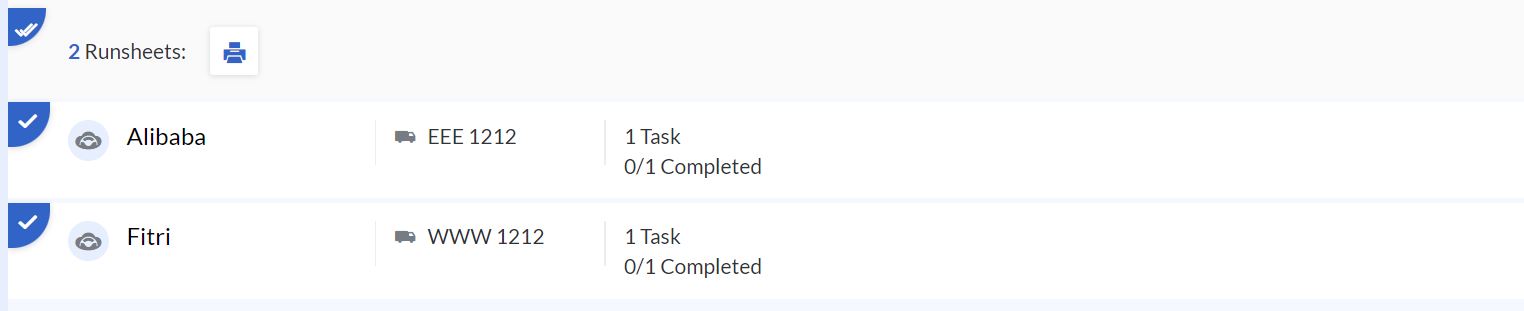
- Select all drivers or multiple drivers and click Print
- Follow the above steps 3-5
Configuring Printed Runsheet
To configure the format and details of the printed runsheet,
- Click Configure Runsheet on the right
- Here are the details that can be configured:
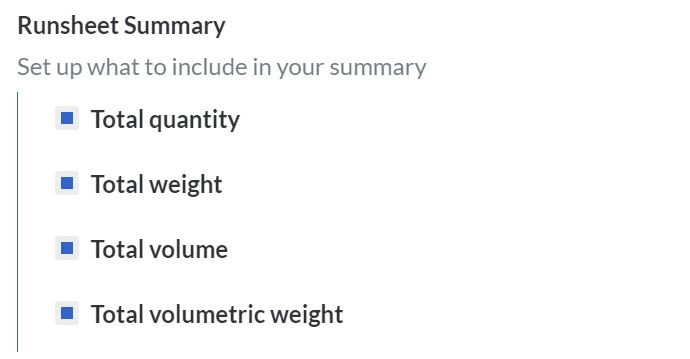
- Runsheet Summary is to set up what you want to include in the summary
- Column Headers & Info is the name of the column headers and the information that should be shown in each column.
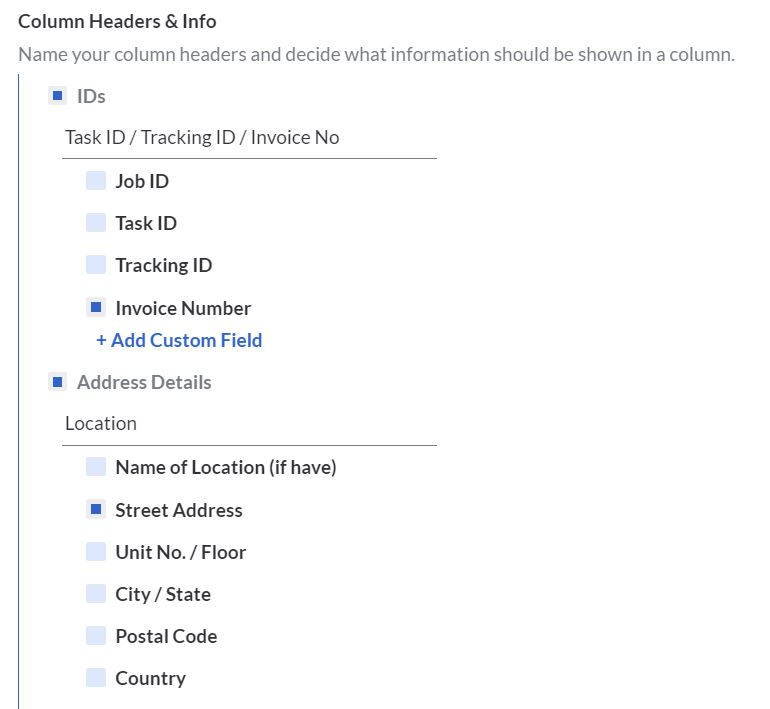
- Custom Fields can be added to these columns: IDs
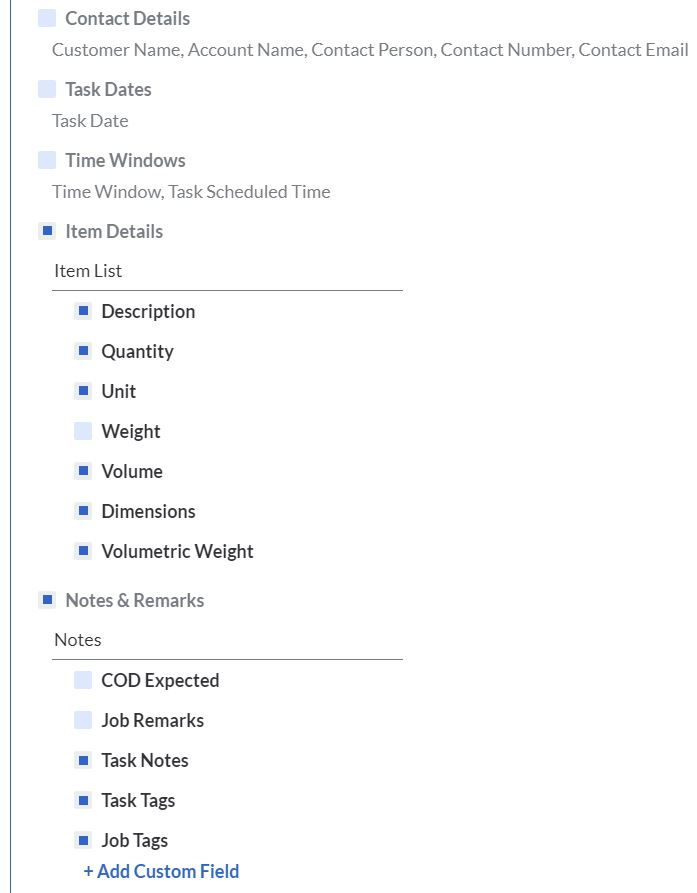
- Custom Fields can be added to these columns: Notes & Remarks and EXTRA!
- The sequence of the columns are fixed
- The column widths are also fixed
- Custom Fields can be added to these columns: IDs
- Runsheet Summary is to set up what you want to include in the summary
Note: This runsheet configuration is applied to all users within the account.
View by Board
- Go to Planning > Runsheets
- Click Board to display driver runsheets based on the date selected. Each column is a runsheet that represents 1 Driver and Vehicle assignment. In each runsheet, the current task's status will be shown.
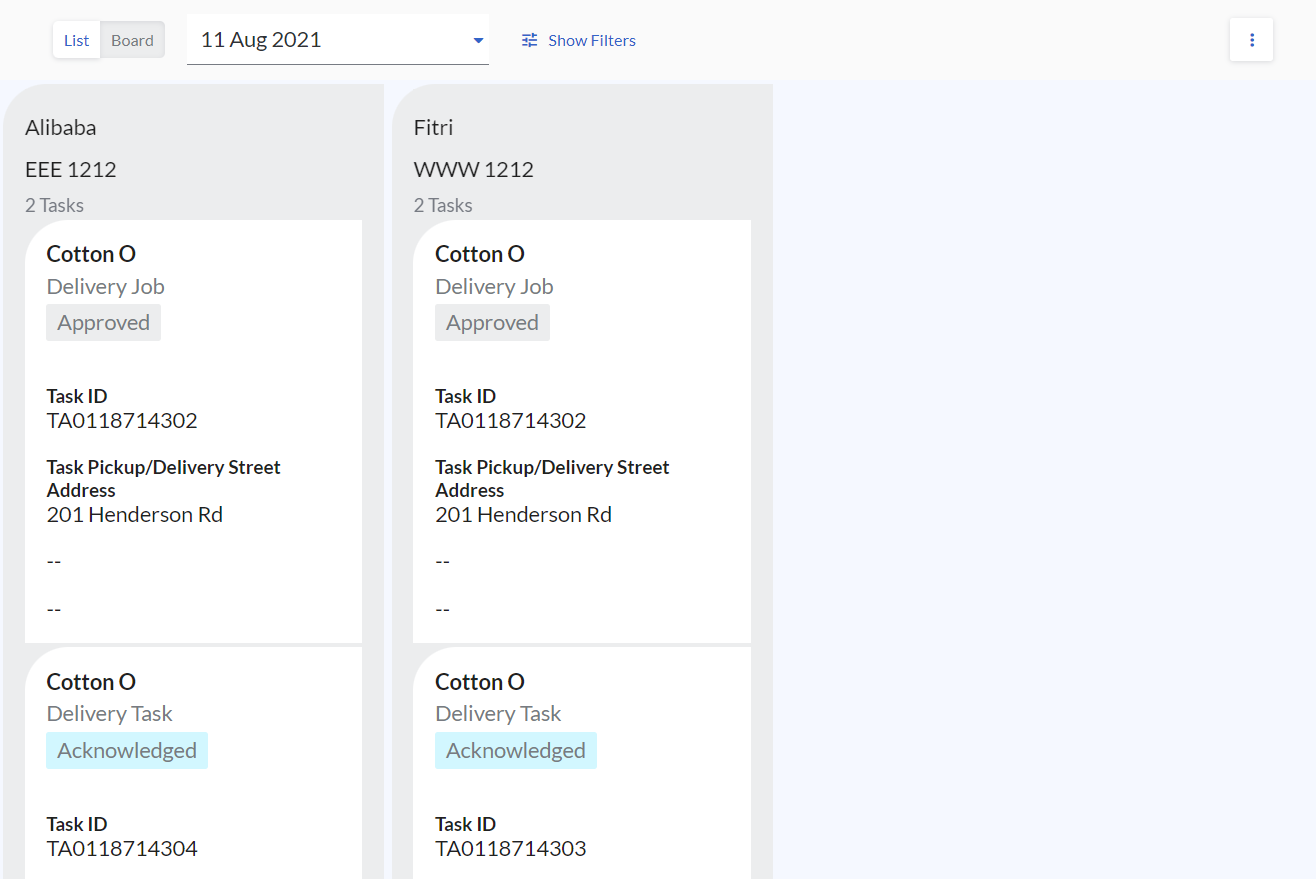
- Click on the task to view the details.
Note that the actions on the task are limited when the task is accessed through the board. To access the rest of the actions, view the task via Planning > Map or Planning > Tasks.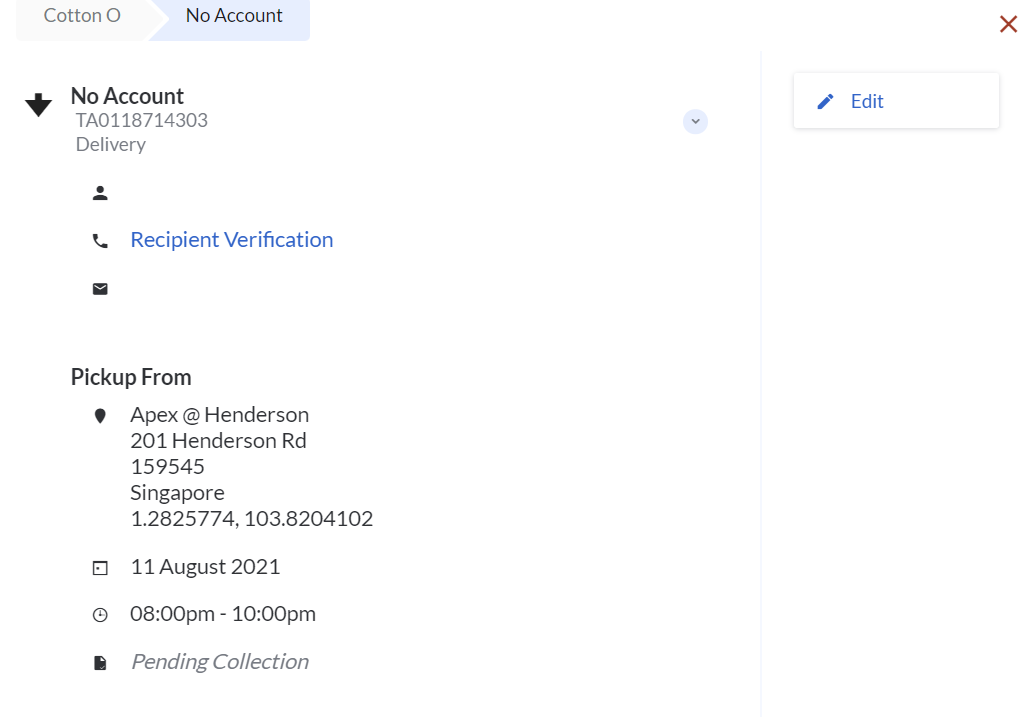
Configuring Board view
To configure the format and details of the runsheet board,
- Click Configure View on the right
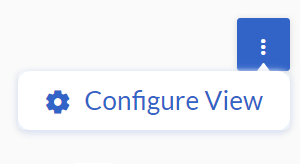
- You will be able to configure the details of each Task tile. In each tile, there are up to 5 fields that can be configured - 1 title with 4 fields
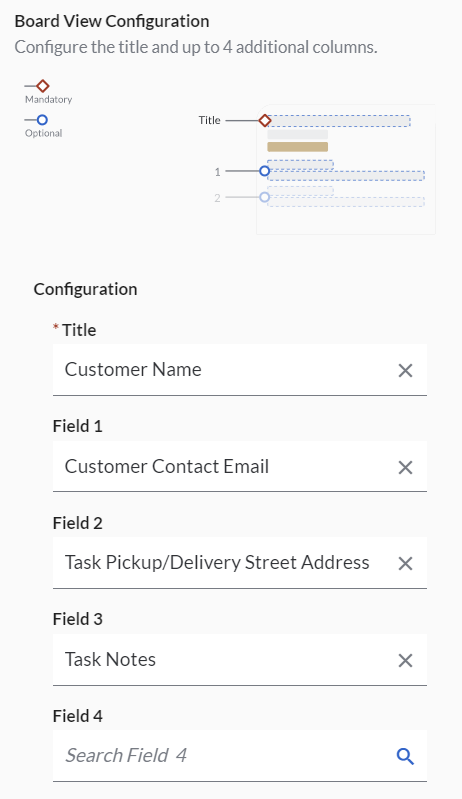
- Click Save and the details will be displayed as configured.
Filtering in Board view
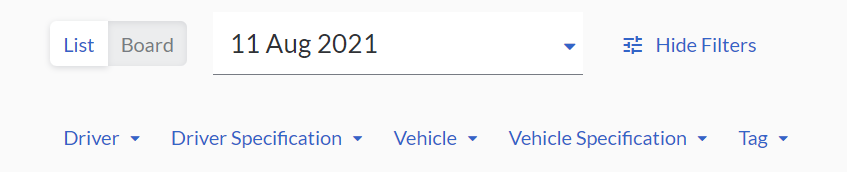
Click Show Filters and filter by Driver, Driver Specification, Vehicle, Vehicle Specification, and Tag
Re-assigning and Re-ordering Tasks
The sequence of the tasks in each runsheet is determined by the scheduled time if the optimisation function is used to assign the tasks. If the optimisation function is not used, the sequence of the tasks is determined by task creation.
In the Runsheet Board, you will be able to re-assign the tasks to a different driver or re-order the tasks within the same driver.
To re-assign a task to another driver,
- Locate the task to be re-assigned to another driver
- Click and drag to the new driver's runsheet
- You may drag to the position that you prefer
Note: If the new driver doesn't have a related Base Task to the newly assigned task, the Base Task (Job) will be automatically added to the new driver's runsheet.
To re-order a task within the same driver,
- Locate the task to be re-ordered within the same driver
- Click and drag the task to the new location
Note: Each pickup has to happen before a delivery. This means that a Delivery Task can only be after its Delivery Job and a Pickup Task can only be before its Pickup Job.
These changes will also be reflected in Planning > Runsheets > List view and in Planning > Map > Scheduler