Vehicle and Driver Records are digital forms that users are able to fill up on VersaFleet and VersaDrive. They can be considered as a 'Logbook' where vehicle inspection records or driver training records can be captured digitally.
Vehicle and Driver Records is an Add-on module. Contact us at customers@versafleet.co to activate this
Vehicle Records
Creating a Vehicle Record Template
In order for users to start filling up a Vehicle Record, a Vehicle Record template has to be first created.
To create a Vehicle Record Template,
- Go to Fleet Management > Vehicles > Records

- Hit Record Templates on the right to create the Vehicle Record template.
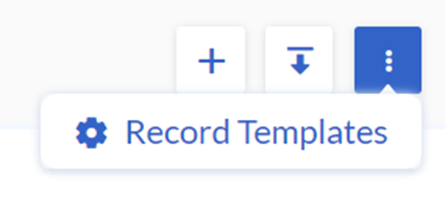
- Hit + New Template to add a new template.

- Fill up the information:-
- Name of Template: The title of the template.
- Additional Config: Set users who are able to view and submit this record and to allow attachments in this record
- Form: Add, edit or format fields in the form
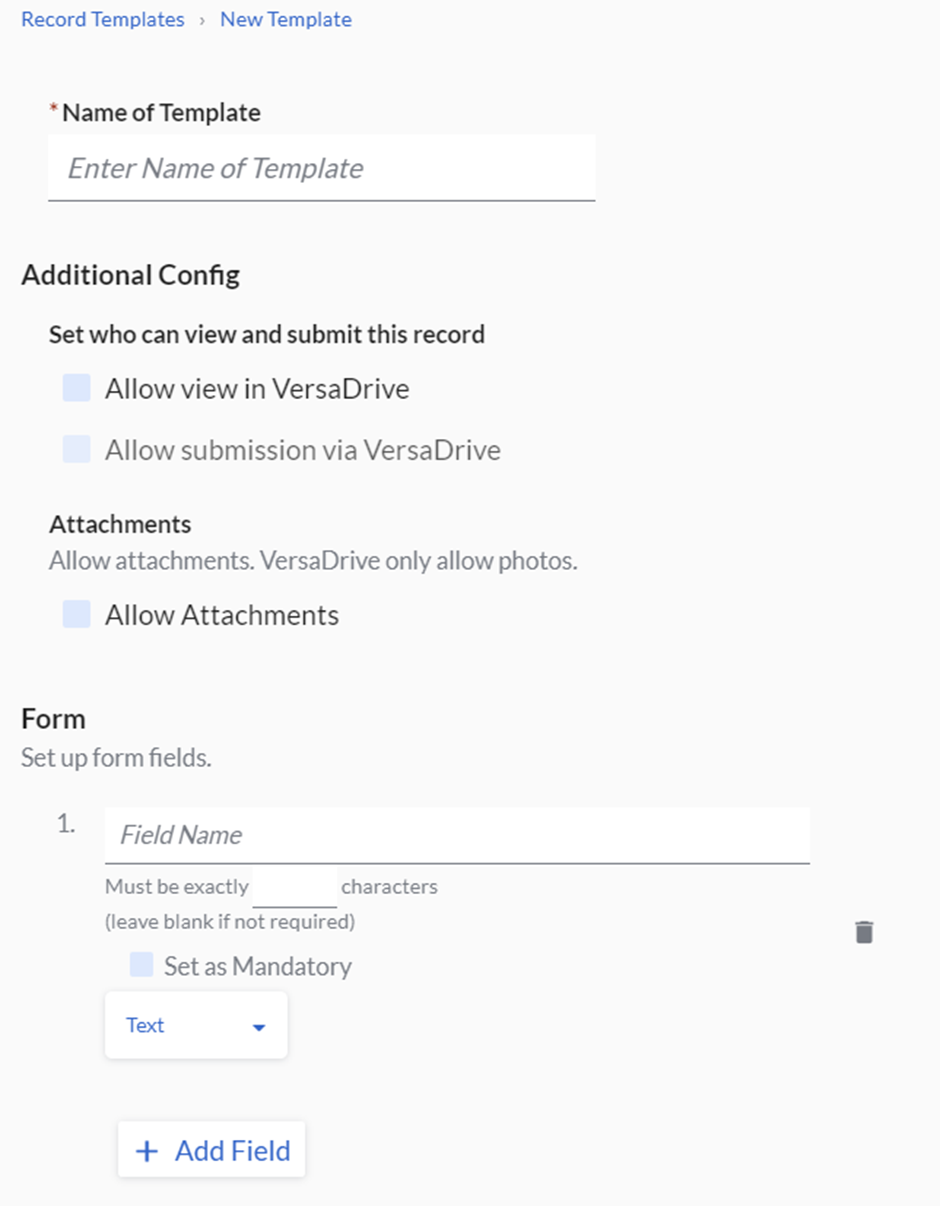 *Note: Name of Template is compulsory
 - Hit Save Template to save the template

Adding a Vehicle Record
There are 2 ways to add a Vehicle Record - creating it in VersaFleet and creating it in VersaDrive
Adding a Vehicle Record in VersaFleet
- In VersaFleet, go to Fleet Management > Vehicles > Records
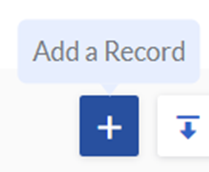
- Hit + Add a Record on the right to add a record.
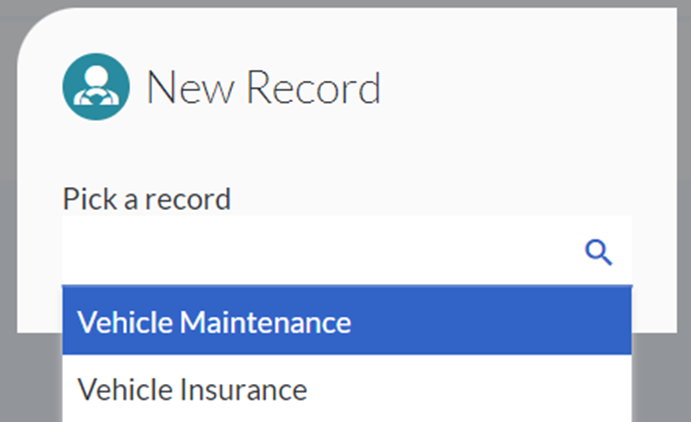
- Pick a record by selecting from the dropdown list
- Choose the Vehicle and/or Vehicle Part for which the Vehicle Record is for, and fill up the details of the record accordingly
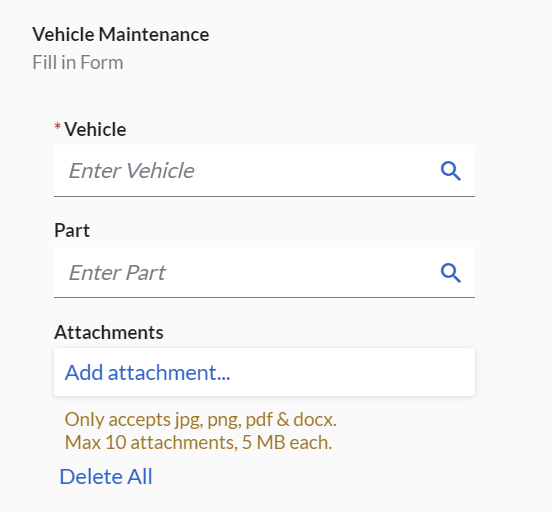
- Hit Save Record to save the record

Adding a Vehicle Record in VersaDrive
- In VersaDrive, click on the menu on the left and click Records
- Hit + on the right to add a record
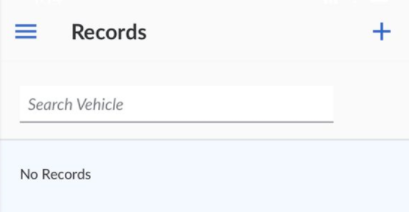
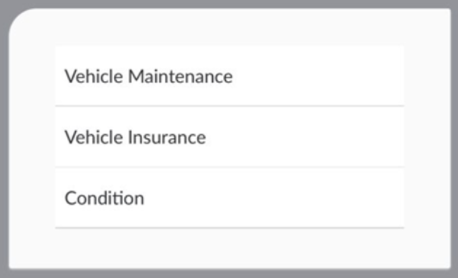
- Pick a record by selecting from the dropdown list
- Choose the Vehicle and/or Vehicle Part for which the Vehicle Record is for, and fill up the details of the record accordingly
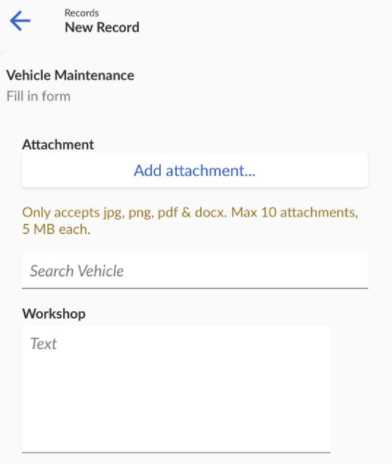
- Swipe Submit to submit the record

Editing a Vehicle Record
Only Vehicle Records that are submitted in VersaFleet can be edited.
- Go to Fleet Management > Vehicles > Records
- Choose the record and hit Edit Record to edit the record

- The details of the record can be amended
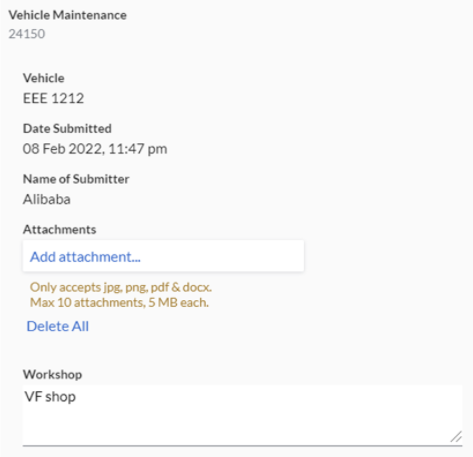
- Hit Save Record to save the record after making changes

Exporting Vehicle Records
- Go to Fleet Management > Vehicles > Records
- Hit Export Records to export the vehicle’s record.
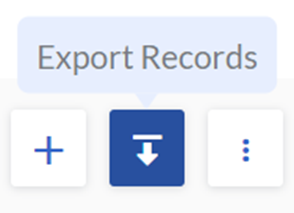
- Choose the record template from the dropdown list.
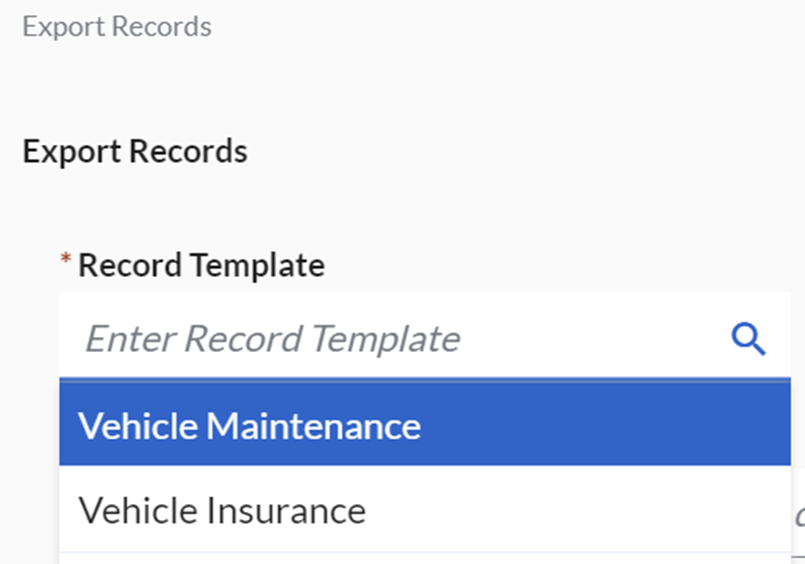
- Choose the date range to export the vehicle record.

- Hit Export to export the vehicle records

Driver Records
Creating a Driver Record Template
In order for users to start filling up a Driver Record, a Driver Record template has to be first created.
To create a Driver Record Template,
- Go to Fleet Management > Drivers > Records

- Hit Record Templates to view/create the driver record template
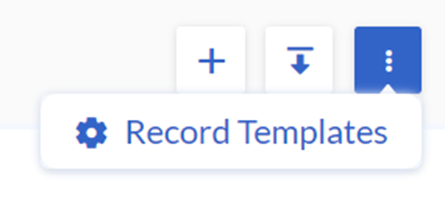
- Hit + New Template to add a new template.

- Fill up the information:
- Name of Template: The title of the template.
- Additional Config: Tick the checkbox.
- Form: For VersaFleet user to key in the records of the driver.
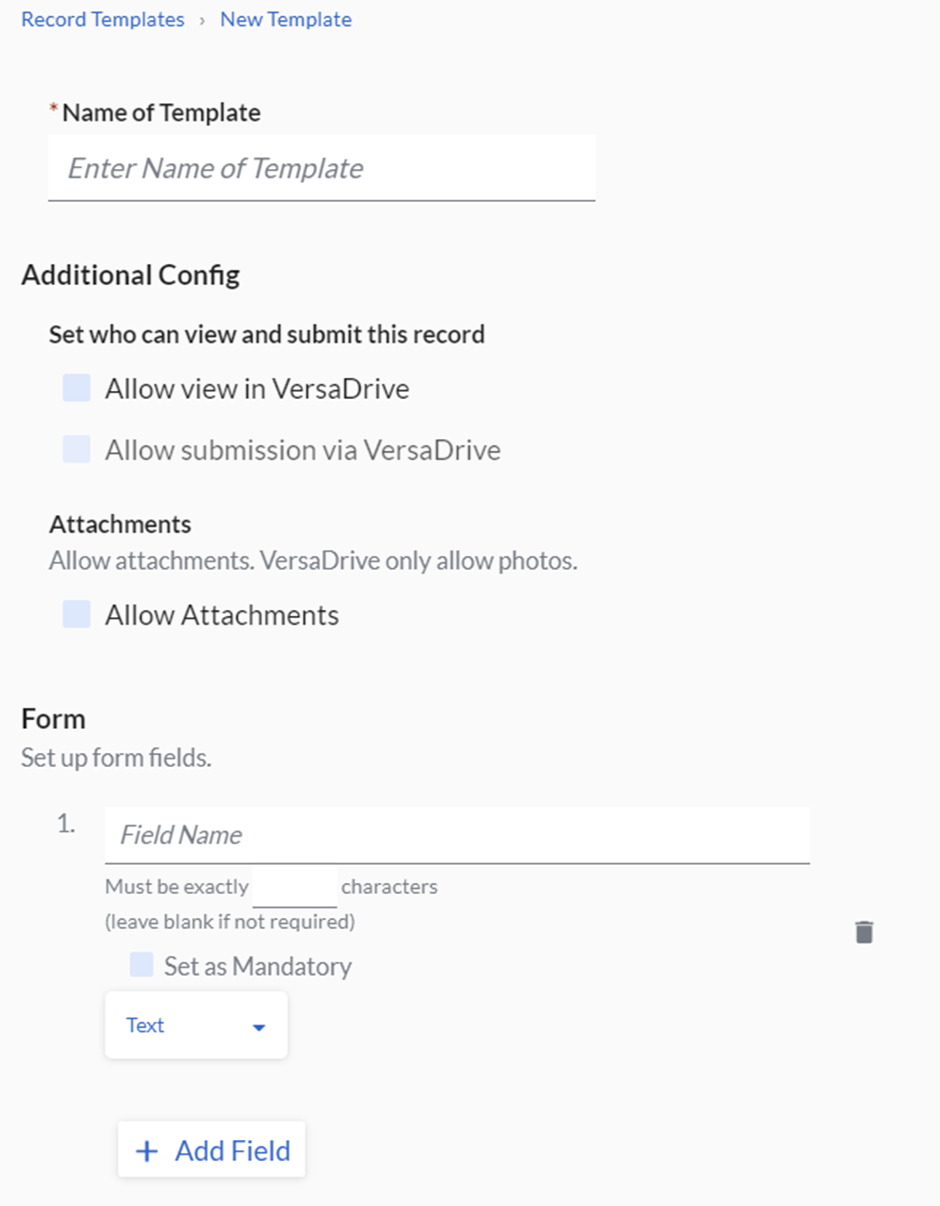 *Note: Name of Template is compulsory
- Hit Save Template to save the records

Adding a Driver Record
Currently, Driver Record can only be added in VersaFleet.
To add a Driver Record,
- Go to Fleet Management > Drivers > Records
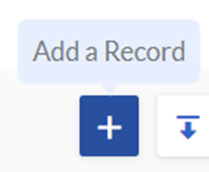
- Hit + Add a Record to add a record
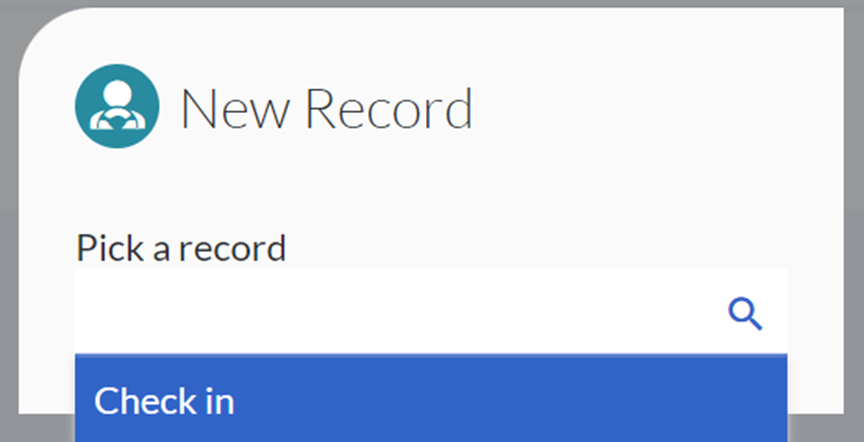
- Pick a record by selecting from the dropdown list
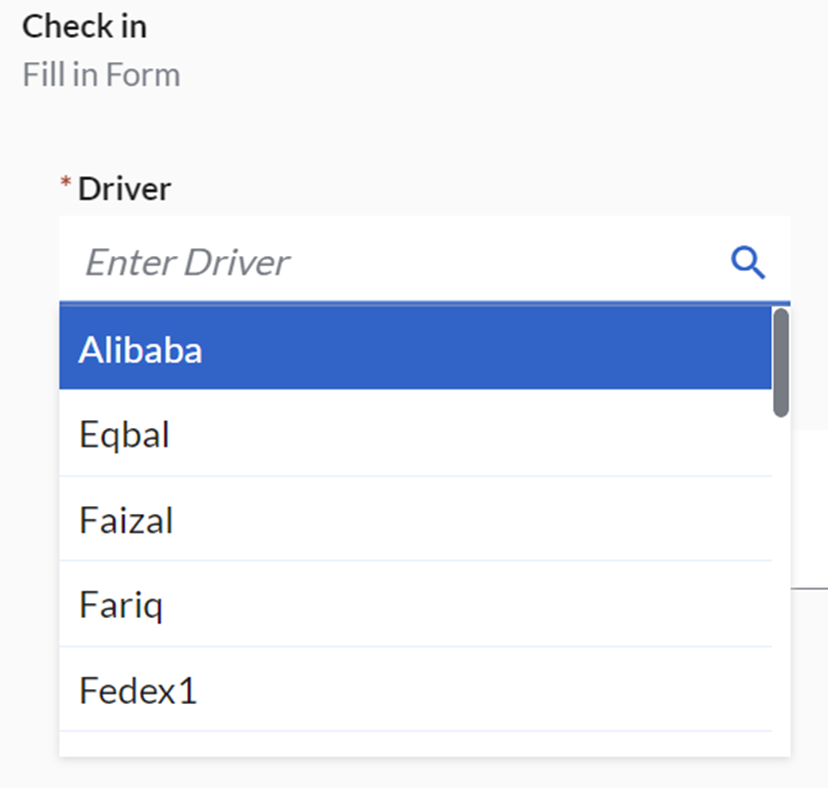
- Choose the Driver for which the Driver Record is for and fill up the details of the record accordingly
- Hit Save Record to save the record

Editing a Driver Record
- Go to Fleet Management > Drivers > Records
- Choose the record and hit Edit Record to edit the record

- The details of the record can be amended
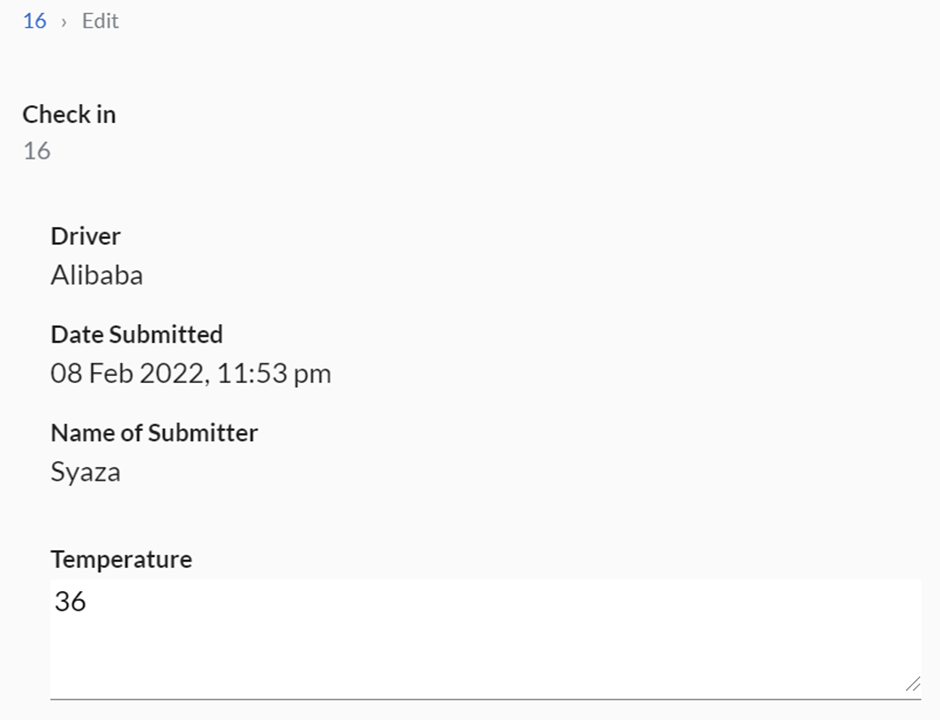
- Hit Save Record to save the record after making changes

Exporting Driver Records
- Go to Fleet Management > Drivers > Records
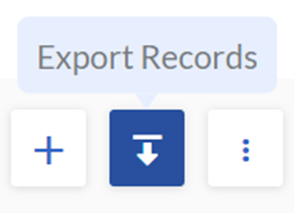
- Hit Export Records on the right to export the driver record
- Choose the record template from the dropdown list
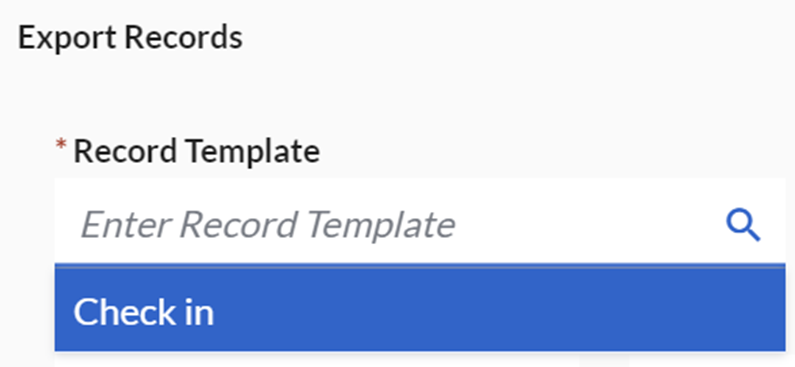
- Choose the date range to export the driver record

- Hit Export to export the driver records