Line Item Scanning allows drivers to know if all of the items of all Tasks have been scanned and proceed to either collect or unload the items. There are 2 parts to Line Item Scanning:
- Scan to Collect: When collecting items from the pickup location, the driver will be able to ensure that all of the items have been scanned and loaded into the vehicle.
- Scan to Unload: When arriving at the delivery location, the driver will be able to ensure that all of the items meant for the delivery location have been scanned and unloaded from the vehicle.
'Scan to Collect' and 'Scan to Unload' are Add-on modules. Contact us at customers@versafleet.co to activate this. Once activated, users will no longer be able to use Task Level Collection.
Note:
- These features only apply to Delivery Jobs
- For security reasons, VersaFleet Drive must be online to scan items
Setting up for Line Item Scanning
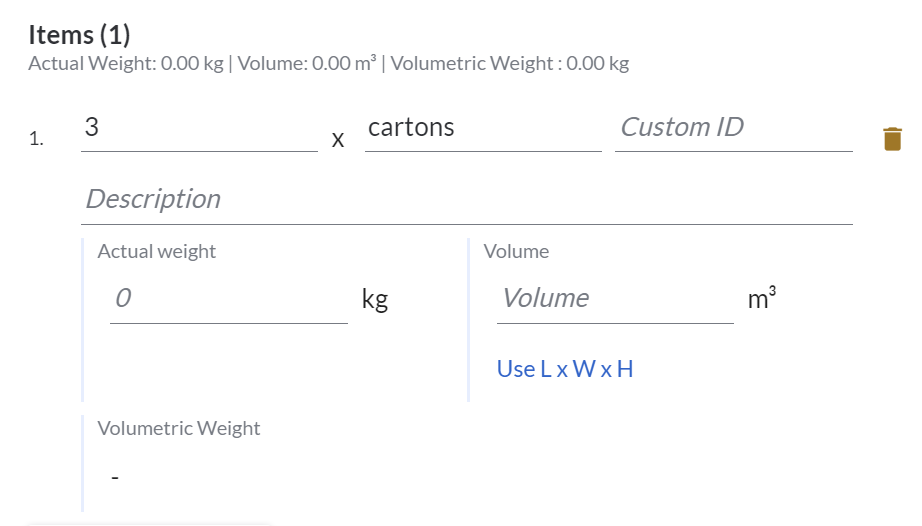
In order for Line Item Scanning to work, the items will require Item Custom ID.
Item Custom ID can be added in the following ways:
- When items are added via APIs during job creation, task creation, task update or item creation
- When items are edited from a task manually or when items are added to an existing task manually
Scanning to Collect
During collection, the drivers will be able to scan the barcode or QR code of the item.
To scan items for collection on VersaFleet Drive,
- In the 'In Progress' tab, click into the task and click Collect Tasks
- The driver will be redirected to a page to show the items for every task.
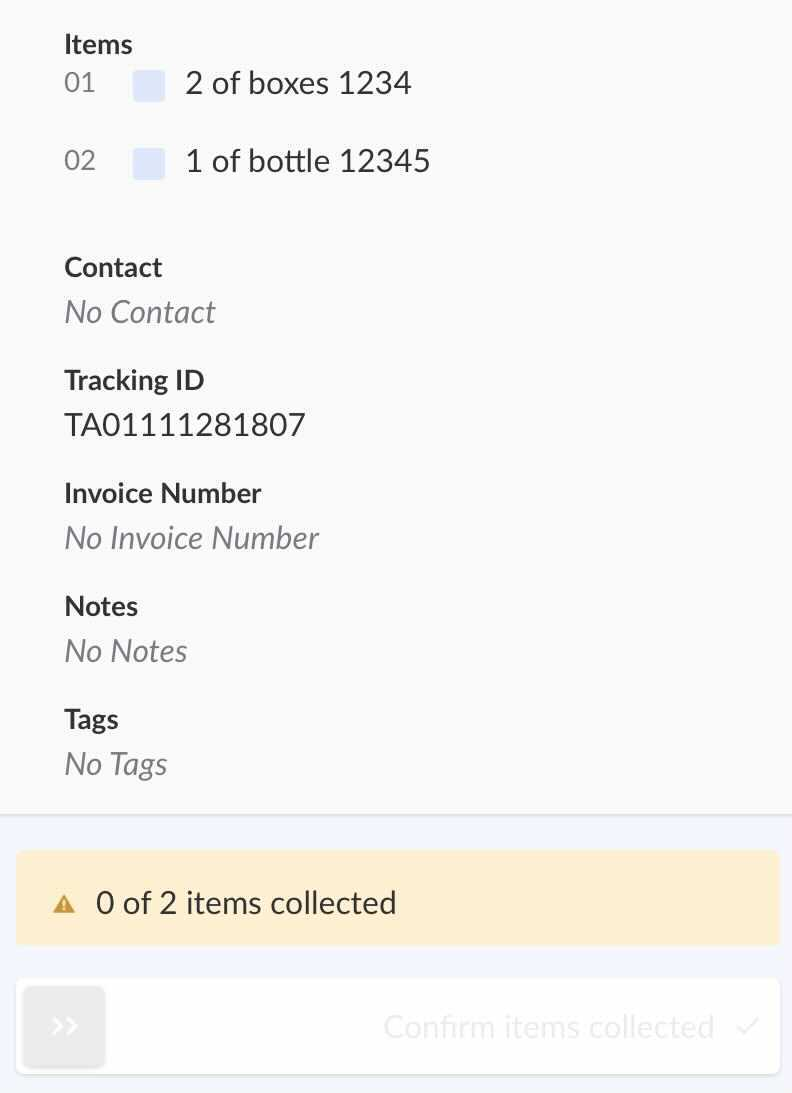
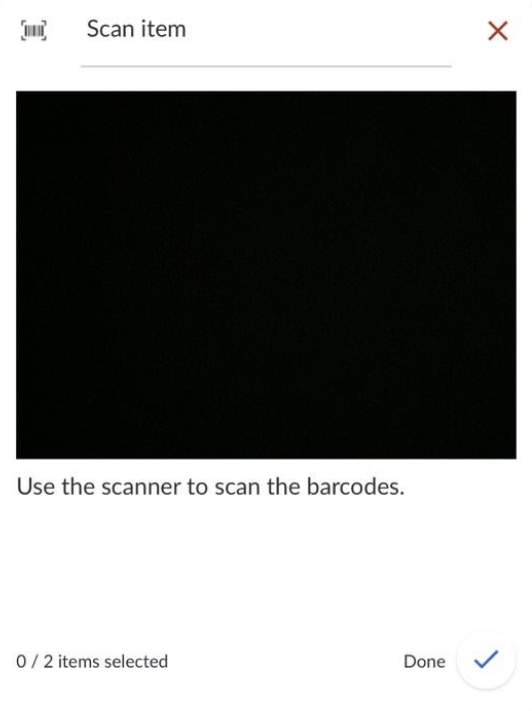
- Click the Scanner button at the top-right to start scanning the items
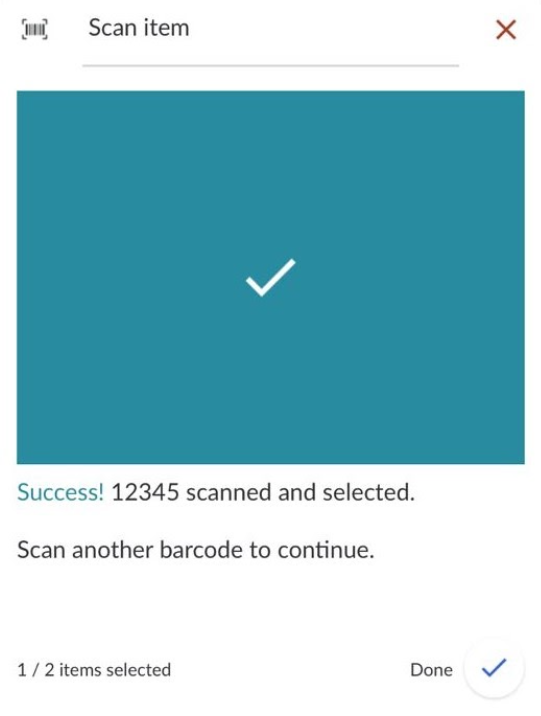
- For successful scans where the item scanned is in the driver's list, a green tick will be shown.
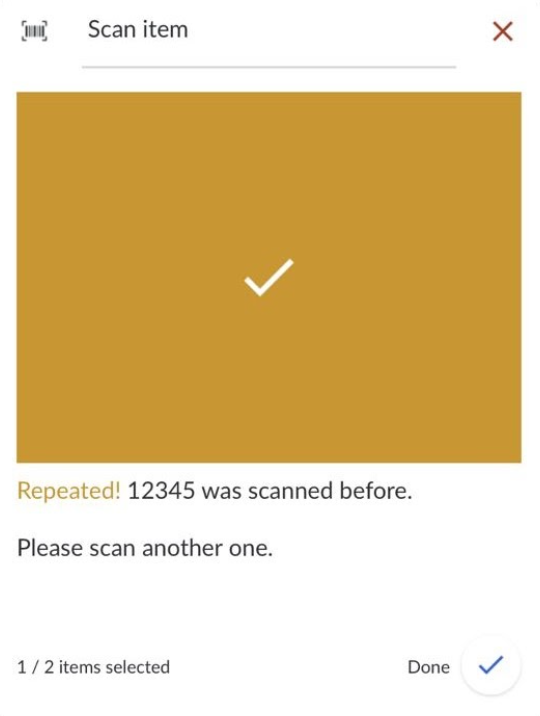
- For repeated scans where the item was scanned again
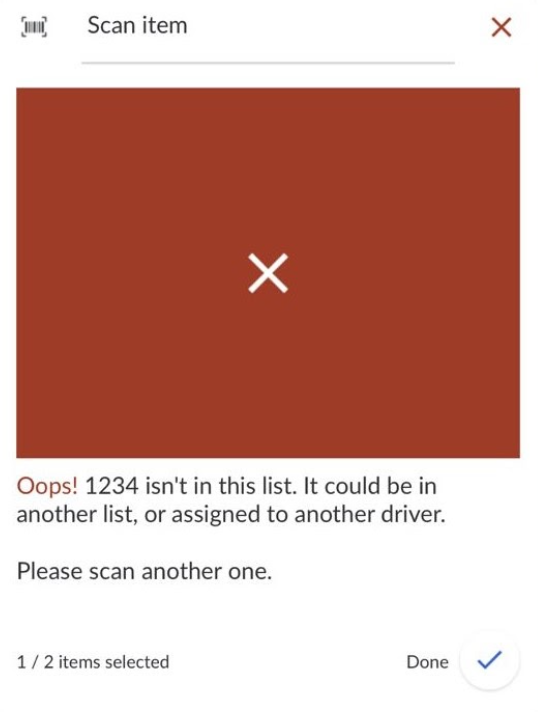
- For unsuccessful scans where the item scanned is not in the driver's list
- For successful scans where the item scanned is in the driver's list, a green tick will be shown.
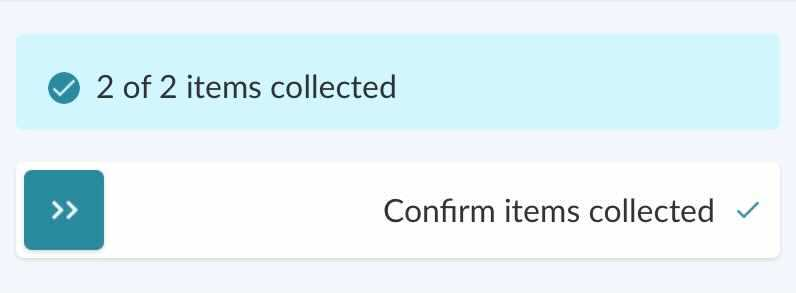
- Once all of the items in all of the tasks have been scanned, swipe Confirm items collected. If there are still items that have not been scanned, the button can not be swiped.
- Driver should continue to complete the collection
Scanning to Unload
- In the 'In Progress' tab, click into the task and click through to I've arrived
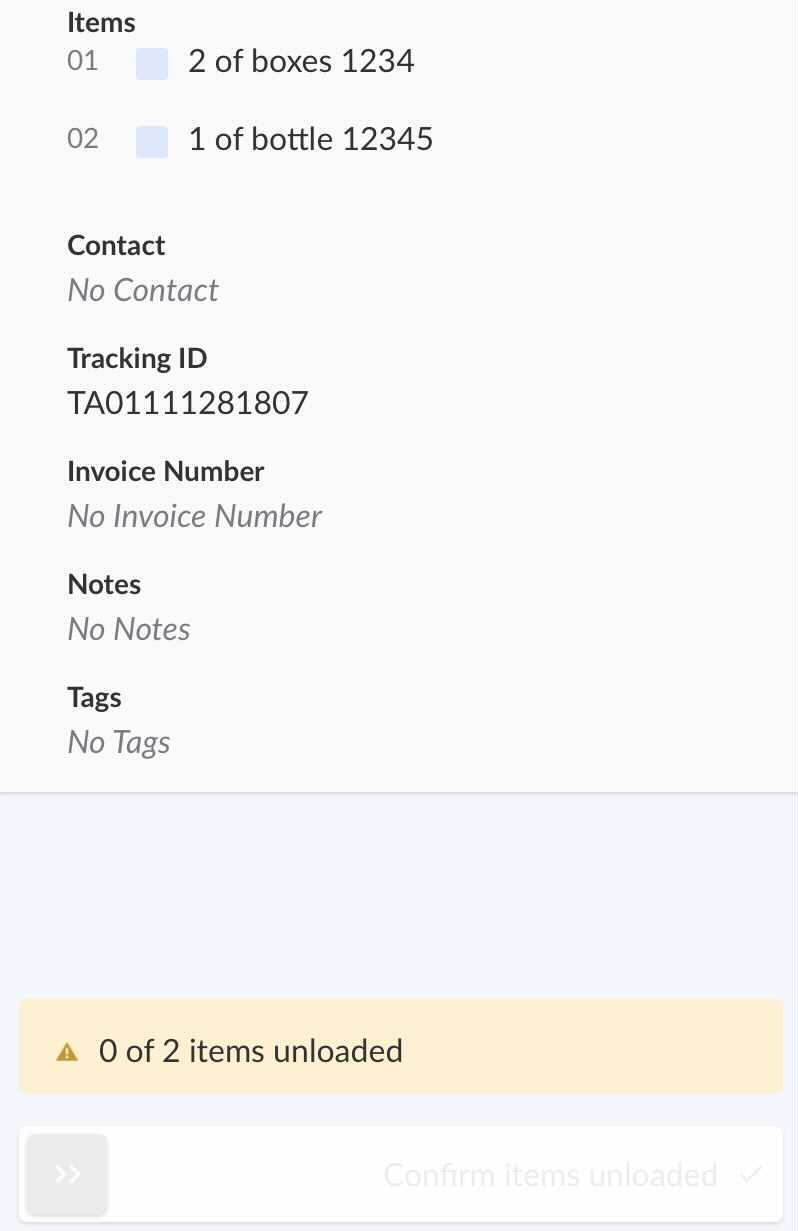
- The driver will be redirected to a page to show the items for every task.
- Click the Scanner button at the top-right to start scanning the items
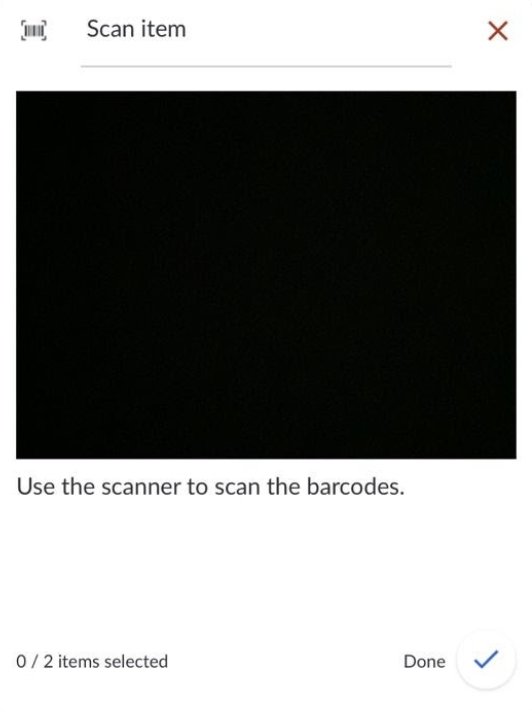
- For successful scans where the item scanned is in the driver's list, a green tick will be shown.
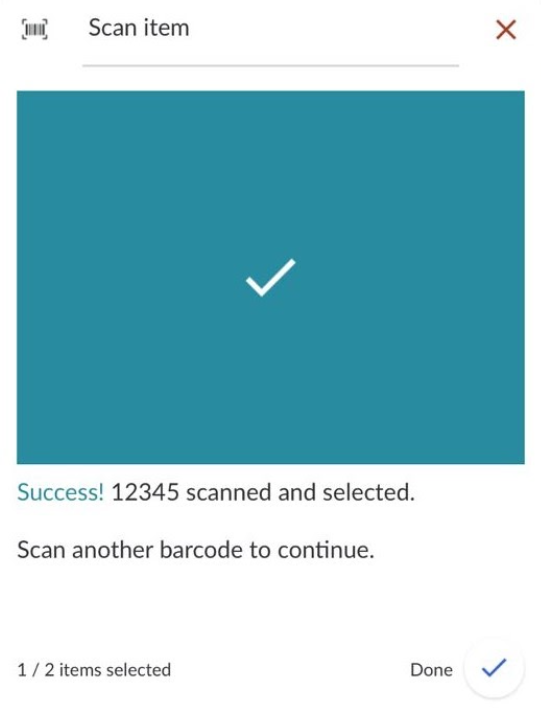
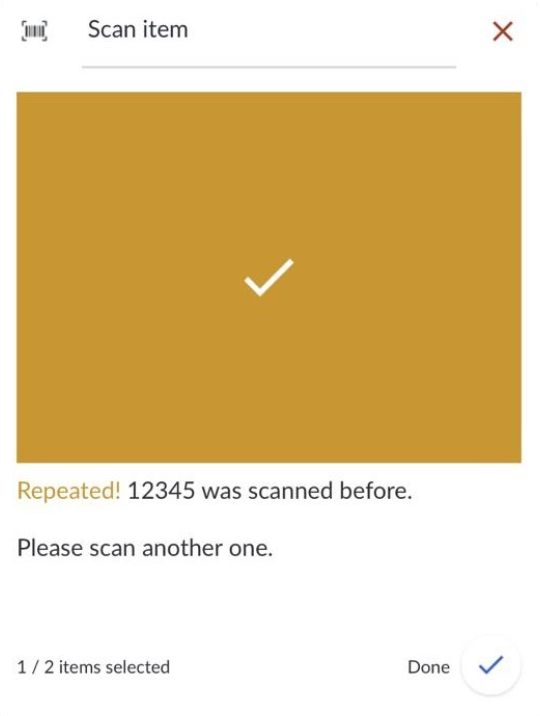
- For repeated scans where the item was scanned again
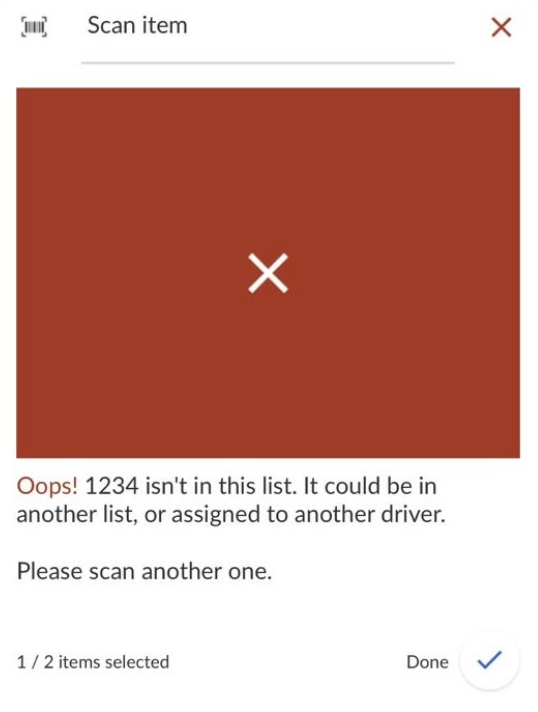
- For unsuccessful scans where the item scanned is not in the driver's list
- For successful scans where the item scanned is in the driver's list, a green tick will be shown.
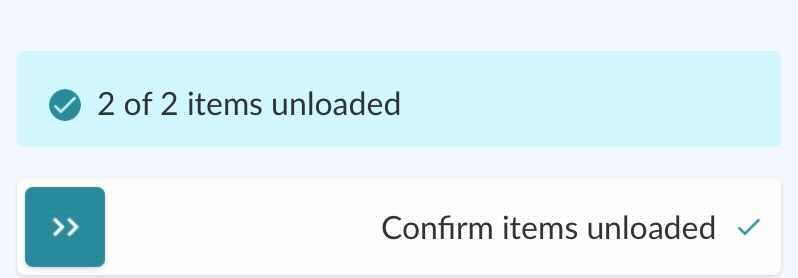
- Once all of the items in all of the tasks have been scanned, swipe Confirm items unloaded. If there are still items that have not been scanned, the button can not be swiped.
- Driver should continue to complete the delivery
Replacing Scans with Manual Selection
If there are issues with scanning the items (ie. camera not working or damaged barcode or QR codes), the driver is able to check each item by hand instead.
During collection or unloading, when the driver has ensured that the item has been either collected or unloaded, he can check the box beside each item to replace the action of scanning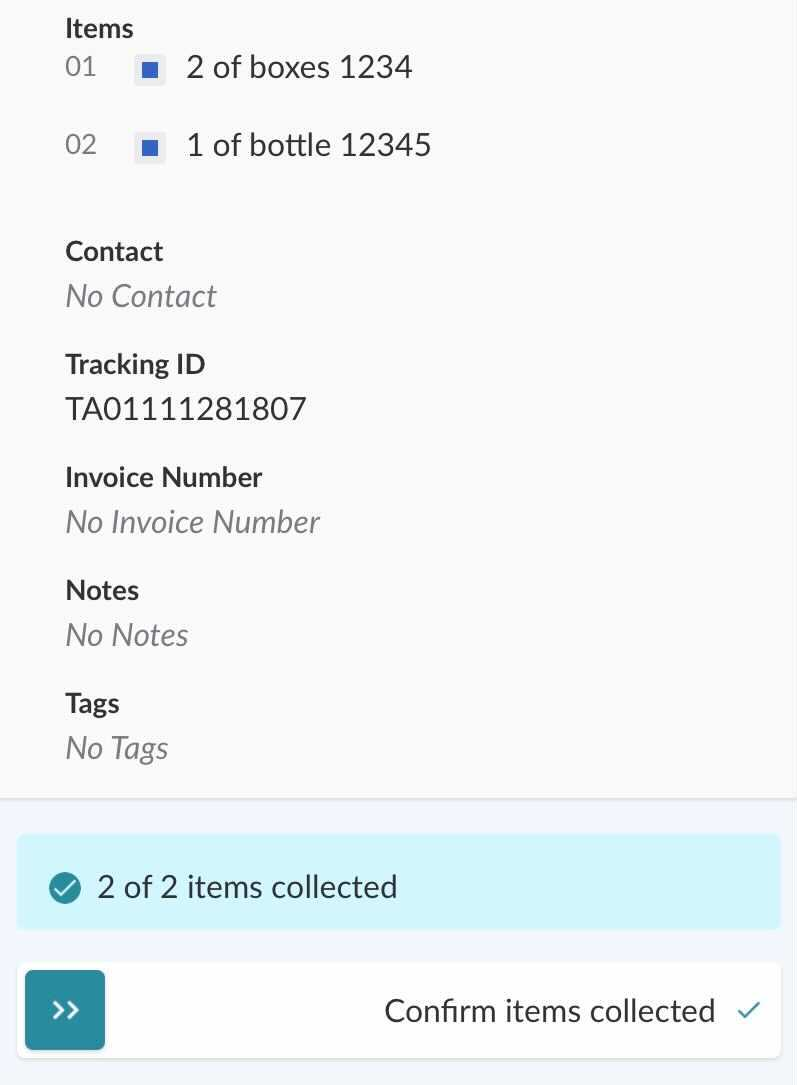
Exporting Item Selection Method
To find out if the drivers have scanned or selected the items by hand during collection and unloading, you can export the details.
- Go to Planning > Tasks and click Export Jobs on the right
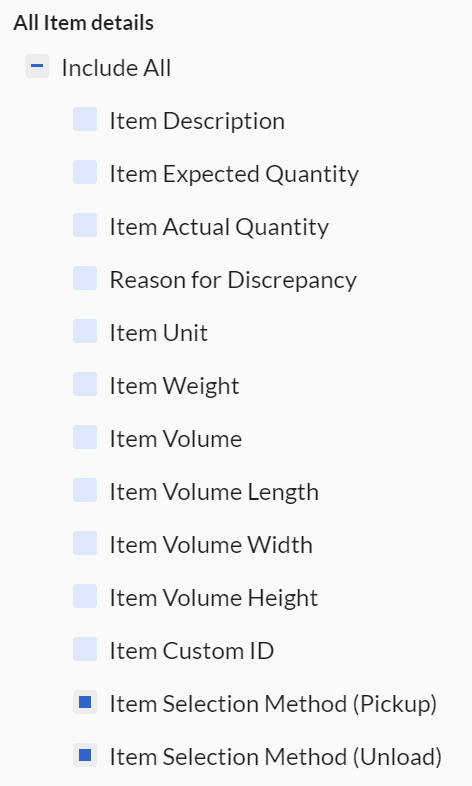
- Select the Date Range and scroll to All Item details
- Check the box for Item Selection Method (Pickup) and the box for Item Selection Method (Unload)
- Hit Export Jobs & Tasks
- In the export file, 'By code scan' means that the item has been scanned while 'By hand' means that the item has been selected manually.
