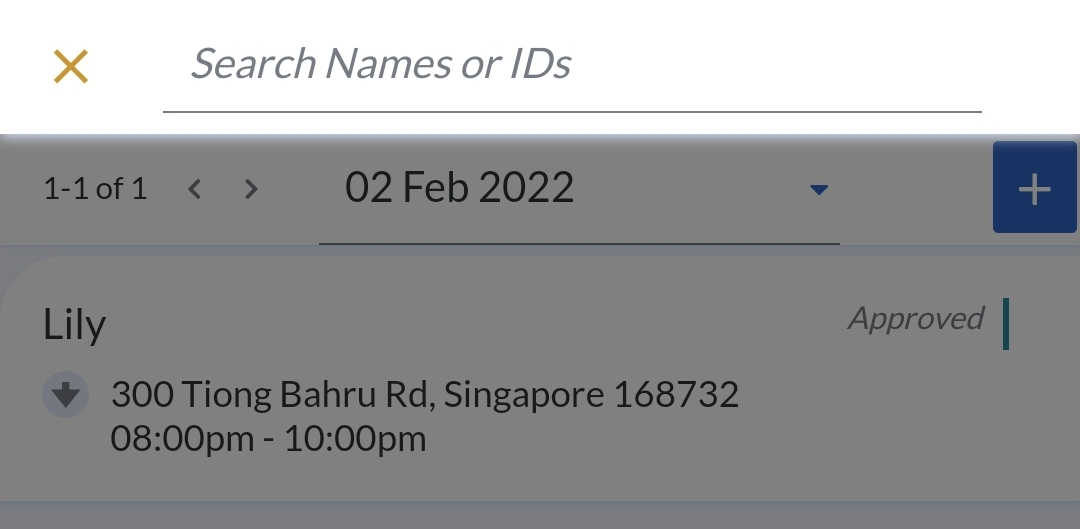
Besides accessing MyJobs through a computer, MyJobs can also be accessed through mobile phones - MyJobs Mobile. The features in MyJobs Mobile are focused on creating jobs and tasks, and tracking statuses on the go. To access the full range of features, it is best recommended to use a computer.
Accessing MyJobs Mobile is just like accessing MyJobs on the computer.
- Use a Google Chrome browser and go to https://jobs.versafleet.co/
- No app download needed
This article is meant for both 'Forwarding' and 'View Only' MyJobs users to learn about MyJobs Mobile and its functions.
Creating Jobs
- On the right, hit + Add a Job to create a new job.

- Select the Job Type.
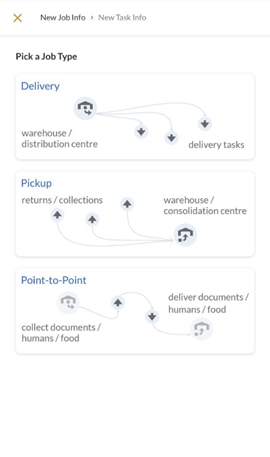 If you have selected "Delivery" or "Point-to-Point" as the Job Type, the information keyed in will be for the Base Task - Single Pickup.
 - If 'Delivery' is selected as the Job Type, on the next page, fill up the information for the Job Pickup.
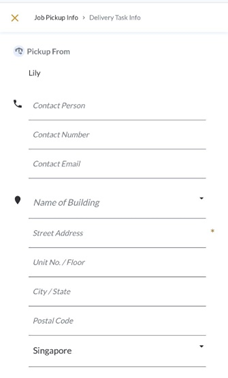 The compulsory fields are:
- Street Address: Choose from a drop-down list or add an address.
- Date: Choose the date.
- Time: Choose the time or custom the time.
To better track and trace back this task, you may include:- Remarks
- Tags
- Attachments: Any document related to help trace the task.
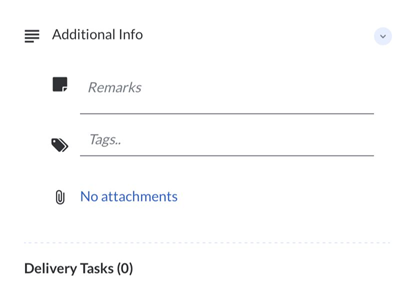
- Hit + Add a Task to add the delivery task.
- Fill up information for the Delivery Task.
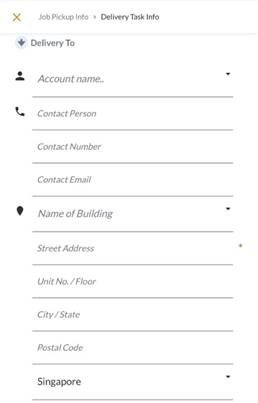 Deliver to / Pickup from – this will be the information for the Task.The compulsory fields are:
- Street Address: Choose from a drop-down list or add a new address.
- Date: Choose the date.
- Time: Choose the time.
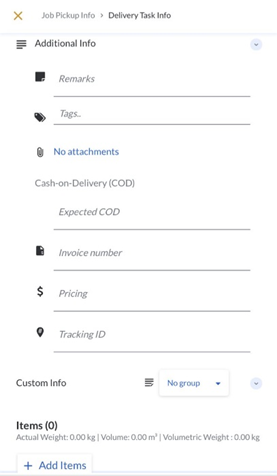 To better track and trace back this task, you may include the invoice number and tracking ID.
- Invoice Number: This is not restricted to just invoice number; you may choose to use this field to key in delivery order number or sales order number.
- Pricing: Cost of the task
- Tracking ID: This is useful if you would like to customise your own Tracking ID for your customers to track this task on their own. Each Tracking ID should at least be 12 alphanumeric characters. Spaces and all special characters (with the exception of ( ) - { }) are not allowed.
*Note: The section on Additional Info will be set up by VersaFleet. The field might not be available depending on the setup. - Hit + Add Items to add items to this task.
- Key in Qty, Item and Description, as well as the dimensions.
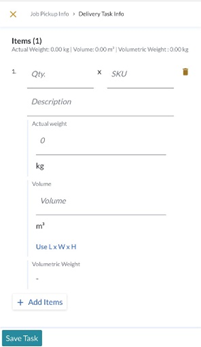
- Once you’re done, hit Save Task to save the task.
- You may continue adding more tasks by repeating steps 4 to 8
- Hit Save Job to save the job.
 The status will be changed to Draft.
If you have selected "Pickup" as the Job Type, the information keyed in will be for the Base Task - Single Delivery.
Submitting a Job
To send Job details to the VersaFleet account, you’ll need to submit the Job.
To submit a job, hit Submit to send Job details to the VersaFleet account and wait for their approval.
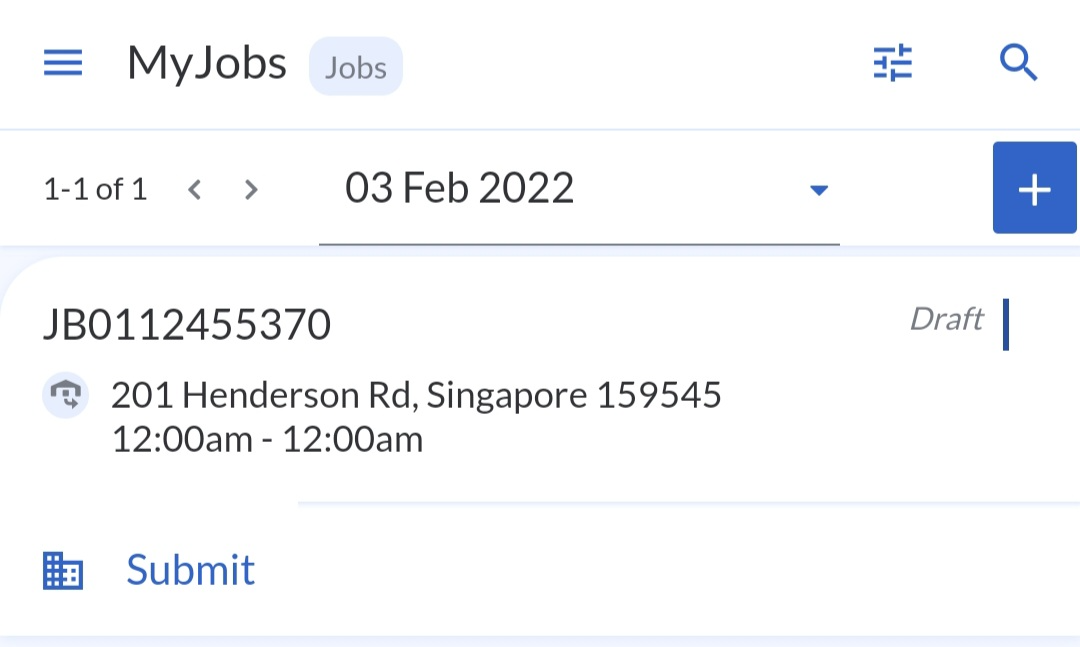
The Job status will be changed from 'Draft' to 'Pending Approval', where the VersaFleet user will have to approve the Job in VersaFleet.
Retracting a Job
If you would like to withdraw the submitted job before it is approved, you are able to retract the job.
To retract a job, hit Retract to take back the Job details that were previously submitted to the VersaFleet account.
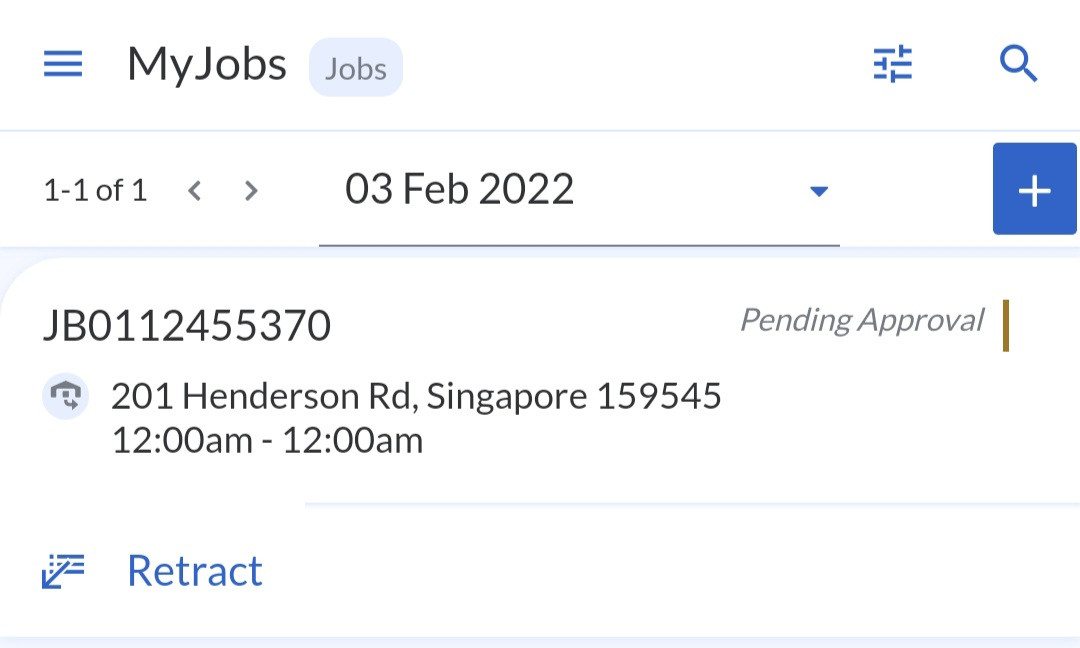
The Job status will be changed from 'Pending Approval' to 'Draft', and you may make the changes to the job.
*Note: Job can only be retracted if it has yet to be approved by the VersaFleet account.
Monitoring Job Submissions
Approved Job
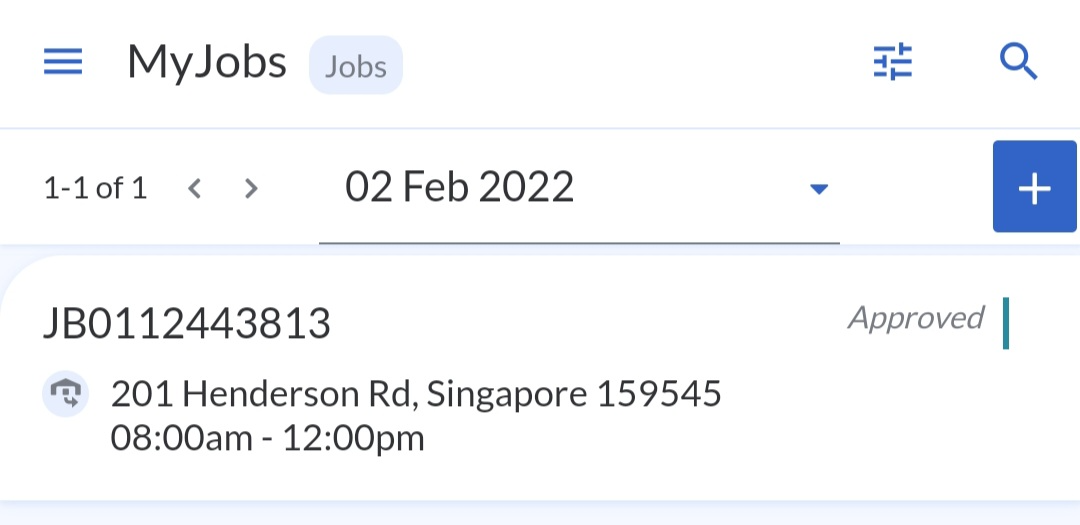
If the job has been approved, the job status will be changed from 'Pending Approval' to ‘Approved’.
Rejected Job
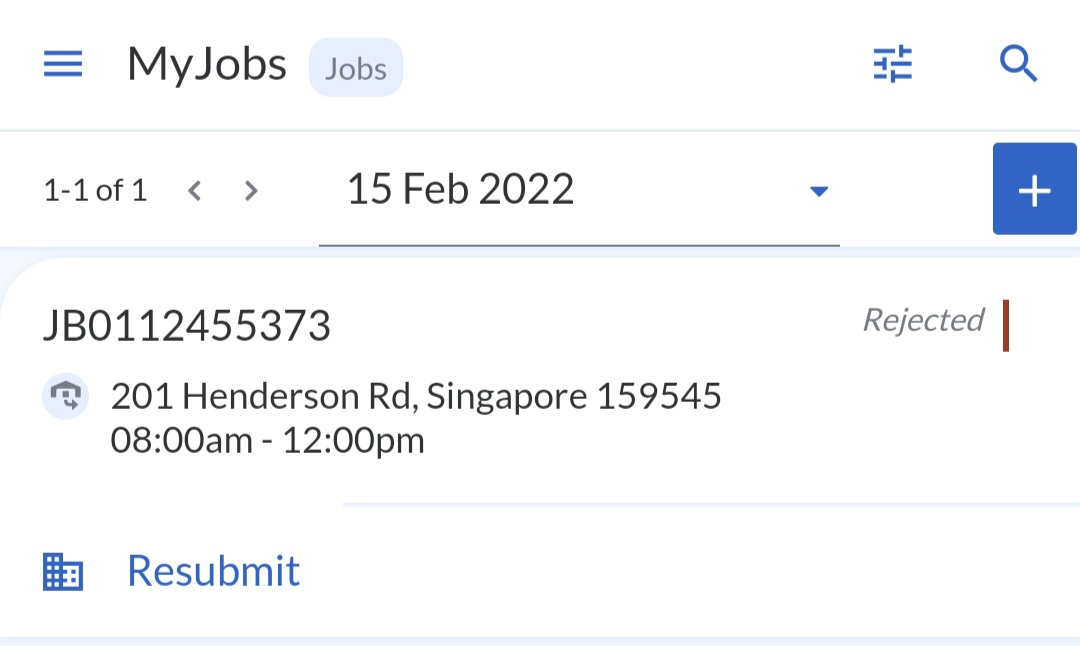
If the job has been rejected, the job status will be changed from 'Pending Approval' to 'Rejected'.
Navigating MyJobs Mobile
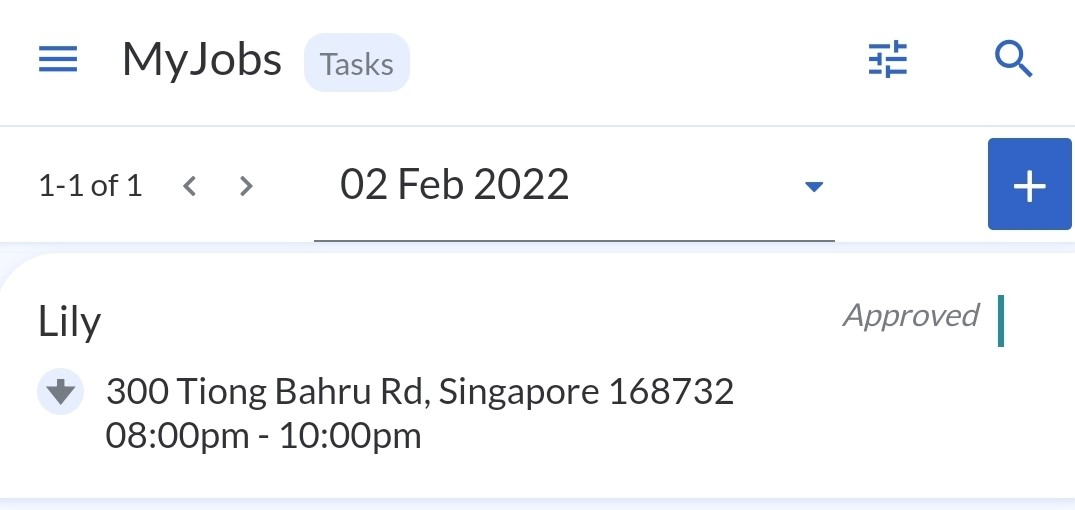
Job and Task View
To toggle between 'Job' and 'Task' views, click the 'Jobs' or 'Task' word beside MyJobs.
- When you're in the 'Job' view, the 'Jobs' word will be displayed
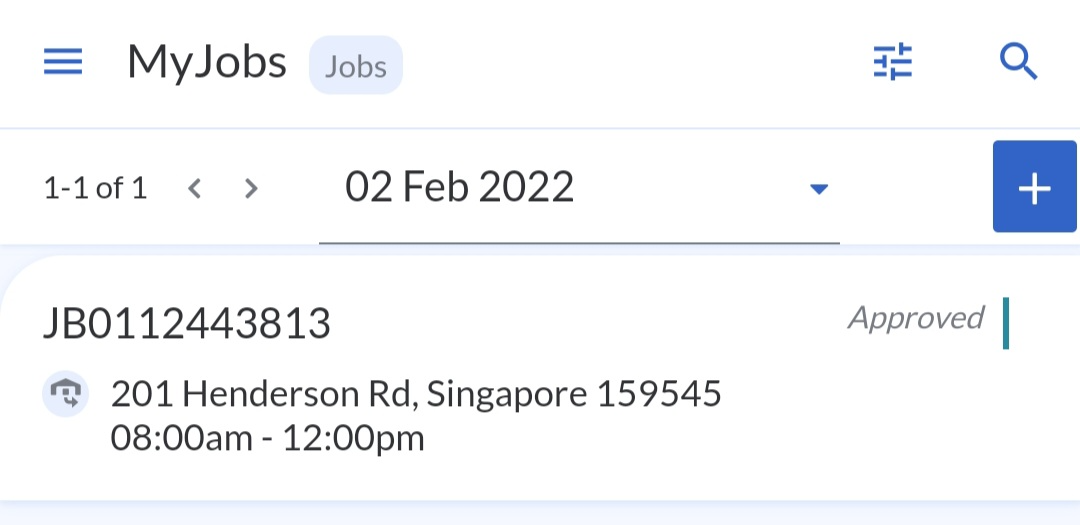
- When you're in the 'Task' view, the 'Tasks' word will be displayed
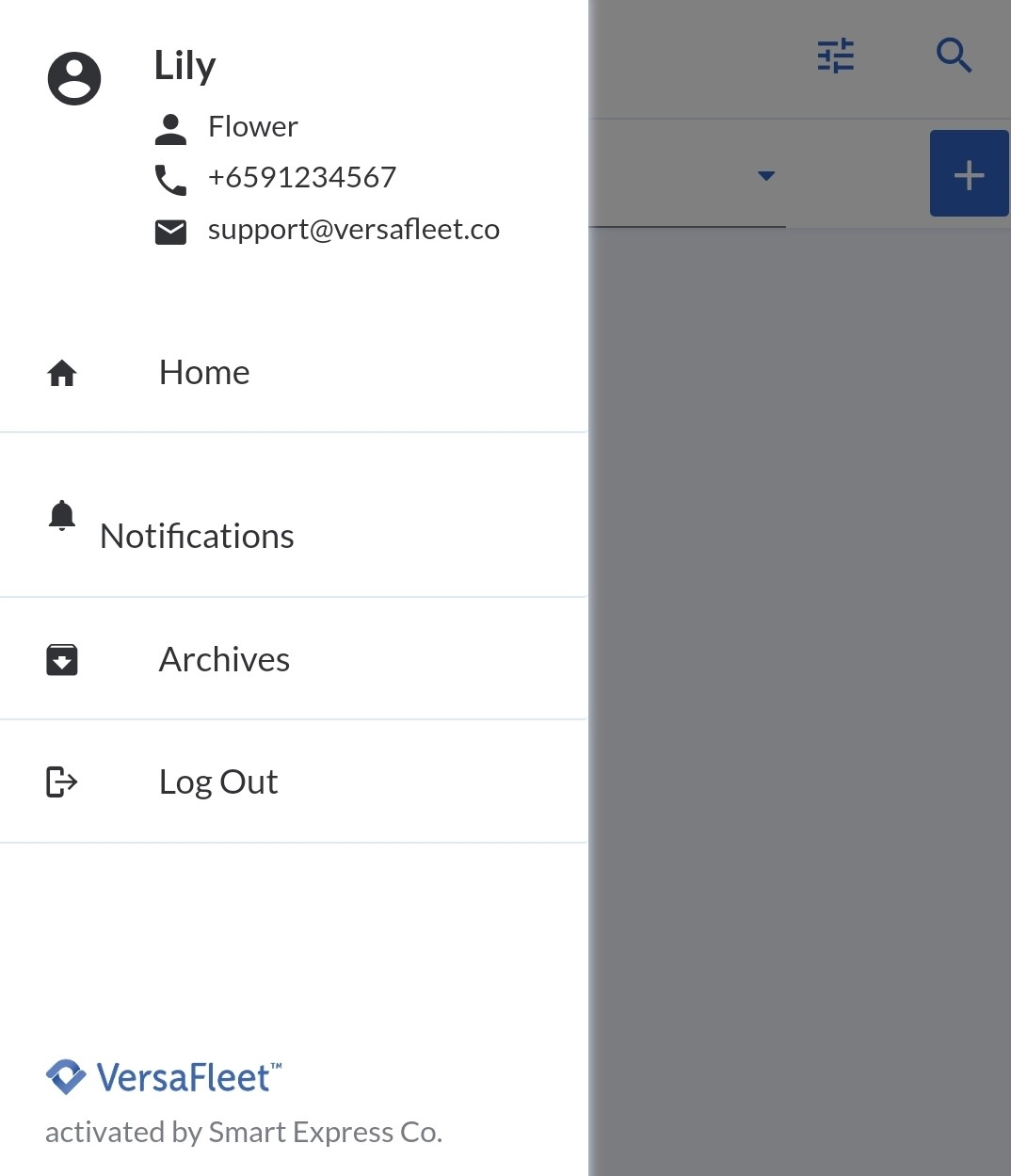
Menu
From the menu on the left, you will find Notifications, Archives and Log Out.
Filtering and Sorting
To access the filters, click on the filters icon at the top right in either Jobs or Task page.

Use filters to narrow your search results based on the following:
- For Jobs
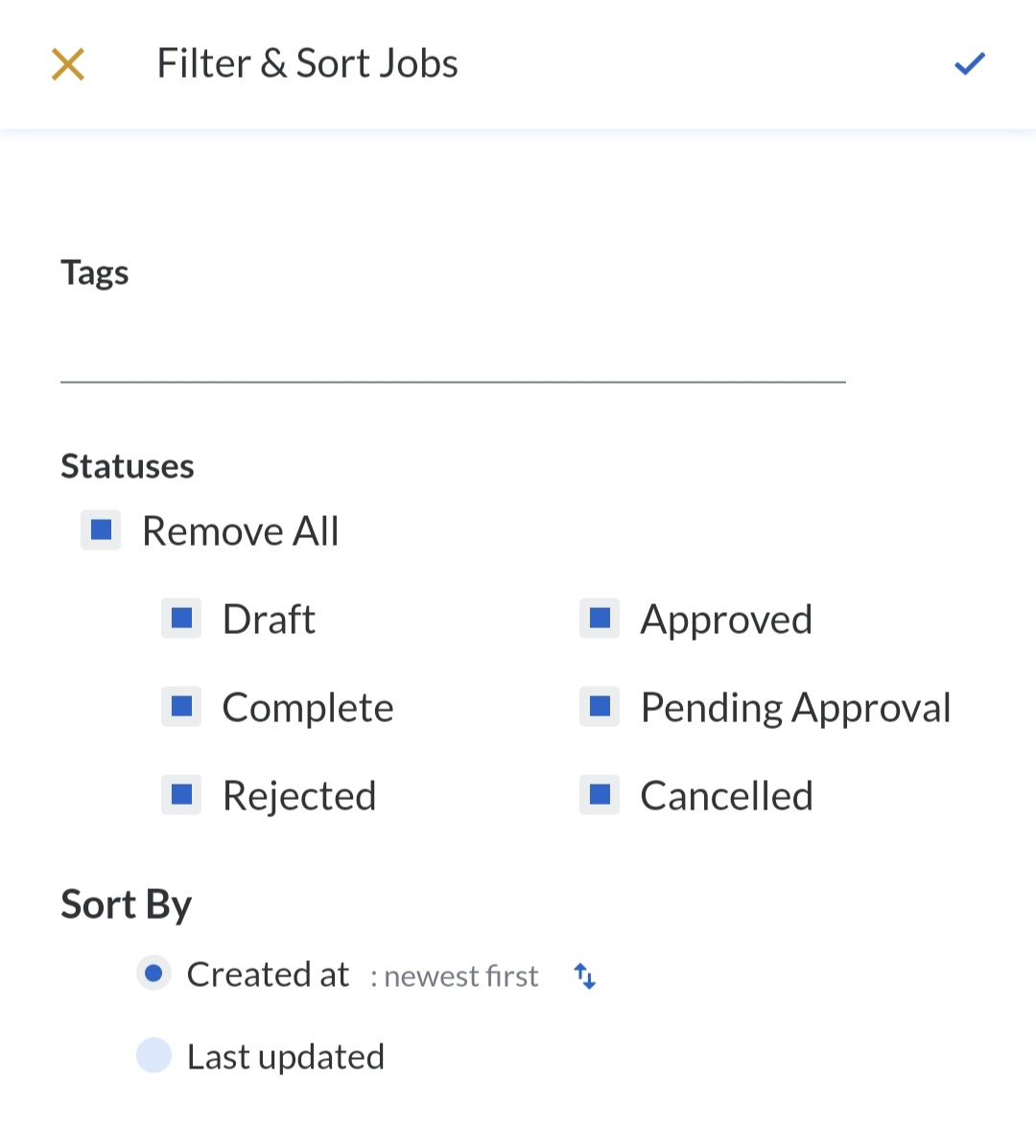
- Job Tags
- Job Statuses
- Sort by Created at and Last updated
- For Tasks
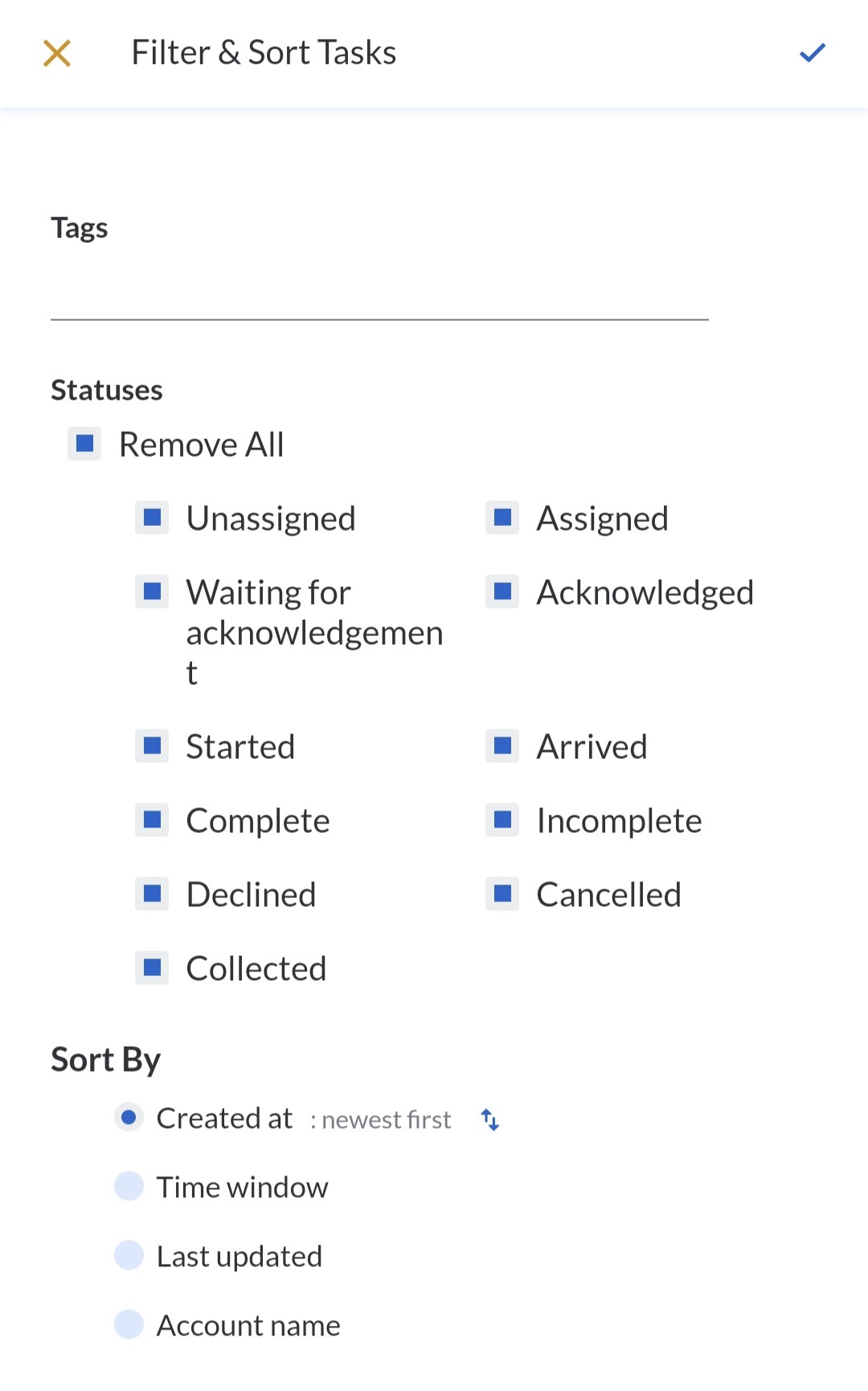
- Task Tags
- Task Statuses
- Sort by Created at, Time window, Last updated and Account Name
Searching Details
To search for Names or IDs,
- Click on the search icon at the top right in either Jobs or Task page

- Key in the search term