Location-based functions allow users to automatically add a Task Tag to a task based on its location. This helps the users to filter tasks on Planning > Map or Planning > Tasks easily.
To add a Task Tag to a task based on its location, there has to be zones drawn on a map. In order to do this, we will make use of Google's MyMaps.
Drawing of Zones
- Go to MyMaps (https://www.google.com/maps/d/) and hit + Create a New Map
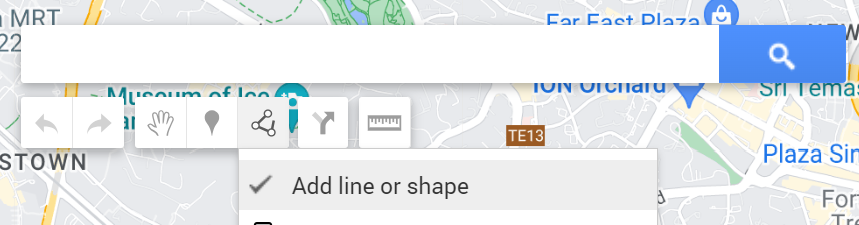
- To start drawing the zones (shapes) on the map, click the 'Add line or shape' and start drawing a shape.
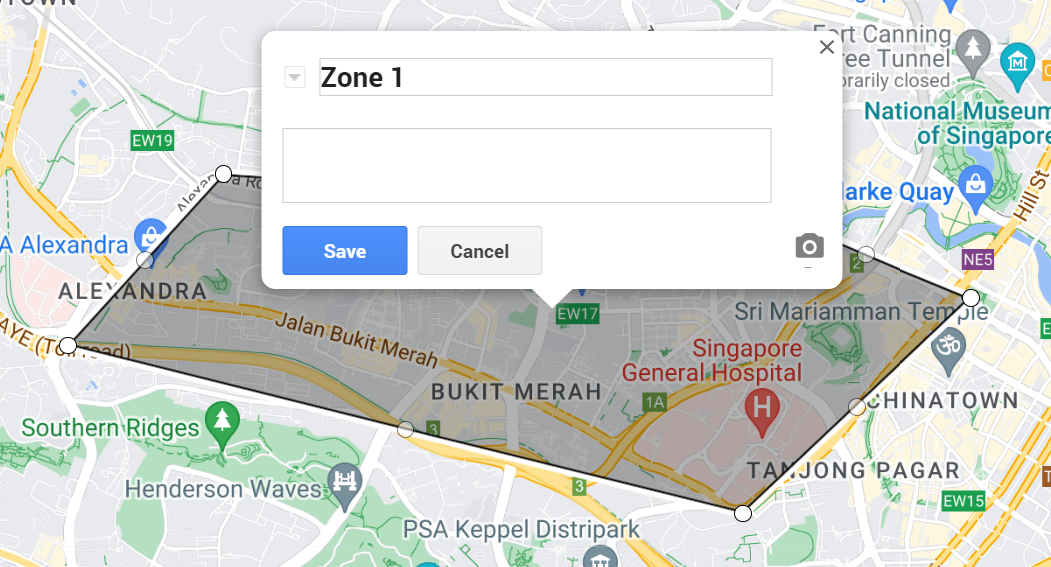
- When the shape is formed, you will be prompted to name the shape with the name of the zone that you want
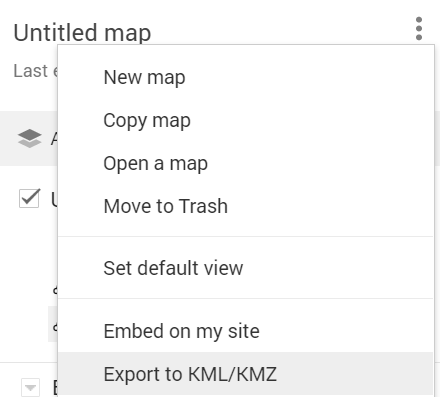
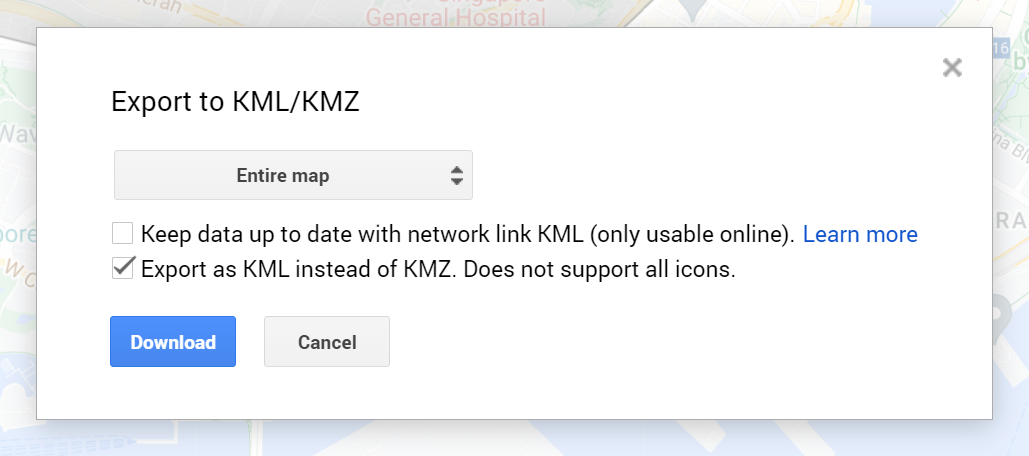
- Once you have drawn all the zones that you wanted, export the map as a .kml file.
- Click the 3 dots icon and select Export to KML/KMZ
- Check the "Export as KML instead of KMZ. Does not support all icon." checkbox to export as KML
- Hit 'Download' to download
- With the KML file, upload this into VersaFleet.
Uploading of KML file
- Go to Settings > Add-Ons > Location-based Functions
- Hit Configure on the right
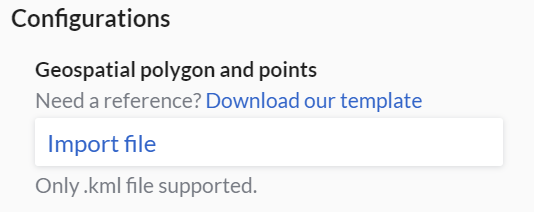
- Click Import file and attache the KML file
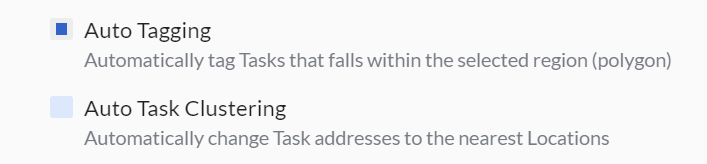
- Select Auto Tagging
- Hit Save Configurations to save the Location-based Functions configuration
This map of zones will be applied to the subsequent set of tasks that you create in VersaFleet. If the task's location falls into one of the zones that you have drawn earlier, the task will be added with a Task Tag with the name of that zone.