When using VersaFleet Drive, if the driver faces any issues, he is able to report logs to the VersaFleet team. These logs provide detailed event information based on the driver's actions on the app and are tied to the device that the driver is using.
Reporting Logs on VersaFleet Drive
To report logs on VersaFleet Drive,
- Click on the menu on the left and click Report Logs

- You will be redirected to the email app
- Ensure that the pre-filled details and 'driver logs' attachment are included before the email is sent to VersaFleet.
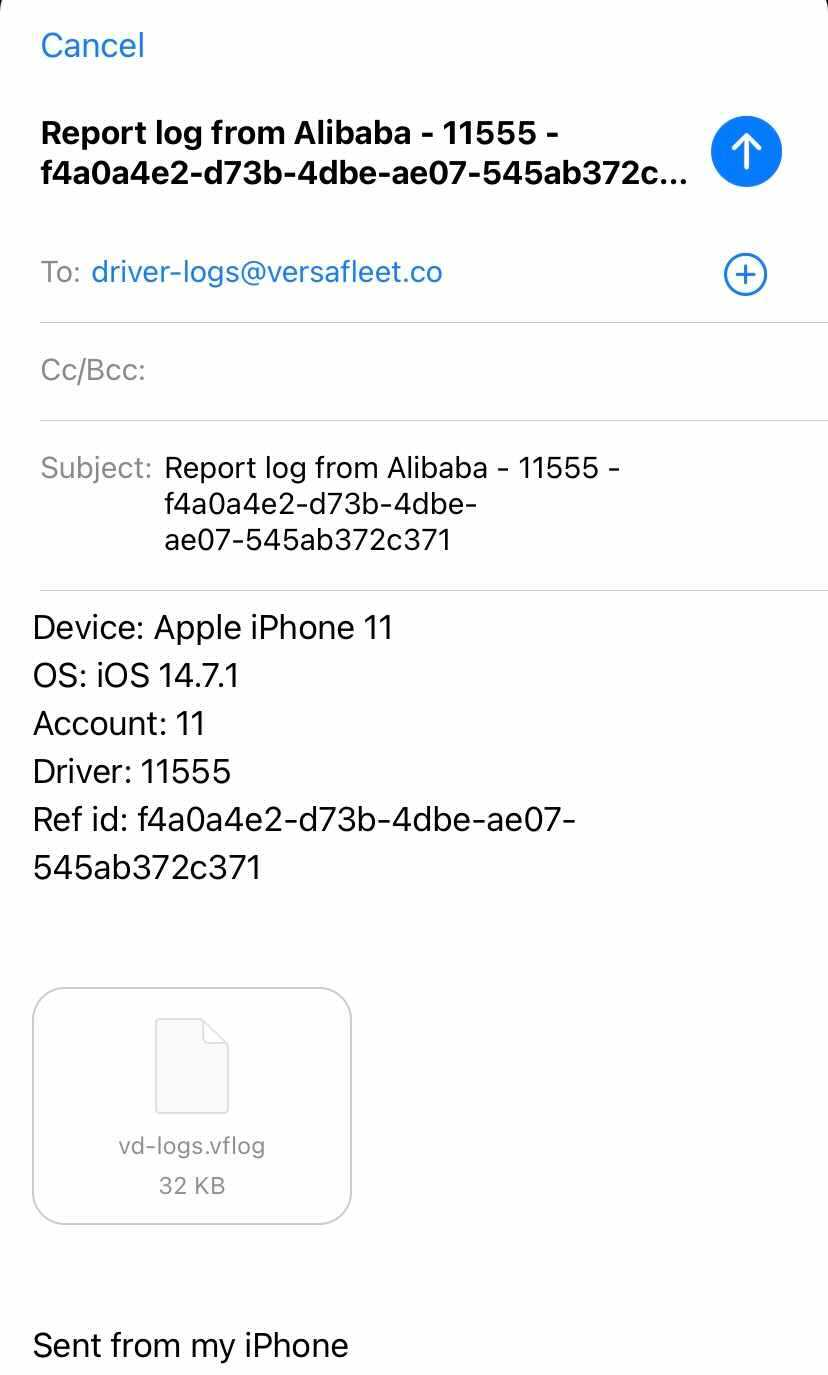
- You may include a short description of the issue so our team is able to narrow our investigation.
Example: I am having trouble attaching a photo when the task is completed. - Hit send to send the email.
Encountering Issues when Reporting Logs
When the app is generating the log file, there could be times when there are issues that will hinder the reporting logs process. Do not uninstall the app as this will remove all of the details in the logs.
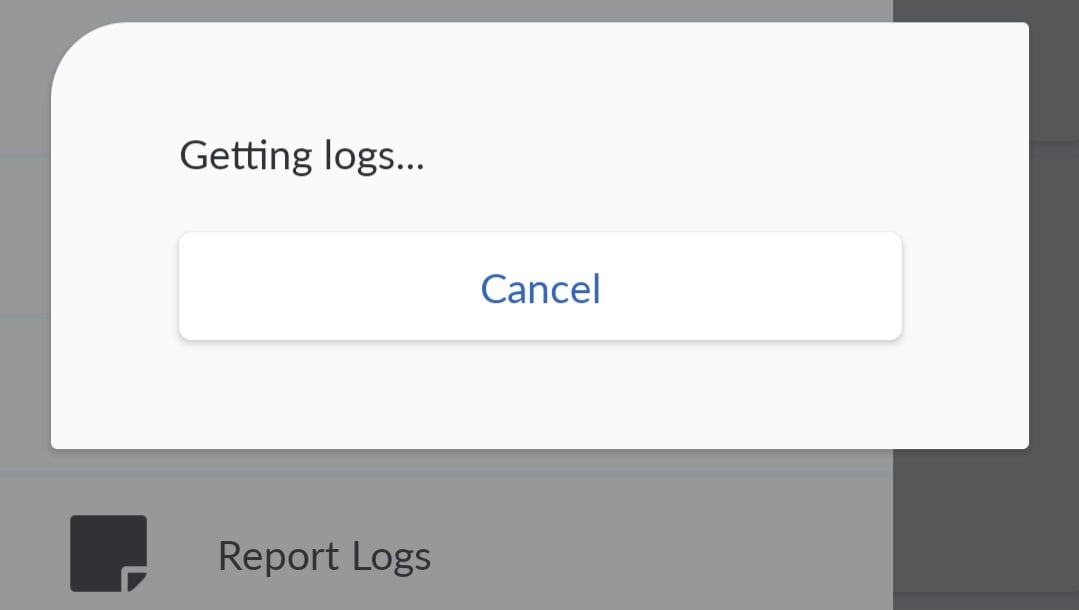
Here are some scenarios and the recommended resolution steps to take:
- If it's taking a long time to get the logs, you may click Cancel to stop the process. We recommend that you quit the app, relaunch and try reporting logs again.
- If there is an error regarding 'Unable to attach logs', we recommend that you quit the app and check your network connection. Relaunch the app and try reporting logs again.
- If the 'Getting logs' popup disappears but you are not redirected to the email app, check that your email app has been configured. Once it's configured, try reporting logs again.