Job Completion
To configure the information that drivers need to collect when completing a job in VersaDrive.
- Go to Settings > VersaDrive > Job Completion.
- Choose Enabled or Disabled:
- Enabled: Drivers will access Completion Details in VersaDrive.
- Disabled: Drivers don't have to collect any information.
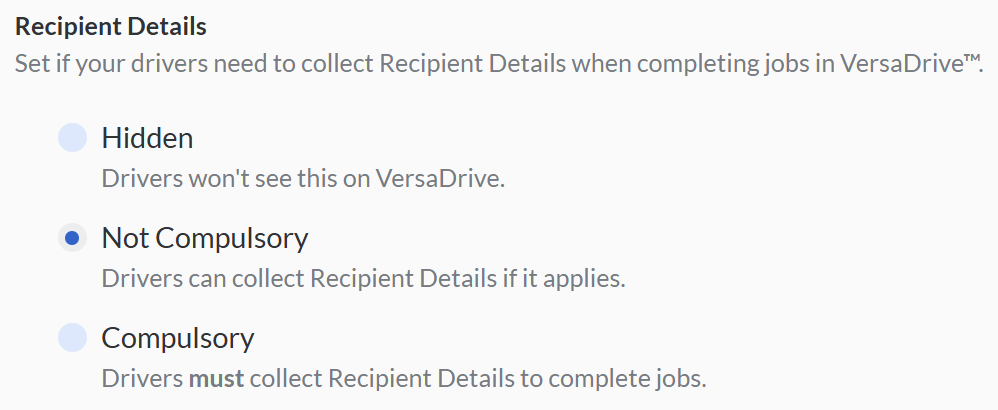
- Under 'Recipient Details', specify whether the information should be Hidden, Not Compulsory, or Compulsory for drivers.
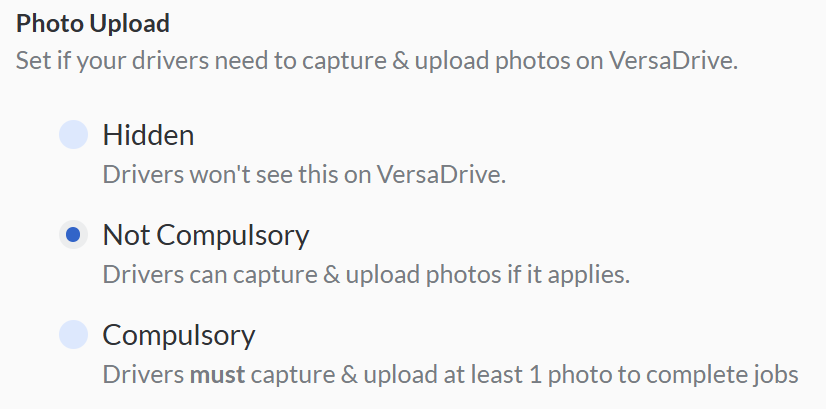
- Under 'Photo Upload', set whether the photo requirement should be Hidden, Not Compulsory, or Compulsory for drivers.
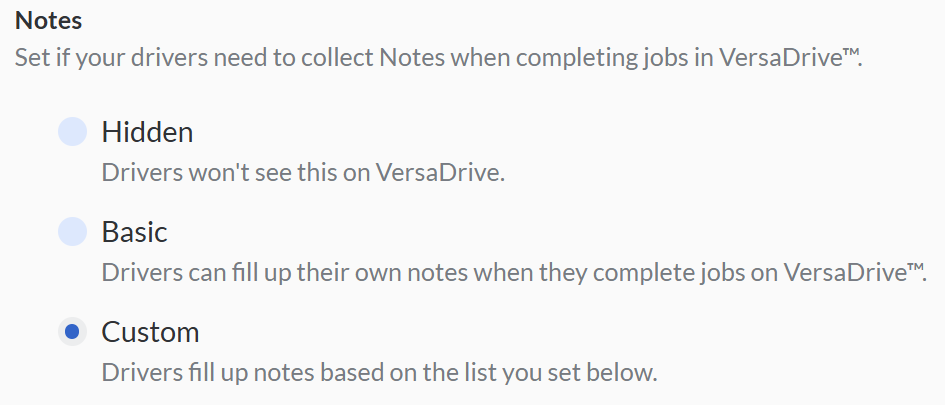
- Under 'Notes', set whether the notes requirement should be:
- Hidden: Driver won't see this field in VersaDrive
- Basic: Drivers can fill up their own notes when they complete jobs in VersaDrive
- Custom: Drivers fill up notes based on the list you set
- Hit Save Configurations to save.
Task Sequence Lock
To set up whether driver should follow sequence of tasks as set by the optimiser.
- Go to Settings > VersaDrive > Task Sequence Lock
- Choose Enabled or Disabled:
- Enabled: Driver must complete task in order of sequence set by optimiser, one task at a time.
- Disabled: Driver is able to complete tasks in any order.
Scan to Identify
If you want to allow driver to edit the item or task details during scanning, you can use the scan to identify. To set up whether drivers are allowed to edit item or task details when scanning to identify items or tasks,
- Go to Settings > VersaDrive > Scan to Identify.
- Under 'Scan Result', choose the results seen by drivers during scanning from the lists.
- To add more field, hit Add field and add choose the result.
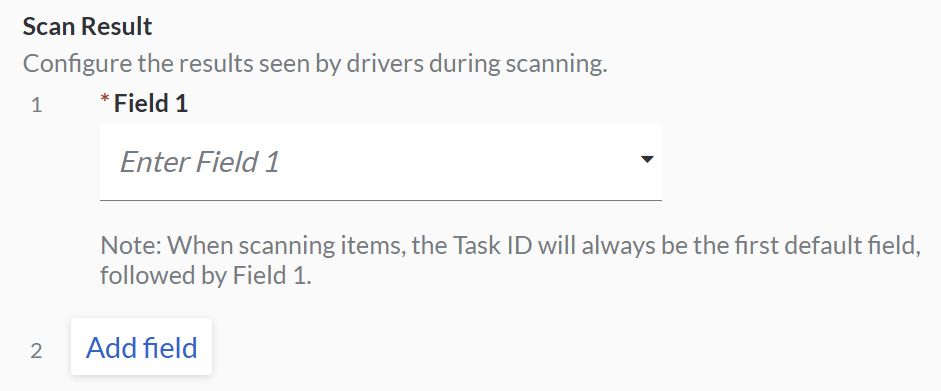 Note: When scanning items, the Task ID will always be the first default field, followed by Field 1.
 - Choose Enabled or Disabled:
- Enabled: Driver will be able to edit item or task details after scanning
- Disabled: Driver will not be able to edit item or task details after scanning
- If enabled, under 'Field to Edit', select the fields that will be edited when drivers scan in VersaFleet Drive:
- If it is for item, choose the item detail under 'Edit Item Details when Scanning'
- It it is for task, choose the task detail under 'Edit Task Details when scanning'
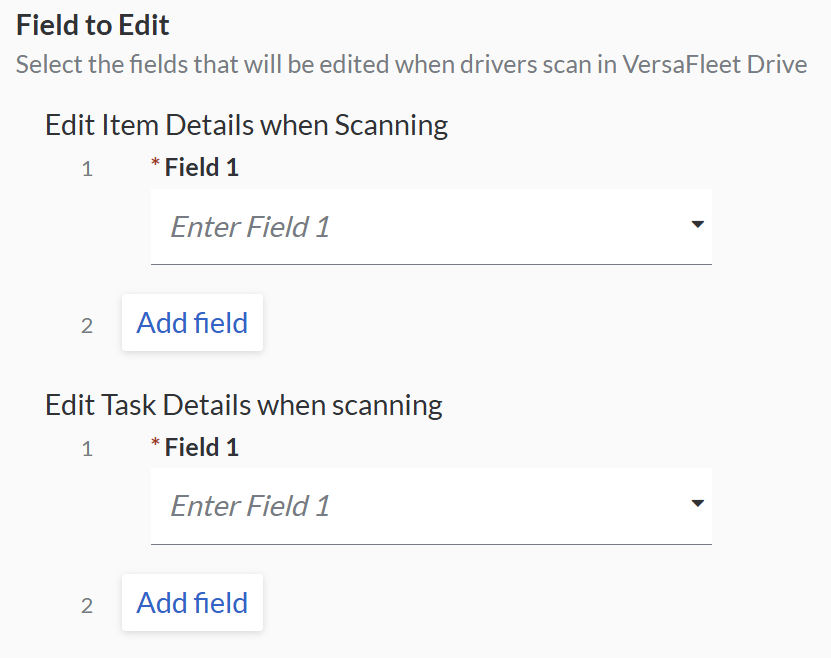
- If enabled, under 'Field to Edit', select the fields that will be edited when drivers scan in VersaFleet Drive:
- Hit Save Configuration to save.