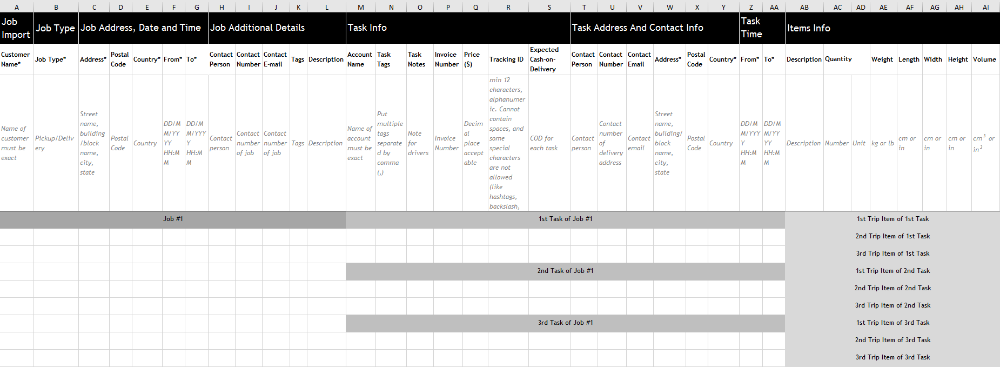
Jobs and Tasks can be created by uploading the Import Template. This is useful, especially when creating many tasks at one go or if you have an existing file with the orders.
Uploading Jobs
- Go to Planning > Map or Planning > Tasks.
- Select the Import Jobs button on the right.
- Click 'Download our template' to download the Import Jobs Template. Refer to the next section on how to prepare the Import Jobs Template
- Once the Import Jobs Template is ready, save the file.
- Back to VersaFleet, click Attach a file and select the spreadsheet.
- Hit Import Jobs and the information will be saved right into VersaFleet.
Preparing the Import Jobs Template
About the Import Jobs Template
There are 3 data types - Jobs. Tasks, and Items. These can be nested, meaning a Job can contain multiple Tasks, and each Task can contain multiple Items. Make sure you identify which fields belong to a Job or a Task, as this determines which rows must be filled up or left blank for the nesting to work correctly.
Data Structure
Next, we will need to decide on the data structure in the Import Jobs Template, as this will affect the downstream process when the drivers are working on the tasks via the VersaDrive app.
The aim is to create as few jobs as possible. Comparing between (1) 1 Job 1 Task and (2) 1 Job multiple tasks, the preferred data structure would be (2) 1 Job multiple tasks, assuming there is only 1 pickup location and 1 shift. If there are 2 pickup locations in a day, there will be 2 jobs with multiple tasks. If there are 2 shifts in a day, there will be 2 jobs with multiple tasks.
Here's how the Import Jobs Template will roughly look with the different data structures:
- 1 Job, multiple Tasks, each task has 1 Item

- 1 Job, multiple Tasks, each task has more than 1 Item
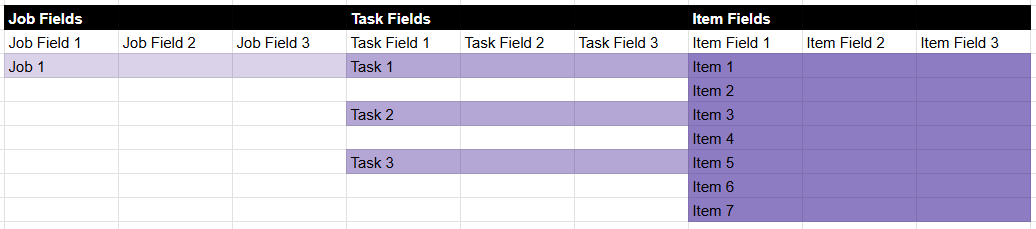
- 1 Job, 1 Task, each task has 1 Item

Mapping from an order file
If you already have an order file, instead of copying and pasting the data column by column, you can use formulas to pull the data from the order file into the import template.
Things to take note
- There can be more than 1 tab in the file. Make sure that the import template is at the 1st position, as we will only read the leftmost tab.
- Ensure that the file is under 10 MB.
Errors when importing
Tracking id used
Country not valid
Tag not in text format
File used again, wait 5 mins?
Other errors, contact support send us file
Tips for Importing Jobs
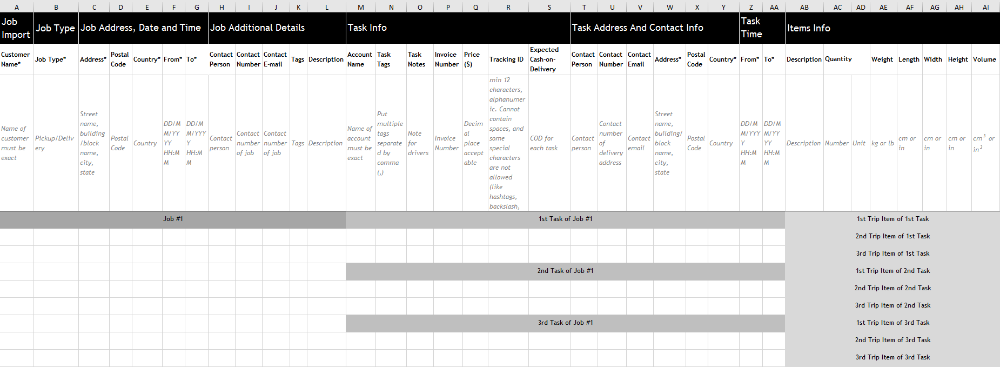
- Multiple Tasks and Items
- To create multiple tasks under a single job, you have to leave Columns A - Q blank and fill up Columns R to AK in the subsequent rows
- To create multiple items under a single task, you have to leave Columns R to AK blank and fill up Columns AL to AS in the subsequent rows.
- Your Job Import Template should roughly look like this:
- Postal codes that start with '0'
- Some postal codes may start with '0' and it may not appear when the task is created. To ensure that the '0' is there, add an apostrophe (') before the postal code. This forces the numbers to be treated as text by Excel.